Author: Jugal Shah

  • Customizing the Status Bar for each SQL Server Instance registered in CMS

    Problem:
    Steps to distinguish production and non-production SQL Servers registered in CMS while executing the query. Below article will guide you how to use customize colors in CMS.

    Solution
    To identify the production and non-production SQL Instances registered in CMS within the same group; you can use the Custom Color feature. In this article I will guide how to use to the custom color feature of CMS.

    Step 1: Connect to Central Management Server (CMS) from SSMS.
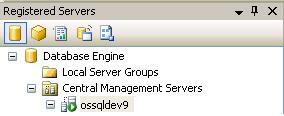
    Step 2: Right click on the registered CMS server and select properties.
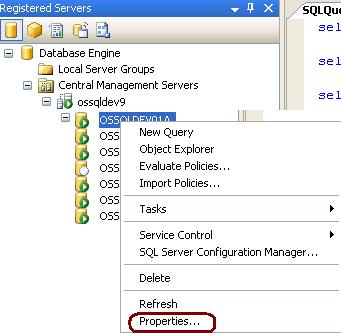
    Step 3:Go to Connection Properties tab, checked the Use Custom color box and select the desired color. Click on Save to proceed.

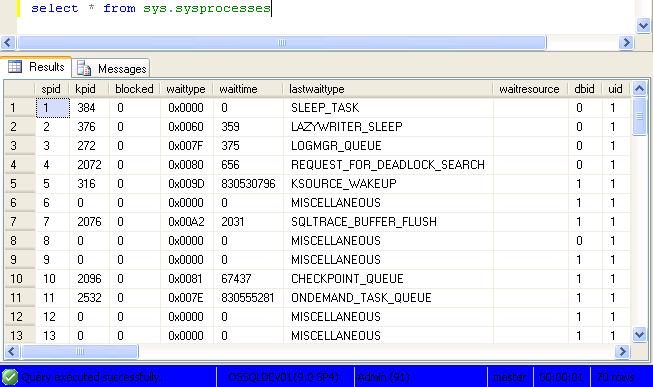
    Step 4: Right click on the SQL Instance and Open a new query window. You can see the blue color in the status bar. This way we can identify the production and non-production box. By specifying the custom colors.

    Ouput Image of SSMS
  • T-SQL to Check SQL ErrorLog file location

    At the start up of SQL Server records the startup parameter details into the error log.

    You can query the error log to check the error log file physical location.

    USE master
    GO
    xp_readerrorlog 0, 1, N'Logging SQL Server messages in file', NULL, NULL, N'asc'
    GO
    
  • Useful queries while troubleshooting Database Mirroring

    Useful queries while troubleshooting Database Mirroring

    Query to check the associated ports with DB Mirroring

    SELECT type_desc, port FROM sys.tcp_endpoints;
    GO
    

    Query to check the state of the DB Mirroring

    SELECT state_desc FROM sys.database_mirroring_endpoints
    GO
    

    Query to check the service account connect permission on the DB Mirror endpoints

    SELECT 'Metadata Check';
    SELECT EndPnt.name, SvrPerm.STATE,
       CONVERT(nvarchar(38), suser_name(SvrPerm.grantor_principal_id))
        AS GRANTOR,
       SvrPerm.TYPE AS PERMISSION,
       CONVERT(nvarchar(46),suser_name(SvrPerm.grantee_principal_id))
        AS GRANTEE
       FROM sys.server_permissions SvrPerm, sys.endpoints EndPnt
       WHERE SvrPerm.major_id = EndPnt.endpoint_id
       ORDER BY Permission, grantor, grantee;
    GO
    

    Query to check the DB Mirror timeout and resetting the DB Mirror timeout

    SELECT mirroring_connection_timeout
    FROM
    sys.database_mirroring
    GO
    
    ALTER DATABASE SQLDBPOOL SET PARTNER TIMEOUT 15
    GO
    
  • Create a 32-bit DSN on 64-bit machine for SQL Server

    Problem
    During the install of an application on a 64-bit Windows machine, the application was unable to list the ODBC System DSN because it had been setup as a 64-bit DSN and the application needed a 32-bit system DSN for connectivity to SQL Server. In this tip, we cover how to create a 32-bit DSN on 64-bit machine.

    Solution
    http://www.mssqltips.com/sqlservertip/2498/create-a-32bit-dsn-on-64bit-machine-for-sql-server/