Category: Archive

Engineering notes from 2008–2014: SQL Server scripts, DBA quick-tips, and field notes from the trenches. Preserved as written — the foundation everything since was built on.

  • Powershell – To check the Drive and Disk Space Information

    To get the disk space details of the server, simply go to command prompt and paste the below script it will give you disk space details.

    powershell -command "& {Get-WmiObject -Class Win32_LogicalDisk -Filter 'DriveType = 3' |select PSComputerName, Caption,@{N='Capacity_GB'; E={[math]::Round(($_.Size / 1GB), 2)}},@{N='FreeSpace_GB'; E={[math]::Round(($_.FreeSpace / 1GB), 2)}},@{N='PercentUsed'; E={[math]::Round(((($_.Size - $_.FreeSpace) / $_.Size) * 100), 2) }},@{N='PercentFree'; E={[math]::Round((($_.FreeSpace / $_.Size) * 100), 2) }}}"
    

    Sample Output
    Caption : C:
    Capacity_GB : 283.44
    FreeSpace_GB : 51.48
    PercentUsed : 81.84
    PercentFree : 18.16

  • Powershell Script to Check – Number of Cores and Logical Processors

    Execute the below powershell script to get the number of cores and logical processors on the server.

    Get-WmiObject –class Win32_processor | ft systemname,Name,DeviceID,NumberOfCores,NumberOfLogicalProcessors, Addresswidth
    

    You can even check all the processor values from win32_Processor class.

    Get-WmiObject –class Win32_processor | select *
    
  • How to install IIS on Windows 7?

    IIS is mandatory for the Virtual Server installation, in this article I will guide you how you can install the IIS on windows 7 or windows vista.


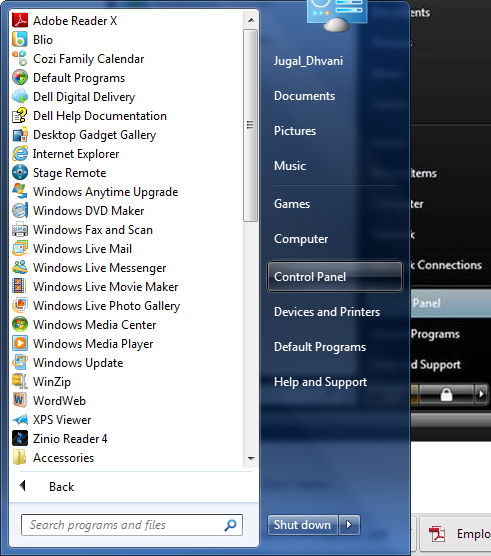
    Step 1: click Start, and then click Control Panel


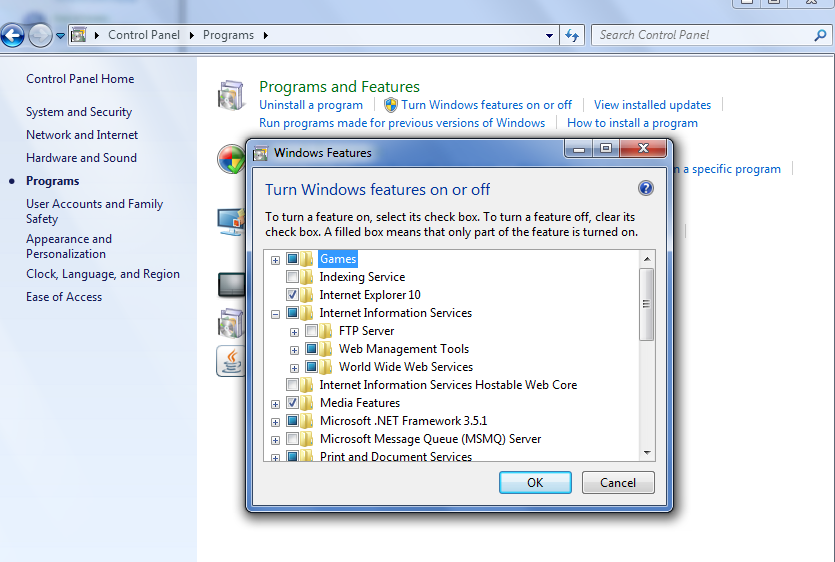
    Step 2: In the Control Panel, click Programs then Click Turn Windows features on or off and from Windows Features dialog box Select Internet Information Services to choose the default features for installation.