Dear Readers,
You can check out IntelliSense Article on MSSQLTips.com.
Click Me to read…
Thanks,
Jugal Shah
Dear Readers,
You can check out IntelliSense Article on MSSQLTips.com.
Thanks,
Jugal Shah
Central Management Server
SQL Server Central Management Server is just a central repository that holds a list of managed servers. Microsoft has introduced CMS feature in SQL Server 2008 SSMS.
Use of Central Management Server
1. Multiple Server Query Execution, we can execute query against multiple servers and get the result at source.
2.Centralize the management and administration of a number of SQL Server instances from a single source can allow the DBA to save significant time and effort.
3.Evaluate policy against the multiple server from single source.
4.Control Services and bring up SQL Server Configuration Manager
5.Import and export the registered servers:
Pre-requisite:
You must have at least 1 SQL Server 2008 instance which can be used as CMS
Steps to Create CMS and Register Server
1. Open the “Registered Servers” from the “View” Menu in the management studio of SQL server 2008.
2. Right click on the Central Management Servers and select “Register Central Management Server” and Register the SQL Server 2008 instance as CMS.
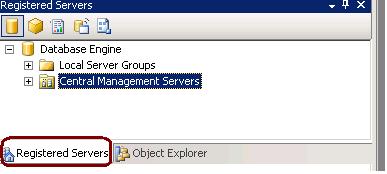
3. Create the groups under Registered CMS servers to define the group for each server.
4. Right Click on groups and register the all the SQL Server instances as per their group. (SQL Server 2000,2005 and 2008)
What is Alias?
A SQL Server alias is the user friendly name. For example if there are many application databases hosted on same SQL Server. You can give the different alias name for each application. Simply Alias is an entry in a hosts file, a sort of hard coded DNS lookup a SQL Server instance.
You can create Alias from Configuration Manager.
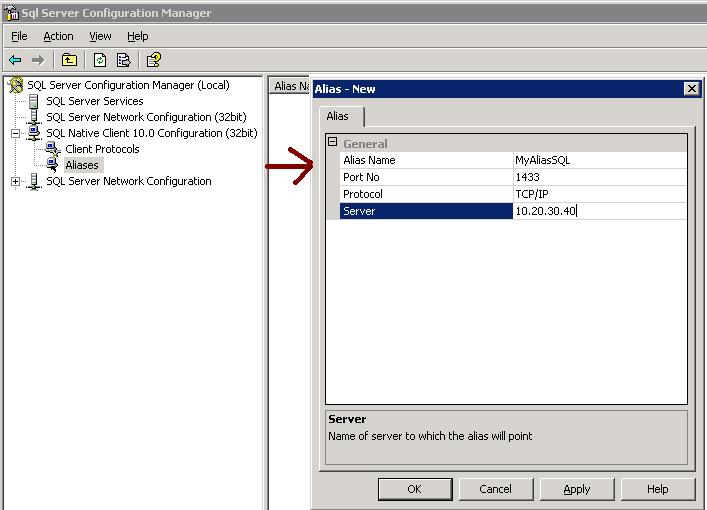
Go to SQL Server Configuration manager – Go to SQL Native Client -> Right Click and SELECT New Alias from the popup window.
Alias Name — Alernative name of SQL Server
Port No — Specify the Port No
Server – Mentioned the Server Name or IP address
Make sure On a 64-bit system, if you have both 32-bit and 64-bit clients, you will need to create an alias for BOTH 32-bit and 64-bit clients.
As best practice it is recommended that you have to backup date time with the backup file name so anyone can get the idea of Backup creation.
Sometimes due some issue we took backup without specifying the datetime with the backup file name so during restore we are unsure that how much data backed up in the backup file, type of backup, Is it Copy only and more.
SQL Server stores the Backup Metadata into backup header. You can restore header only command to get the required information.
RESTORE headeronly FROM disk = ‘c:\jshah.bak’
| Column Name | Values | Description |
| BackupName | NULL | |
| BackupDescription | NULL | |
| BackupType | 1 | Backup type: 1 = Database 2 = Transaction log 4 = File 5 = Differential database 6 = Differential file 7 = Partial 8 = Differential partial |
| ExpirationDate | NULL | |
| Compressed | 0 | 0 = Un-Compressed Backup 1 = Compressed Backup |
| Position | 1 | |
| DeviceType | 2 | |
| UserName | JShah | |
| ServerName | SQLDBPool | |
| DatabaseName | jshah | |
| DatabaseVersion | 655 | |
| DatabaseCreationDate | 12/31/10 9:55 AM | |
| BackupSize | 1453056 | |
| FirstLSN | 28000000006000100 | |
| LastLSN | 28000000013000000 | |
| CheckpointLSN | 28000000006000100 | |
| DatabaseBackupLSN | 0 | |
| BackupStartDate | 12/31/10 10:06 AM | |
| BackupFinishDate | 12/31/10 10:06 AM | |
| SortOrder | 52 | |
| CodePage | 0 | |
| UnicodeLocaleId | 1033 | |
| UnicodeComparisonStyle | 196609 | |
| CompatibilityLevel | 100 | |
| SoftwareVendorId | 4608 | |
| SoftwareVersionMajor | 10 | |
| SoftwareVersionMinor | 0 | |
| SoftwareVersionBuild | 2757 | |
| MachineName | SQLDBPool | |
| Flags | 512 | 1 = Log backup contains bulk-logged operations. 2 = Snapshot backup. 4 = Database was read-only when backed up. 8 = Database was in single-user mode when backed up. 16 = Backup contains backup checksums. 32 = Database was damaged when backed up, but the backup operation was requested to continue despite errors. 64 = Tail log backup. 128 = Tail log backup with incomplete metadata. 256 = Tail log backup with NORECOVERY. |
| BindingID | 85A5505D-ADB1-4B33-A181-549DC520A0F8 | |
| RecoveryForkID | 03DE5437-1E27-4885-9011-91CFED12338A | |
| Collation | SQL_Latin1_General_CP1_CI_AS | |
| FamilyGUID | 03DE5437-1E27-4885-9011-91CFED12338A | |
| HasBulkLoggedData | 0 | 1 = Yes 0 = No |
| IsSnapshot | 0 | 1 = Yes 0 = No |
| IsReadOnly | 0 | 1 = Yes 0 = No |
| IsSingleUser | 0 | 1 = Yes 0 = No |
| HasBackupChecksums | 0 | 1 = Yes 0 = No |
| IsDamaged | 0 | 1 = Yes 0 = No |
| BeginsLogChain | 0 | 1 = Yes 0 = No |
| HasIncompleteMetaData | 0 | 1 = Yes 0 = No |
| IsForceOffline | 0 | 1 = Yes 0 = No |
| IsCopyOnly | 0 | 1 = Yes 0 = No |
| FirstRecoveryForkID | 03DE5437-1E27-4885-9011-91CFED12338A | |
| ForkPointLSN | NULL | |
| RecoveryModel | FULL | |
| DifferentialBaseLSN | NULL | |
| DifferentialBaseGUID | NULL | |
| BackupTypeDescription | Database | |
| BackupSetGUID | 62EB4399-C119-42C2-91F1-BF0FF19CB896 | |
| CompressedBackupSize | 1453056 |
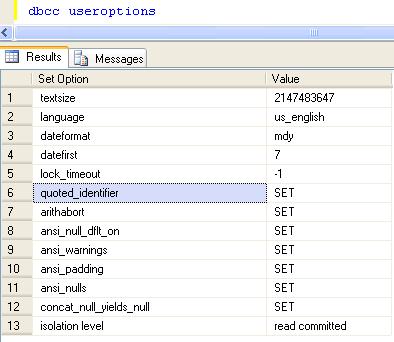
You can use below query to check the database isolation level.
DBCC UserOptions