Category: OS and SQL

  • Task Scheduler Error – specified logon session does not exist

    Recently I got a task to move windows server 2003 to windows server 2008. Task is designed to execute .CMD file which internally calling .BAT file. Task was designed to run using service account with store password on windows server 2003.

    First of all I was unable to import the task to windows server 2008 due to format issue so I have created new scheduled task and specify the location of .CMD file to execute when I configured the service account and try to store the password I got the below error.

    An error has occurred for the task MyProfileTask. Error message: The following error was reported: A specified logon session does not exist. It may have already been terminated.

    To resolve the above error follow the below steps.

    Step 1: Go to run window and type SECPOL.msc and it will open Local Group Policy editor window
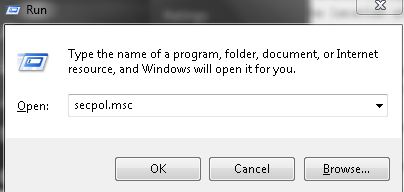
    Image1

    Step 2: Go to Security Settings –> Local Policies –> Security Options and disable the Network Access: Do not allow storage of passwords and credentials for network authentication option.
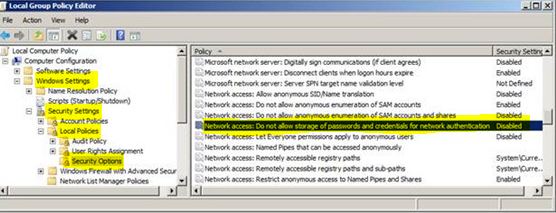
    Image2

  • Script to get the SQL Server Properties

    You can execute the below script to get the SQL Server Properties.

    create table #server(ID int,  Name  sysname null, Internal_Value int null, Value nvarchar(512) null)
    insert #server exec master.dbo.xp_msver
    
    declare @RegRootDir nvarchar(512)
    exec master.dbo.xp_instance_regread N'HKEY_LOCAL_MACHINE', N'SOFTWARE\Microsoft\MSSQLServer\Setup', N'SQLPath', @RegRootDir OUTPUT
    
    SELECT
    (select Value from #server where Name = N'ProductName') AS [Product],
    SERVERPROPERTY(N'ProductVersion') AS [VersionString],
    (select Value from #server where Name = N'Language') AS [Language],
    (select Value from #server where Name = N'Platform') AS [Platform],
    CAST(SERVERPROPERTY(N'Edition') AS sysname) AS [Edition],
    (select Internal_Value from #server where Name = N'ProcessorCount') AS [Processors],
    (select Value from #server where Name = N'WindowsVersion') AS [OSVersion],
    (select Internal_Value from #server where Name = N'PhysicalMemory') AS [PhysicalMemory],
    CAST(SERVERPROPERTY('IsClustered') AS bit) AS [IsClustered],
    @RegRootDir AS [RootDirectory],
    convert(sysname, serverproperty(N'collation')) AS [Collation]
    
    drop table #server


    Output

    Product VersionString Language Platform Edition Processors OSVersion PhysicalMemory IsClustered RootDirectory Collation
    Microsoft SQL Server 10.0.1600.22 English (United States) NT INTEL X86 Enterprise Edition 4 6.0 (6002) 3496 0 C:\Program Files\Microsoft SQL Server\MSSQL10.MSSQLSERVER\MSSQL SQL_Latin1_General_CP1_CI_AS
    
    
  • Prevent Truncation of Dynamically Generated Results in SQL Server Management Studio

    Problem
    While working with the Results to Text option in SSMS, you may come across a situation where the output from dynamically generated data is truncated. In this article I will guide you on how to fix this issue and print all the text for the Results to Text option.

    Solution
    http://www.mssqltips.com/sqlservertip/2795/prevent-truncation-of-dynamically-generated-results-in-sql-server-management-studio/

  • Lock Windows/Desktop with a Single Keystroke

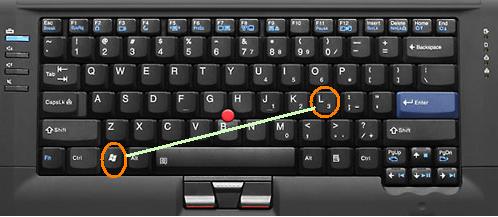
    You can lock the windows/desktop using single keystroke “Windows” + “L”, instead of CTRL + ALT + DEL + ENTER