Category: SQL Server

  • Activity Monitor

    In SQL Server 2008, Activity Monitor has below five sections namely Overview, Processes, Resource Waits, Data File I/O and Recent Expensive Queries.

    Overview Section
    This shows the graphical display of Processor Time (%), Number of Waiting Tasks, Database I/O (MB/Sec) and the Number of Batch Requests/second.

    Processes: – section will show you the list of all the active users which are connected to SQL Server Database Engine. You can even KILL the sessions from here.

    Resource Waits – Shows wait state information. It will help DBAs to identify potential bottlenecks with respect to Memory, CPU, Network I/O, Cache etc

    Data File I/O – Shows I/O information for database data and log files. You can troubleshoot DISK IO related issues from here.

    Recent Expensive Queries – Shows information about the most expensive queries. You can check the execution plan as well by just doing right click.

  • How to Open Activity Monitor from SSMS tool?

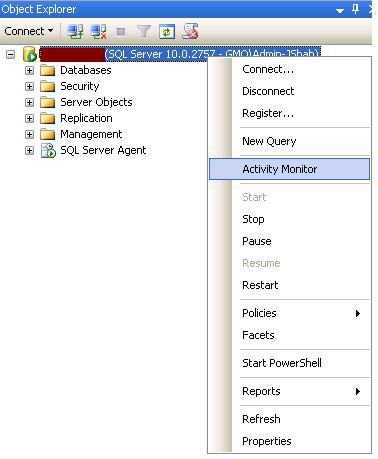
    To start Activity Monitor in SQL Server 2008 SSMS, right-click on the SQL Server name you want to monitor.

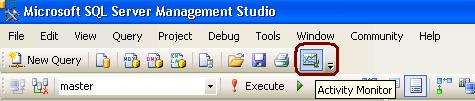
    From  SQL Server 2008 Management Studio’s toolbar, click Activity Monitor as shown in the snippet below.

  • How to check SQL Server Version Or Build No?

    Option 1
    EXEC master..sp_MSgetversion
    Output
    Character_Value
    ——————– ———– ———–
    10.0.2789.0 1 3

    Option 2
    select @@version
    Output
    Microsoft SQL Server 2008 (SP1) – 10.0.2789.0 (X64)
    Jul 12 2010 19:21:29
    Copyright (c) 1988-2008 Microsoft Corporation
    Enterprise Edition (64-bit) on Windows NT 5.2 (Build 3790: Service Pack 2)

    Option 3
    SELECT SERVERPROPERTY('productversion')
    Output Build Version
    10.0.2789.0

    Option 5
    SELECT SERVERPROPERTY ('productlevel')
    Output-Service Pack
    SP1

    Option 6
    SELECT SERVERPROPERTY ('edition')
    Output-Edition
    Enterprise Edition (64-bit)

  • Operating System Error 112

    Operating system error 112 describes the insufficient disk space on drive.

    OS Error 112 occured while Backup
    1. Delete the old backuo files on drive if not required
    2. Archieve the old files to tape
    3. Compress the old backup files to create space
    4. Take the backup on other drive

    OS Error 112 occured while Restore
    1. Shrink the data and log file using DBCC ShrinkFile to reclaim space
    2. Move un-necessary files to other drives (.Bakup or etc)