You can follow the below steps to change the password of the logged in account using RDP.
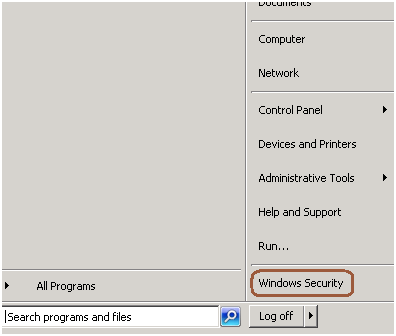
Step 1: Go to Start -> Windows Security
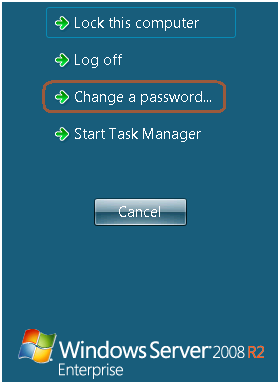
Step 2: Click on change password
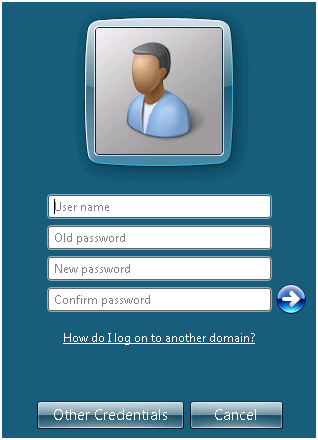
Step 3: Change the password as mentioned in the below screen.

You can follow the below steps to change the password of the logged in account using RDP.
Step 1: Go to Start -> Windows Security
Step 2: Click on change password
Step 3: Change the password as mentioned in the below screen.

Thank you very much

And how do you do the same on Windows Server 2012?


Thanks for the comment, will get back to you soon… Jugal Shah