You can follow the below steps to change the password of the logged in account using RDP.
Step 1: Go to Start -> Windows Security
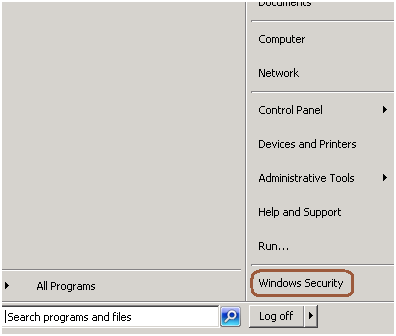
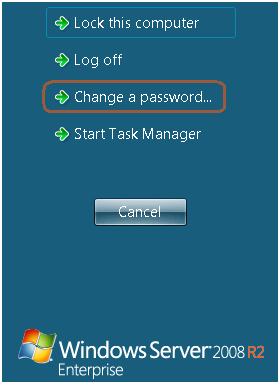
Step 2: Click on change password
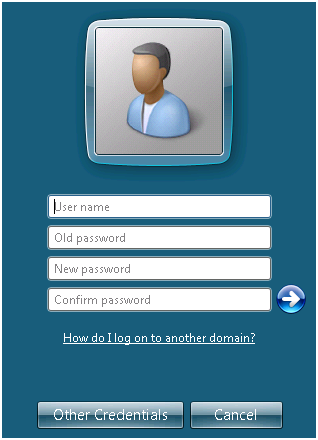
Step 3: Change the password as mentioned in the below screen.
You can follow the below steps to change the password of the logged in account using RDP.
Step 1: Go to Start -> Windows Security
Step 2: Click on change password
Step 3: Change the password as mentioned in the below screen.
In SQL Server a view represents a virtual table. Just like a real table, a view consists of rows with columns, and you can retrieve data from a view (even you can INSERT/UPDATE/DELETE data in a view). The fields in the view’s virtual table are the fields of one or more real tables in the database. You can use views to join two tables in your database and present the underlying data as if the data were coming from a single table, thus simplifying the schema of your database for users performing ad-hoc reporting. You can also use views as a security mechanism to restrict the data available to end users
See the below example how we can make the view read only.
--creating a sample table
Create table tbl1
(
	myID int,
	name varchar(10)
)

--inserting data
insert into tbl1 values(1,'Jugal'),(2,'SQL'),(3,'DBPool')

--creating sample view
create view vwtbl1
as
select * from tbl1

--inserting data using view
insert into vwtbl1 values(1,'Jugal'),(2,'SQL'),(3,'DBPool')

--altering view to make it readOnly
alter view vwtbl1
as
select myid,name from tbl1
union all
select 0,0 where 1 =0
INSERT/UPDATE/DELETE will fail with the below errors.
Msg 4406, Level 16, State 1, Line 1

Update or insert of view or function 'vwtbl1' failed because it contains a derived or constant field.
Msg 4426, Level 16, State 1, Line 1
View 'vwtbl1' is not updatable because the definition contains a UNION operator.
Problem: Property IsLocked is not available for Login ‘[sa]’. This property may not exist for this object, or may not be retrievable due to insufficient access rights. (Microsoft.SqlServer.Smo)
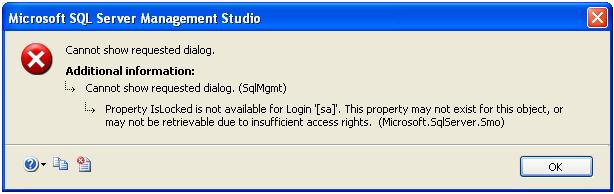
Solution: You will get the above error, in case of one of the below issue.
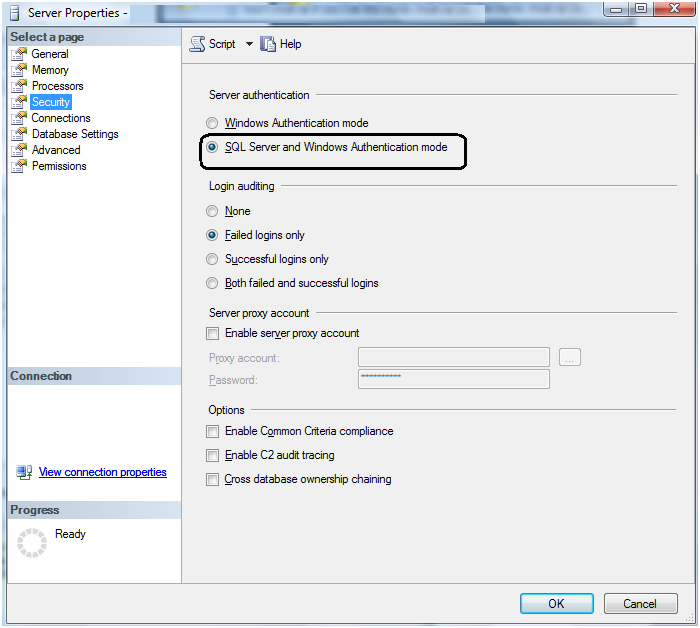
SQL Server authentication mode is Windows Only
You can check the SQL Server authentication mode using below query.
SELECT
CASE
SERVERPROPERTY(‘IsIntegratedSecurityOnly’)
WHEN 1 THEN
‘Windows Authentication’
WHEN 0 THEN
‘Windows and SQL Server Authentication’
END
as [Authentication Mode]
If the authentication mode Windows, you have to change the authentication mode is Mix Mode. You can change the authentication mode by right click on Server Properties -> Security tab.
This requires SQL Server Service restart.
SA Account is locked/Disable
You can execute below query to check whether SA account is locked or not. If the account is locked it will return 1 and 0 for un-locked.
SELECT
LOGINPROPERTY(‘sa’,
‘IsLocked’)
You can investigate whether SA account is locked by bad Password using below query. It will return the count of consecutive failed login attempts
SELECT
LOGINPROPERTY(‘sa’,
‘BadPasswordCount’);
GO
Right click on SA account and check the SA account properties, check the below properties of the SA login whether it is disabled or locked.
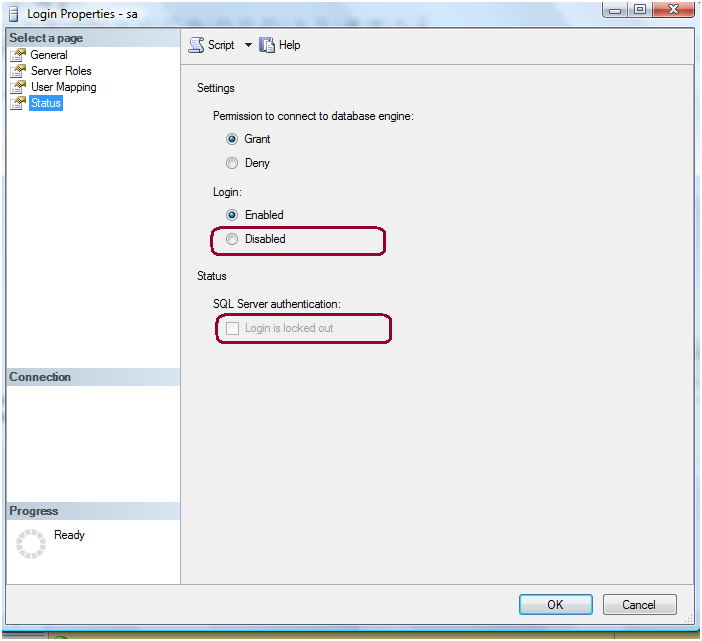
Execute the below script to unlock and enable the SA account
ALTER
LOGIN [sa] WITH
PASSWORD=N’Password’,
DEFAULT_DATABASE=[master],
DEFAULT_LANGUAGE=[us_english],
CHECK_EXPIRATION=OFF,
CHECK_POLICY=OFF
GO
ALTER
LOGIN [sa] ENABLE
GO
DAC: Dedicated Administrator Connection feature is available from the SQL Server 2005. It is available in all the higher editions by default except express edition. DAC will be useful when SQL Server is not responding any connections; in such kind of situation DBA will connect through the DAC and troubleshoot/fix the issue.
You can execute below kind of command for the initial troubleshooting.
-- Locking Info
SELECT * FROM sys.dm_tran_locks
GO
-- Running Sessions
SELECT * FROM sys.dm_exec_sessions
GO
-- Requests Status
SELECT * FROM sys.dm_exec_requests
GO
--Open Sessions
SP_WHO2
--To get the SQL Text
DBCC OPENTRAN (SPID)
--To terminate the curlprit process
KILL SPID
DAC is disabled by default, it is a good practice to enable the DAC. You can enable the DAC using by executing below query.
Use master
GO
--0 = Allow Local Connection,
--1 = Allow Remote Connections*/
sp_configure 'remote admin connections', 1
GO
RECONFIGURE
GO
You can connect using DAC on of the following method.
Command Prompt
SQL Server Management Studio
Using Command Prompt: Use SQLCMD utility to connect to SQL Server as below.
-A argument is to specify the DAC connection.
-S argument is to specify the server name.
-d argument is to specify the database name.
-E argument is for windows connection with integrated security true

Using Management Studio: Write ADMIN: before the server name in management studio connection window. It will give you the DAC connection.
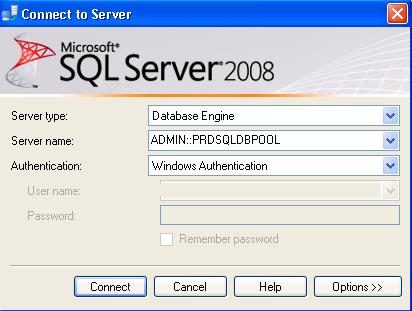
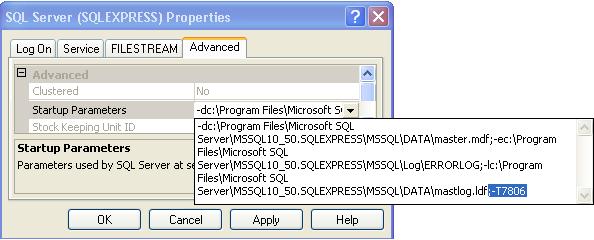
To enable the DAC connection in SQL Server express edition add ;-T7806 trace flag as startup parameter.
Go into configuration manager — right click on SQL Server Service and select properties — go into advanced tab and add the trace flag ;-T7806. Once done restart the SQL Server Services.
SQL Server 2011 AKA Denali
As we all aware about that, Microsoft has released SQL Server 2011 CTP1. CTP stands for Community Technology Preview and it is a beta version of upcoming release.
Minimum Software and Hardware Requirement
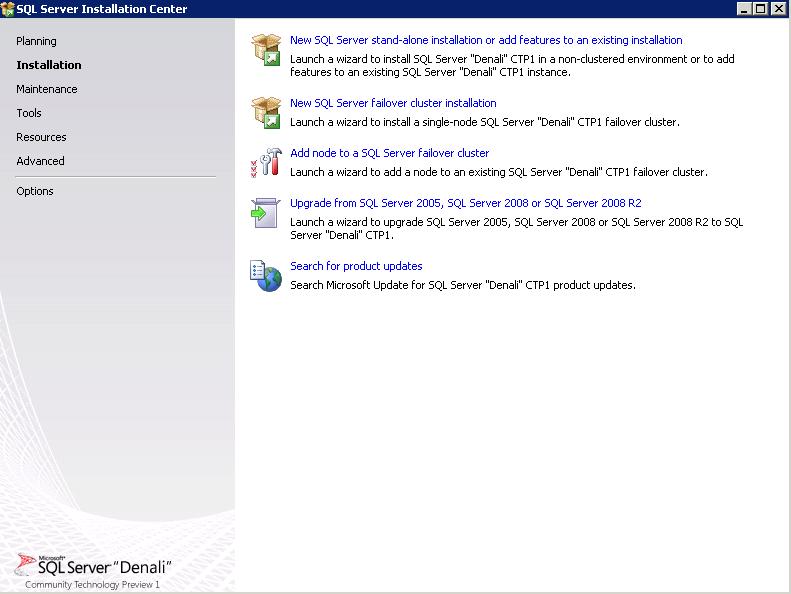
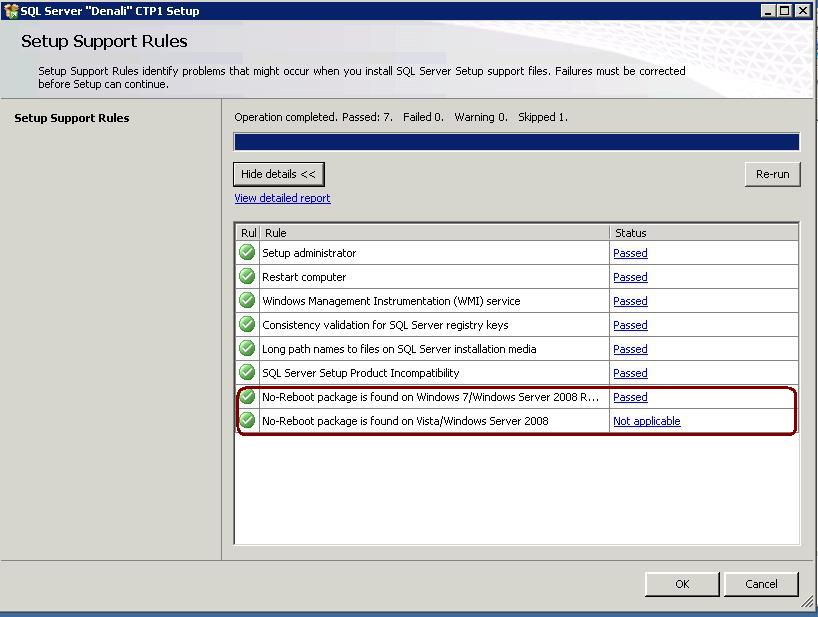
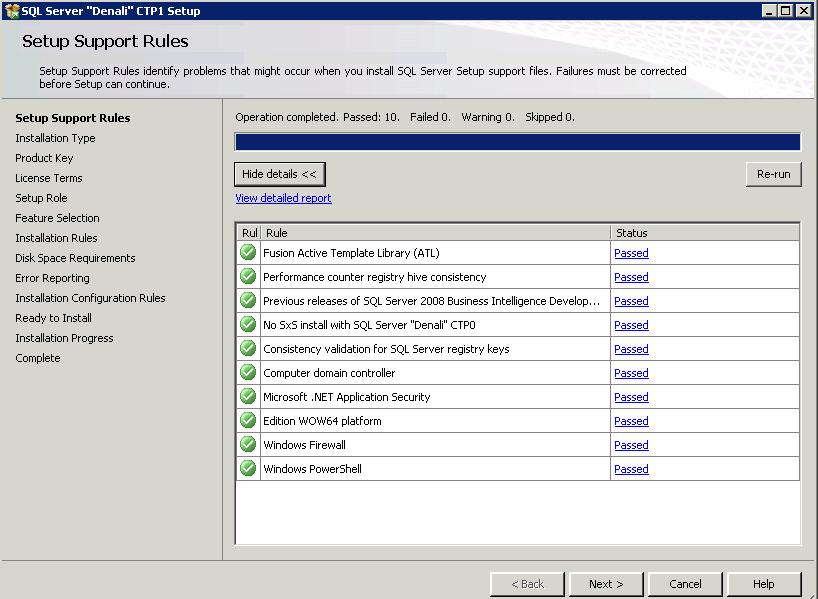
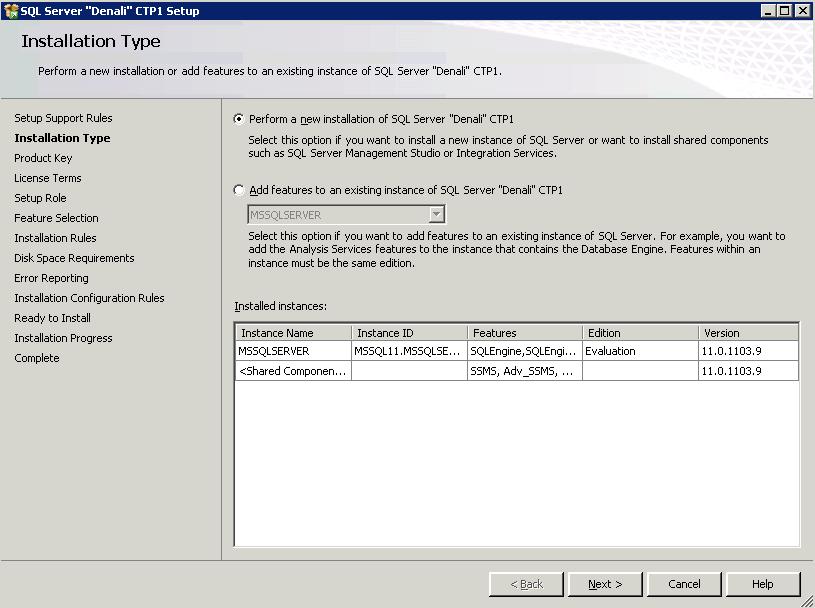
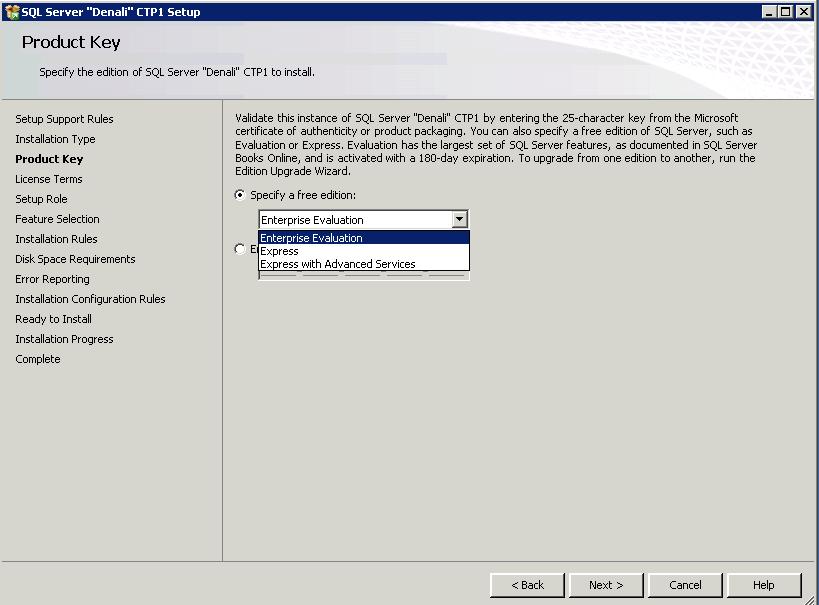
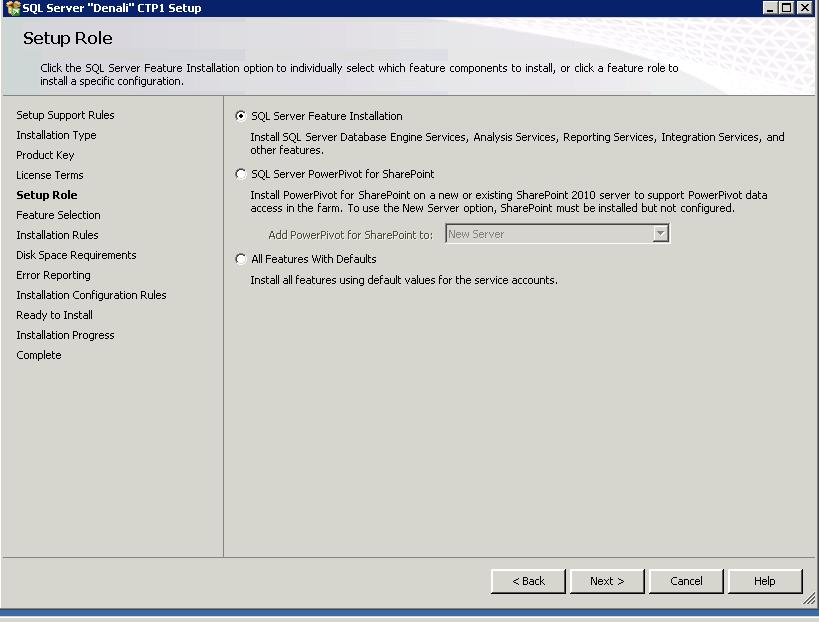
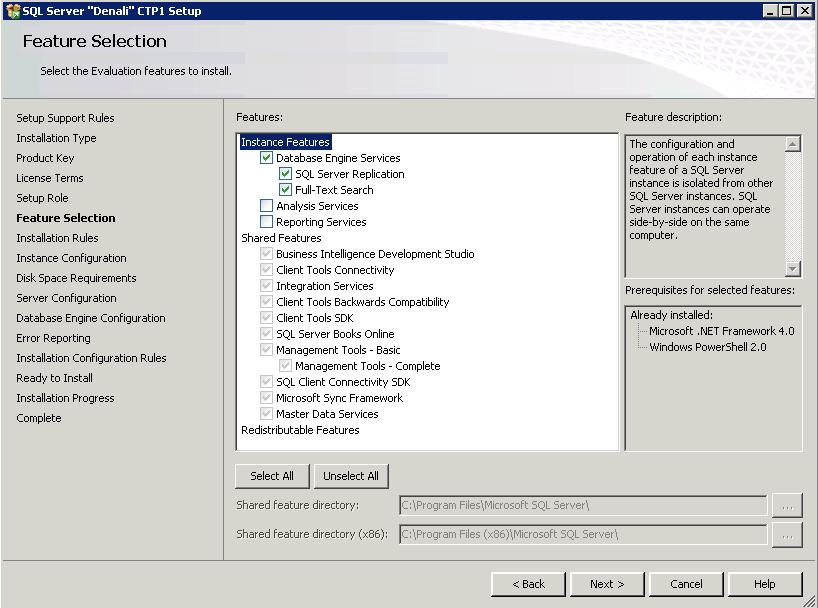
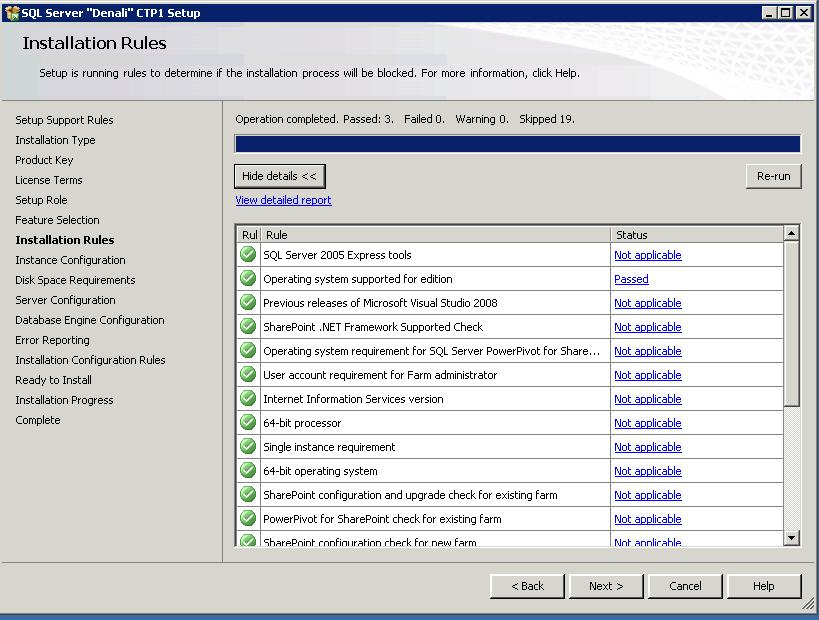
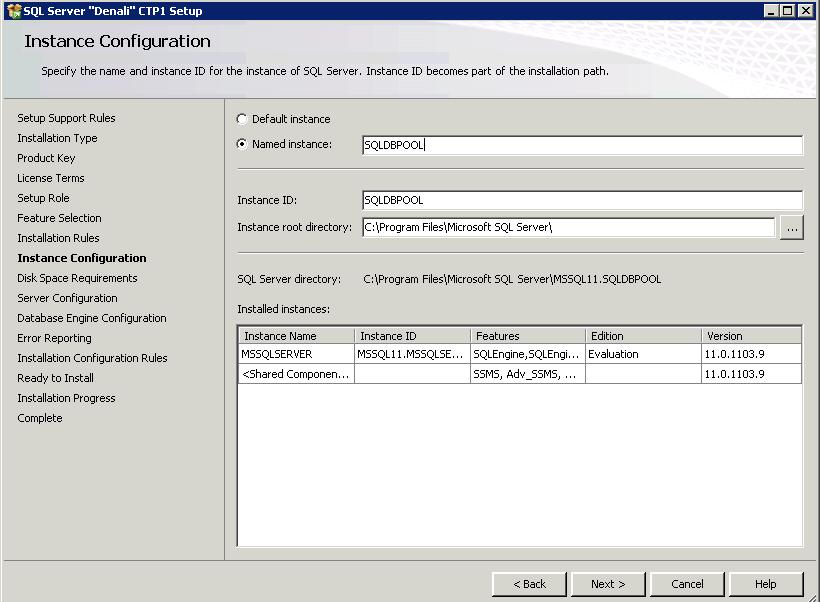
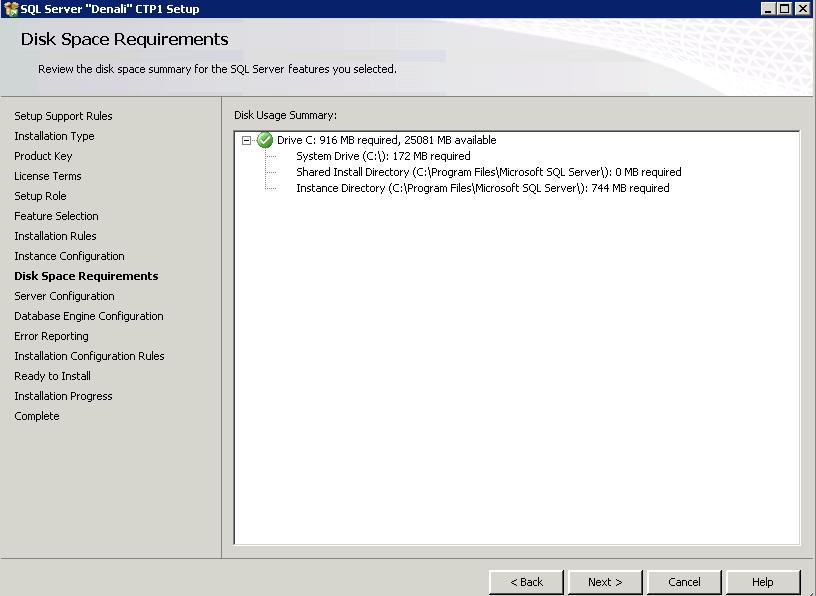
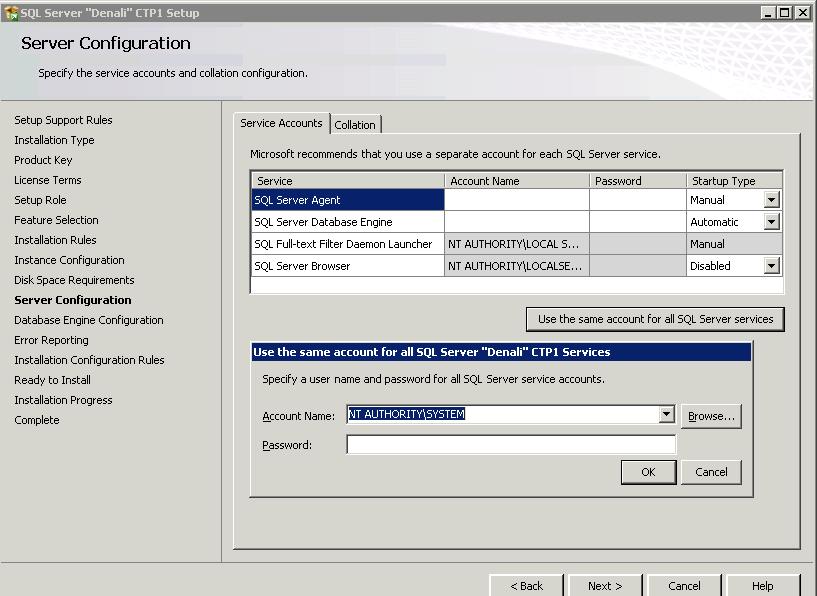
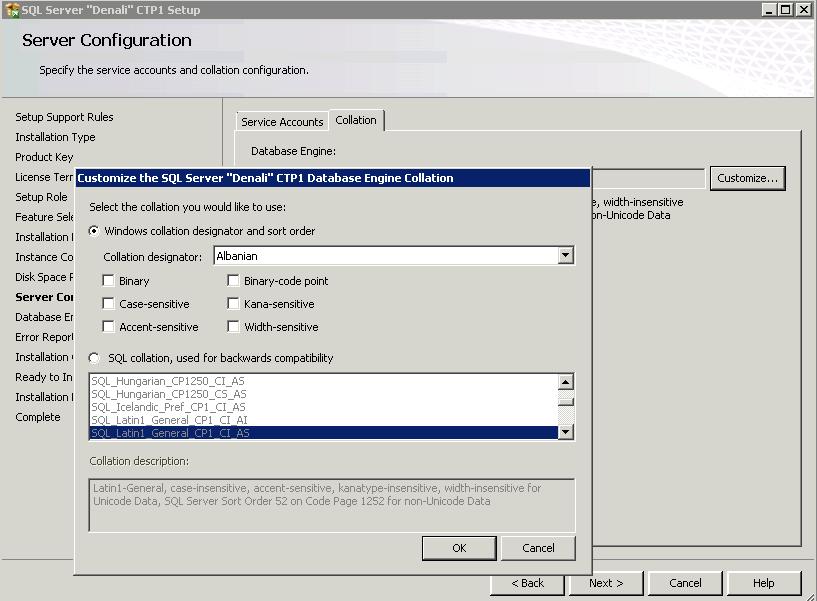
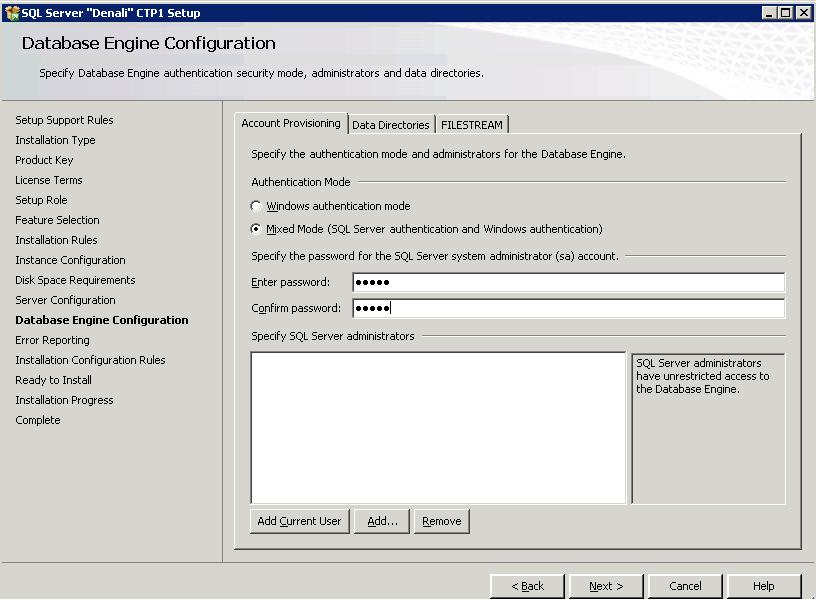
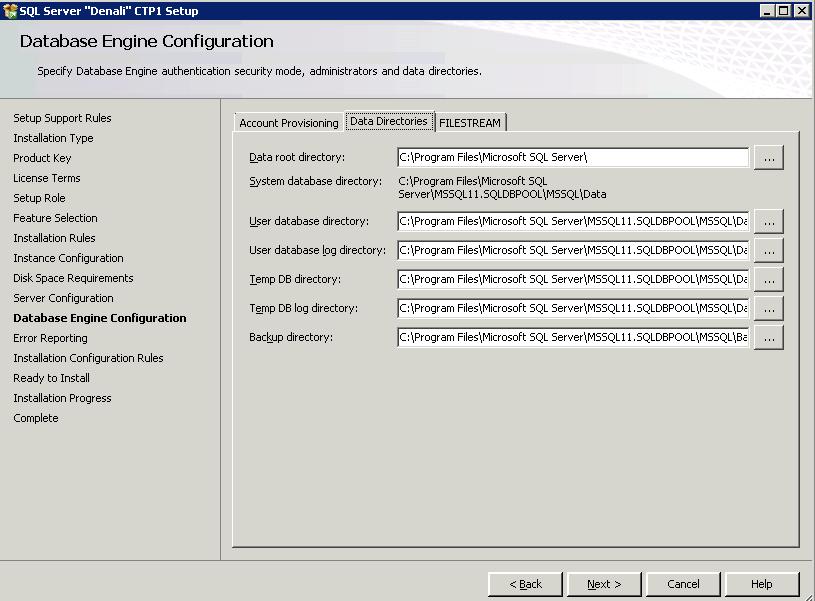
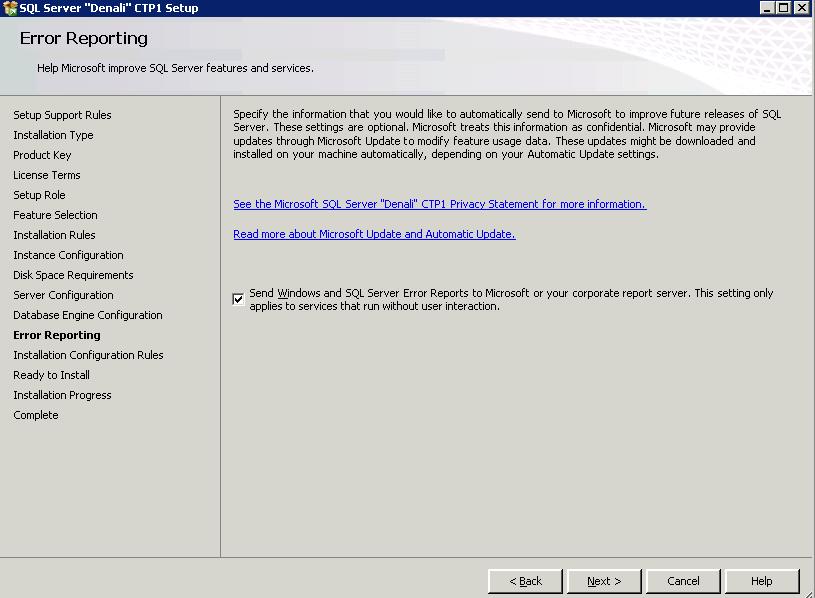
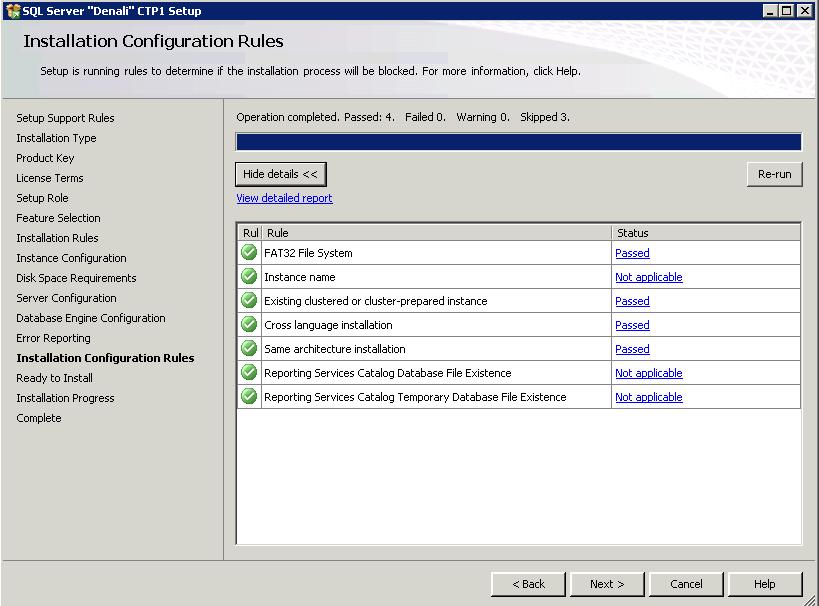
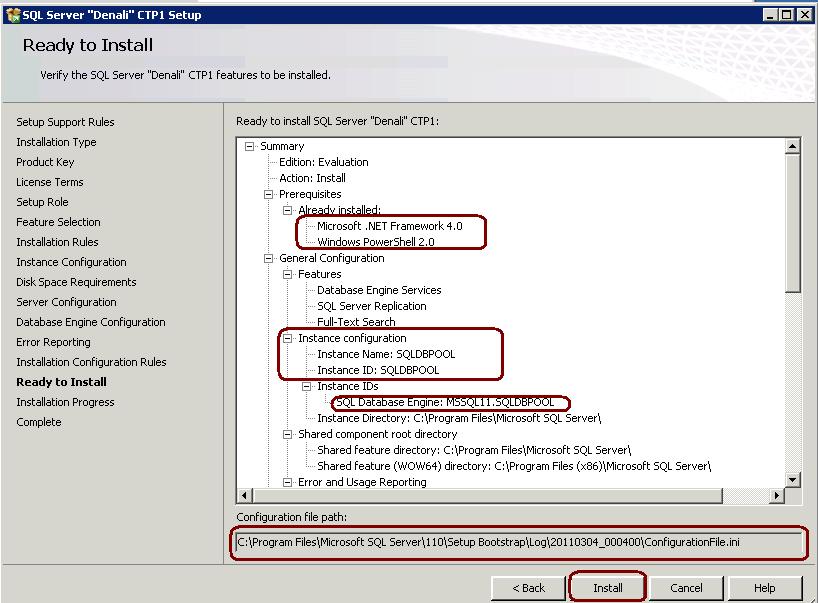
SQL Server 2011 AKA Denali Installation Steps