Are you doing a lot of SQL coding every day and looking devouringly at every tool offering replacement of the native SSMS IntelliSense available only for SQL Server 2008? Then don’t miss Devart dbForge SQL Complete while you are seeking an assistant to do the boring part of your work that should have been automated and simplified long ago.
General Information
The tool is available in two editions:
Express – a free edition providing basic functionality to complete and format SQL code.
Standard – fully-featured edition providing all necessary functionality for completing and formatting T-SQL code.
30-day trial period available for Standard Edition should be enough for anyone to test all product features and check if it meets one’s requirements.
During evaluation and usage, you can submit requests and suggestions to the tool’s support team. Besides, you can take part in creating its development roadmap at UserVoice.
Features
- Context-based prompt of different object types
- Context-based prompt of keywords
- Context-based prompt of function parameters
- Word autocompletion
- Automatic filtering of object in the suggestion list
- Context-based sorting of suggestions in the list
- Determining a current database or schema
- Supporting queries to various databases
- Automatic displaying suggestions while typing
- Two ways to insert a suggested word into a query
- Usage of syntax highlight settings for the suggestions list
- Query formatting
- Support of various query types
- Semi-transparent view of the suggestion box
- Inserting columns list on pressing Tab
- Suggesting methods for columns and variables
- Suggesting conditions for JOIN statement
- Automatic alias generation in SELECT statements
- Sorting keywords by relevance
- Quick object info
- Expanding INSERT statements
- Export/Import settings wizard
Review
I chose to install trial of SQL Complete Standard Edition. The installation took several seconds, and the tool and all its options are ready to use and easy to access from the SQL Server Management Studio main menu:
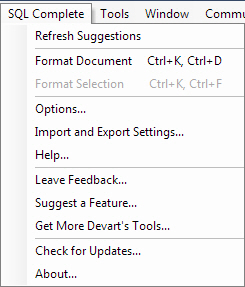
OK, but we will peep into the options later, when we see how the tool actually works and be sure that it’s worth spending time on learning different advanced settings. Now we want to type any query we think of first. This can be as simple as SELECT * FROM:
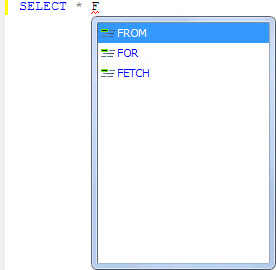
What can we see? The tool filtered available suggestions depending on the probability of their usage. This saved me from tedious selecting of the needed word in a list sorted alphabetically (imagine it was the last one in it!) or typing almost the whole word
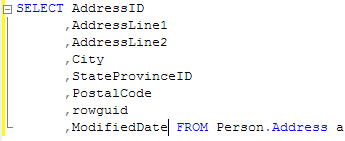
Now I’d like to exclude some columns from the table I am working with in this statement. Unfortunately, the “*” symbol is rarely replaced with the columns list by code author. But I found a way to do this quickly and effortlessly using the tool – just pressed Tab, as was written in the hint, and it was all:
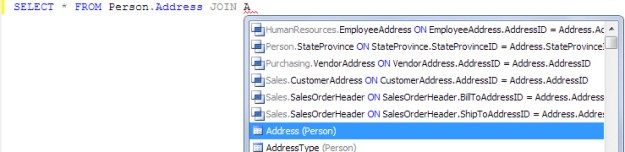
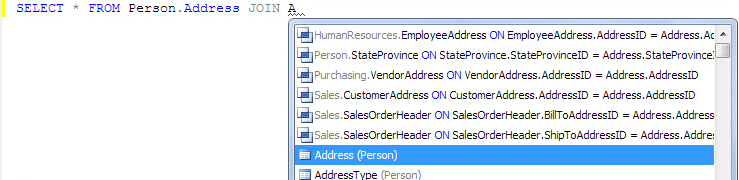
Surely, you often have to join tables in queries just as I do. Quite simply, these statements allow combining data in multiple tables to quickly and efficiently process large quantities of data, but often they take too much time to write. There is a feature declaring SQL Complete capability to do such a trick painlessly for the one who is writing code:
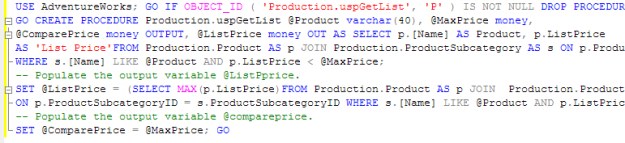
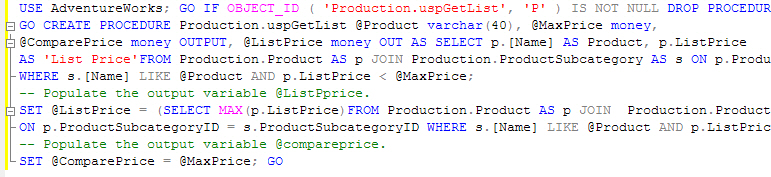
I can say these were positive impressions, and the tool is really worth spending more time for testing. I decided on using some more complicated unformatted query, as the vendor puts emphasis on the tool’s advanced formatting capabilities. Here’s what we’ve got:
Before:
After:
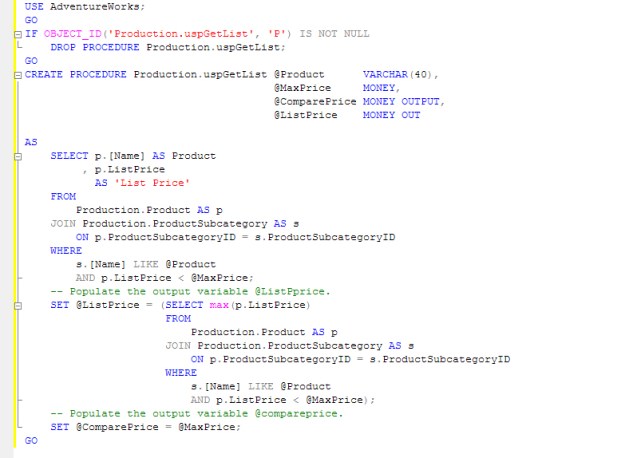
My query was successfully formatted and is readable now.
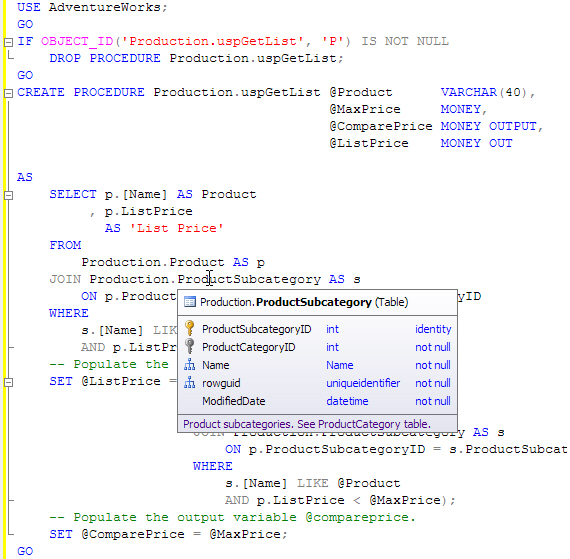
Being able to access essential information on a database object is pretty useful and saves some efforts on looking it up:
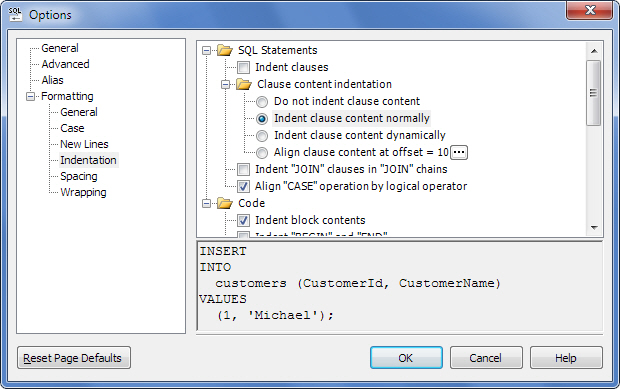
The tool offers quite a lot of formatting options and a wizard for importing and exporting settings – this should be useful for large companies where some standardized T-SQL code formatting is necessary:
Summary
SQL Complete can be used by professionals, amateurs, and everybody who has something to do with writing SQL code. Besides, the price of the fully-featured edition (less than $50.00), availability of the free edition, effective product support provided by its development team make it worth testing seriously when choosing a tool from a number of alternatives offering similar functionality.
18.520469
73.856621

 aiDeeva.com