Category Archives: Notes

All Articles

Server: Msg 7391, Level 16, State 1, Line 2

Problem Symtomps
The operation could not be performed because the OLE DB provider ‘SQLOLEDB’ was unable to begin a distributed transaction. OLE/DB provider returned message: New transaction cannot enlist in the specified transaction coordinator.

Cause
The problem occurs because Microsoft Distributed Transaction Coordinator (MS DTC) is not configured for network access. By default, the network access settings of MS DTC are disabled on new installations of SQL Server 2000 on computers that are running Windows Server 2003.
Resolution

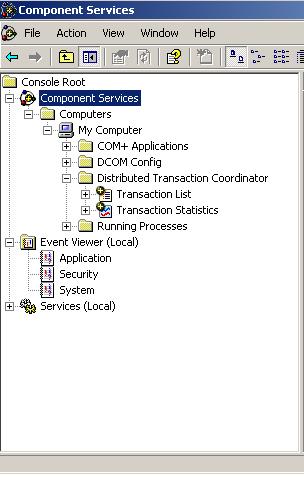
Step 1: Open Component Services Wizard using below steps
Go to -> Start -> All Programs -> Administrative Tools -> Component Services

Step 2: Expand the Componenet Service and Double Click on Computers

Step 3: Right Click on MyCompute and select properties

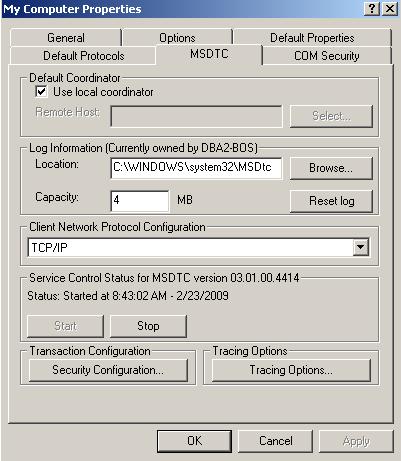
Step 4: Click on MSDTC Tab and then click on Security Configuration

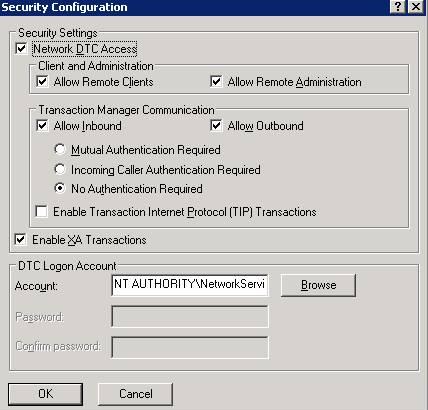
Step 5: In the Security Configuration dialog box, check the Network DTC Access check box

Step 6: Under  Network DTC Access, click on New transaction

 Please find the below images for the same.
untitled1

Figure 2

Select Network Transaction

Figure 3

untitled3

Error: 18456, Severity: 14, State: 16

Error: 18456, Severity: 14, State: 16

Description State=16 means that the incoming user does not have permissions to log into the target database.  This can also happen if for example the default database for user is not online (for example the database is marked suspect or it is in restoring more).

Resolution

You can try all below different solutions to resolve the issue. As SQL Server 2005/2008 is not giving the reason for the login failure.

Thanks to SQL Server 2011 where it is stating the reason as well for the login failure.

Trouble shoot the suspect database issue or bring the database online or give the appropriate permission to user.

There may be case where default database is renamed, check that login is pointing correct database as default database.

Un-checked the auto-close connection from database properties.

If login is trying to open the database explicitly, check no job is running on that database which has opened it already explicitly.

Check if the login has appropriate permission on SQL Server and database.

Make sure Login credential is not expired.

There may be case where windows login re-created, drop the login from SQL Server and create it again.


Insert Extended Character using OSQL Utility

Problem: OSQL utility uses ODBC to communicate with the server. User’s problem is that the ODBC driver he is using to connect to the database is performing translations on the character data in the T-SQL script. Extended characters, which are not in the standard ASCII character set, are translated by the driver based on drive settings. The character translation option is ON by default when SQL Server executes scripts through the OSQL utility. 

Below query is inserting garbage data in the table. 

CREATE TABLE #temp(col1 varchar(40) NOT NULL )

INSERT INTO #temp VALUES( ‘Tëst’ )

SELECT col1 FROM #temp

DROP TABLE #temp 

Solution: By using Unicode script files and converting the column to Unicode, user can avoid the character translation. For that user needs to add N against the column, which is already added. 

Save As below script file as UNICODE file 

CREATE TABLE #temp(col1 varchar(40) NOT NULL )

INSERT INTO #temp VALUES( ‘Tëst’ )

SELECT col1 FROM #temp

DROP TABLE #temp 

User needs to do the following with the ODBC DSN to execute the scripts successfully, without any translation:

1.    Create an ODBC system data source called MyDSN on the machine where he is executing OSQL with the “Perform translation for character data” option cleared

2.    Specify this data source name as a parameter to OSQL so that OSQL can read the DSN settings and use them upon connection to SQL Server. 

osql -S. -itest.sql –DMyDSN

OR

User needs to develop a script which can pass the ASCII value 

Select ASCII(‘ë’)

INSERT INTO #temp (Col1) Select ‘T’ + chr(233) +  ‘st’

Msg 15410, Level 11, State 1

Error:
Msg 15410, Level 11, State 1, Server Server\INST2, Procedure
sp_addrolemember, Line 75
User or role ‘mydomain\JShah’ does not exist in this database.

Cause
Login already has an account under a different user name on particular database. For example mydomain\JShah user is mapped to database as user name jshah

Solution
ALTER USER [jshah] WITH NAME=[mydomain\jshah]
execute sp_AddRoleMember ‘DBRole’,’mydomain\jshah’

OR
We can pass the actual user name
execute sp_AddRoleMember ‘DBRole’,’jshah’

Msg 15063, Level 16, State 1

Error:
Msg 15063, Level 16, State 1, Server DBServerName, Line 1
The login already has an account under a different user name.

Cause
Login already has an account under a different user name on particular database.

User is executing sp_GrantDBAccess.  sp_GrantDBAccess system stored procedure adds a security account in the current database for a Microsoft SQL Server login or Microsoft Windows NT user or group, and enables it to be granted permissions to perform activities in the database.
But the login already has an account under a different user name on current database. That’s why the it is throwing an error.
 
Solution
Instead of using sp_GrantDBAccess user has to execute below query
ALTER AUTHORIZATION ON SCHEMA::[db_accessadmin] TO [GMO\service-ueagle]