Category Archives: SQL Scripts

SQL Profiler

SQL Server Profiler is a graphical tool that helps in the monitoring of an instance of SQL Server Database Engine or Analysis Services. SQL Profiler is a tool which monitors the events and activity running on a SQL Server instance. The results can be saved to a file or inside a SQL Server table. We can replay this saved trace. Profiler is mostly used in stress testing a server, analyzing performance, debugging TSQ statements, and auditing SQL Server activity.

See below image to see how to open SQL Profiler
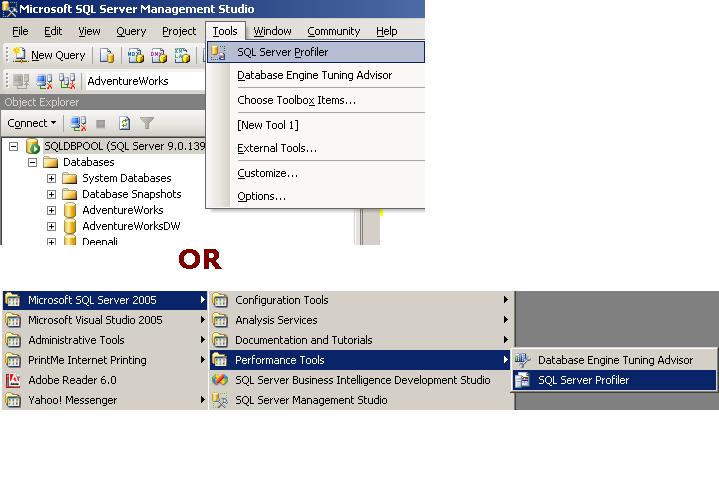
See below list for the Key terms associated with profiler.

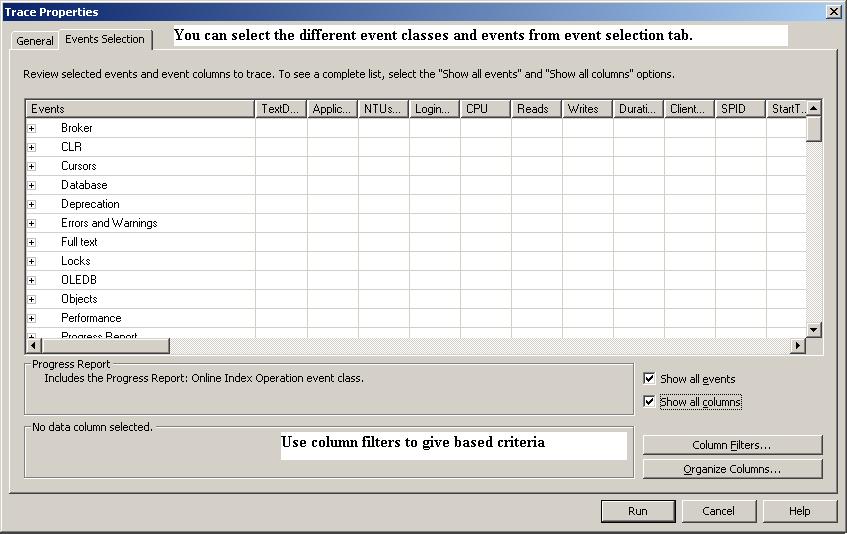
Event is an action that is generated within an instance of a SQL Server Database Engine. These could be login failure, connection failure or any disconnection. It will include events such as T-SQL statements, remote procedure call batch status, the start or end of a stored procedure, the start or end of statements within a stored procedure and so on.. These are displayed in the trace in a single row intersected by data columns with descriptive details.

Event Class is an event that can be traced and contains all of the data that can be reported by the event. For example SQL: Batch completed for instance is an event class

Event Category defines the methodology used for grouping events within the SQL Server Profiler. For instance lock events will be categorized under Lock event category.

Data Column is an attribute of an event class that is captured in the trace.

Template is the default configuration for a trace. It includes the event classes that are required for monitoring.

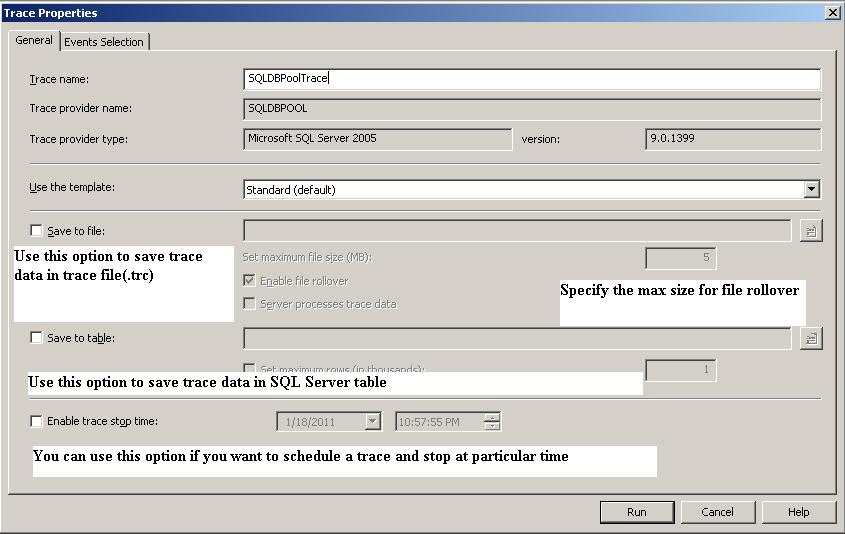
Trace captures data based on selected event classes, data columns and filters.

Filter Data can be filtered by specifying criteria of selection during the execution of an event. This feature is used to reduce the size of the Trace.
Event Selection Tab
You can use fn_trace_gettable function to read the trace file.

Script to get the last update statistics date

Below script will execute against the sys.Objects,sys.indexes and sys.stats. Script will return last statistics update date and meta data of  statistics. Script will return the result for table and view level statistics.

In this script I have used the function STATS_DATE which will return last updated statistics date.

Syntax
STATS_DATE ( table_id , index_id )

SELECT sysobj.name AS objectname,
sysindex.name AS indexname,
Stats_date(sysindex.[object_id], sysindex.index_id) AS
[Statistics Update Date],
CASE sysstats.auto_created
WHEN 0 THEN ‘No’
WHEN 1 THEN ‘Yes’
END AS
isstatscreatedbyqueryprocessor,
CASE sysstats.user_created
WHEN 0 THEN ‘No’
WHEN 1 THEN ‘Yes’
END AS
isstatscreatedbyuser,
CASE sysstats.no_recompute
WHEN 0 THEN ‘No’
WHEN 1 THEN ‘Yes’
END AS
isstatscreatedwithnorecomputeoption
FROM sys.objects AS sysobj WITH (nolock)
INNER JOIN sys.indexes AS sysindex WITH (nolock)
ON sysobj.[object_id] = sysindex.[object_id]
INNER JOIN sys.stats AS sysstats WITH (nolock)
ON sysindex.[object_id] = sysstats.[object_id]
AND sysindex.index_id = sysstats.stats_id
WHERE sysobj.[type] IN ( ‘U’, ‘V’ )
ORDER BY Stats_date(sysindex.[object_id], sysindex.index_id);

How to rename Column Name and Table Name?

We can use sys.SP_Rename procedure to rename the column and table in SQL Server.

CREATE TABLE empl
(
name VARCHAR(20),
remarks VARCHAR(100)
)

–syntax to rename column
EXEC sys.Sp_rename
@objname = ‘table_name.old_column_name’,
@newname = ‘new_column_name’,
@objtype = ‘COLUMN’

–rename column example
EXEC sys.Sp_rename
@objname = ’empl.name’,
@newname = ’empname’,
@objtype = ‘COLUMN’


–rename table name Old Table Name and New Table Name
EXEC sys.Sp_rename
’empl’,
’empInfo’
EXEC sys.Sp_rename

Identify Objects Type using sys.SysObjects

Today I received an email from my one of blog reader regarding identification of different objects using Sys.sysObjects.

You can query the sys.SysObjects to get all the objects created with in the database.
Example

SELECT *
FROM   sys.sysobjects
WHERE  TYPE = ‘u’ 

Below are the different kind of object you can retrieve from database.

Object Type Abbreviation
AF = Aggregate function (CLR)
C = CHECK constraint
D = Default or DEFAULT constraint
F = FOREIGN KEY constraint
L = Log
FN = Scalar function
FS = Assembly (CLR) scalar-function
FT = Assembly (CLR) table-valued function
IF = In-lined table-function
IT = Internal table
P = Stored procedure
PC = Assembly (CLR) stored-procedure
PK = PRIMARY KEY constraint (type is K)
RF = Replication filter stored procedure
S = System table
SN = Synonym
SQ = Service queue
TA = Assembly (CLR) DML trigger
TF = Table function
TR = SQL DML Trigger
TT = Table type
U = User table
UQ = UNIQUE constraint (type is K)
V = View
X = Extended stored procedure

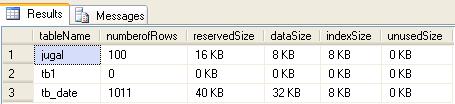
Display the size of all tables in Sql Server 2005

You can use sys.SP_SpaceUsed stored procedure to get the size of all the tables.

Below query will calulate the space of all the tables.
–create temp table to store the result
CREATE TABLE #temptable
  (
     tablename    VARCHAR(100),
     numberofrows VARCHAR(100),
     reservedsize VARCHAR(50),
     datasize     VARCHAR(50),
     indexsize    VARCHAR(50),
     unusedsize   VARCHAR(50)
  )

–Inserting into temp table

INSERT INTO #temptable
            (tablename,
             numberofrows,
             reservedsize,
             datasize,
             indexsize,
             unusedsize)

EXEC Sp_msforeachtable @command1=“EXEC sp_spaceused ‘?'”

SELECT *
FROM   #temptable

— drop the temporary table
DROP TABLE #temptable 


Size of All the tables