Category Archives: SQL Server 2008

Copying column headers with grid query results in SQL Server Management Studio

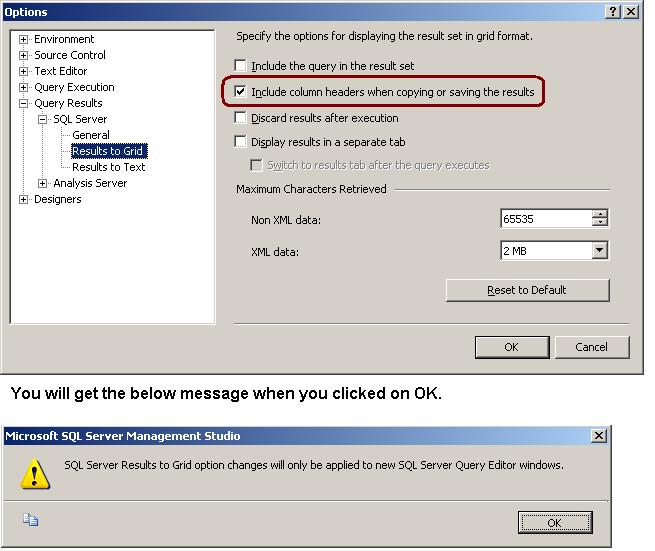
Many times when we are copying result from the Result Set GRID, column headers are not copied with it. To copy the column header you have to enable it.

Go to Tools menu -> Option -> Query Results -> SQL Server -> Results to Grid -> Checked the “Include column headers when copying or saving the result” check box

Script to get the last update statistics date

Below script will execute against the sys.Objects,sys.indexes and sys.stats. Script will return last statistics update date and meta data of  statistics. Script will return the result for table and view level statistics.

In this script I have used the function STATS_DATE which will return last updated statistics date.

Syntax
STATS_DATE ( table_id , index_id )

SELECT sysobj.name AS objectname,
sysindex.name AS indexname,
Stats_date(sysindex.[object_id], sysindex.index_id) AS
[Statistics Update Date],
CASE sysstats.auto_created
WHEN 0 THEN ‘No’
WHEN 1 THEN ‘Yes’
END AS
isstatscreatedbyqueryprocessor,
CASE sysstats.user_created
WHEN 0 THEN ‘No’
WHEN 1 THEN ‘Yes’
END AS
isstatscreatedbyuser,
CASE sysstats.no_recompute
WHEN 0 THEN ‘No’
WHEN 1 THEN ‘Yes’
END AS
isstatscreatedwithnorecomputeoption
FROM sys.objects AS sysobj WITH (nolock)
INNER JOIN sys.indexes AS sysindex WITH (nolock)
ON sysobj.[object_id] = sysindex.[object_id]
INNER JOIN sys.stats AS sysstats WITH (nolock)
ON sysindex.[object_id] = sysstats.[object_id]
AND sysindex.index_id = sysstats.stats_id
WHERE sysobj.[type] IN ( ‘U’, ‘V’ )
ORDER BY Stats_date(sysindex.[object_id], sysindex.index_id);

SQL Server 2005/2008 Standard Reports

In the new versions of SQL Server Microsoft has included very useful standard reports. We can use these different kind of report for performance-tuning, activity monitoring, Query tuning, troubleshooting IO bottlenecks.

You can follow below steps to get the standard reports.
Right Click On SQL Server -> Goto Reports -> Goto Standard Reports

How can we export and import registered servers using SSMS?

In our organization we have number of SQL Server instances which are grouped by their Business Unit, Environment (PRD, DEV etc). For new joiners, it is hard to find out the list servers in absence of CMDB. As a solution, you can ask your team member to give you the list of registered servers by doing using server import/export option.

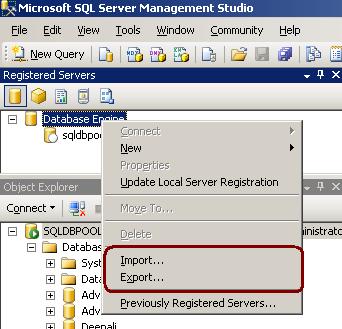
1. In Registered Servers, right-click a server group, and then click Export.See below image for more information.
2.In the Export Registered Servers dialog box, from the Server Group list select the location where you would like to save the registered server information, in the Export file box type a name for the exported file, and then click Save.
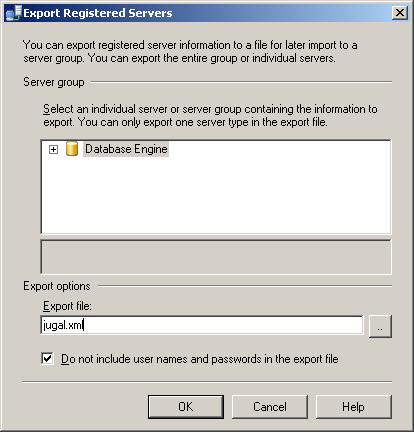
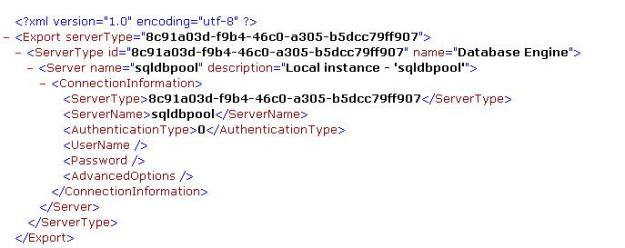
SQL Server will create the file with .RegSvr extension which stores server info in XML format.
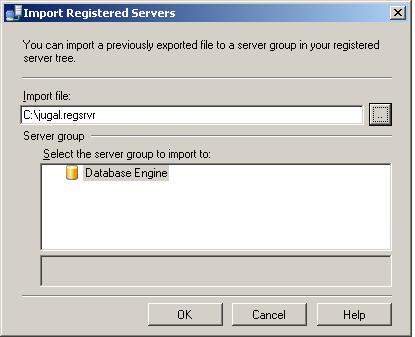
In Registered Servers, right-click a server group, and then click Import and select the export file with .RegSvr extension. See below image for more information.