Change Data Capture (CDC) is a new feature in SQL Server 2008 which records insert, update and delete activity in SQL Server tables.
CDC is intended to capture insert, update and delete activity on a SQL table and place the information into a separate relational table. It uses an asynchronous capture mechanism that reads the transaction logs and populates the CDC table with the row’s data which change. The CDC table mirrors the column structure of the tracked table, together with metadata regarding the change.
To use the CDC feature, first we have to enable it database level. You can use below query to retrieve the CDC enabled databases.
Steps to Enable the CDC on database level
USE master
GO
SELECT [name], database_id, is_cdc_enabled
FROM sys.databases where is_cdc_enabled <> 0
GO
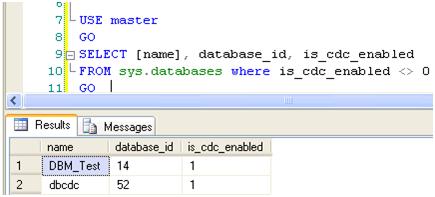
You can use below script to create the sample database and table
create database SQLDBPool

go
Sample DB and Table Creation Script
use sqldbpool
create table Employee
(
empID int constraint PK_Employee primary key Identity(1,1)
,empName varchar(20)
,salary int
)

insert into Employee values('Jugal','50000000'),('Abhinav',1000),('Sunil',2000)
To enable CDC on database SQLDBPool execute the below query.
USE SQLDBPool
GO
EXEC sys.sp_cdc_enable_db
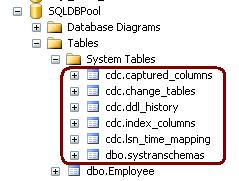
Once you have enabled the CDC for the database, you can see the CDC schema, CDC User and CDC tables in the database. Please see the below images for more information.
CDC Schema, CDC User and CDC system tables
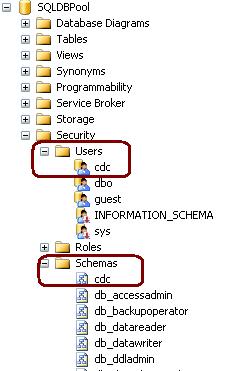

cdc.captured_columns – Returns list of captured column
cdc.change_tables – Returns list of all the CDC enabled tables
cdc.ddl_history – Records history of all the DDL changes since capture data enabled
cdc.index_columns – Contains indexes associated with change table
cdc.lsn_time_mapping – Maps LSN number and time
Enable CDC on Table
As CDC feature can be applied at the table-level to any CDC enabled database. You can run below query to enable the CDC on the table.
Please note:
– You must have database owner permission (db_Owner fixed role)
– SQL Agent Service must be running
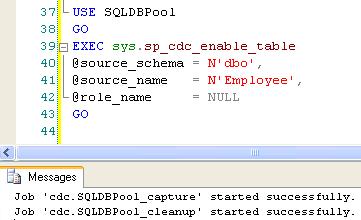
Using sys.sp_cdc_enable_table procedure we can enable the CDC at the table level. You can specify all the below different options as required.
@source_schema is the schema name of the table that you want to enable for CDC
@source_name is the table name that you want to enable for CDC
@role_name is a database role which will be used to determine whether a user can access the CDC data; the role will be created if it doesn’t exist.
@supports_net_changes determines whether you can summarize multiple changes into a single change record; set to 1 to allow, 0 otherwise.
@capture_instance is a name that you assign to this particular CDC instance; you can have up two instances for a given table.
@index_name is the name of a unique index to use to identify rows in the source table; you can specify NULL if the source table has a primary key.
@captured_column_list is a comma-separated list of column names that you want to enable for CDC; you can specify NULL to enable all columns.
@filegroup_name allows you to specify the FILEGROUP to be used to store the CDC change tables.
@partition_switch allows you to specify whether the ALTER TABLE SWITCH PARTITION command is allowed
USE SQLDBPool
GO
EXEC sys.sp_cdc_enable_table
@source_schema = N'dbo',
@source_name = N'Employee',
@role_name = NULL
GO

cdc.SQLDBPool_capture – Capture the changes by doing log scan
cdc. SQLDBPool _cleanup –Clean Up the database changes tables.
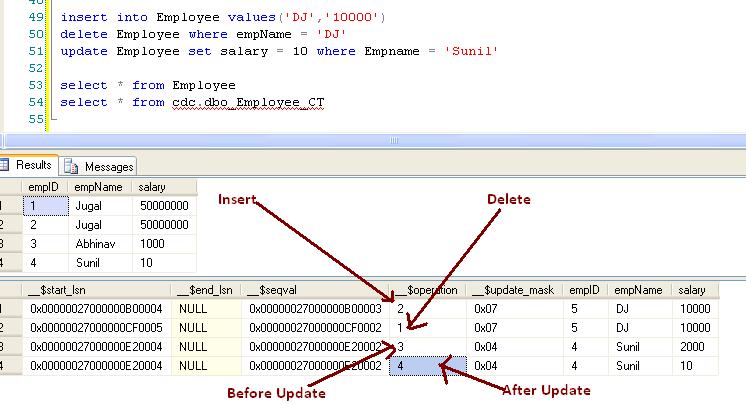
Once the above query executes successfully, it will create 1 more system table cdc.dbo.Employee_CT for the tracking purpose.
See the result of the SELECT query on both the tables.
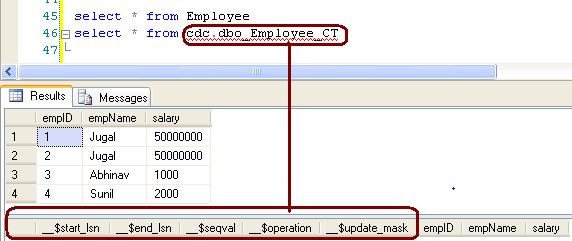
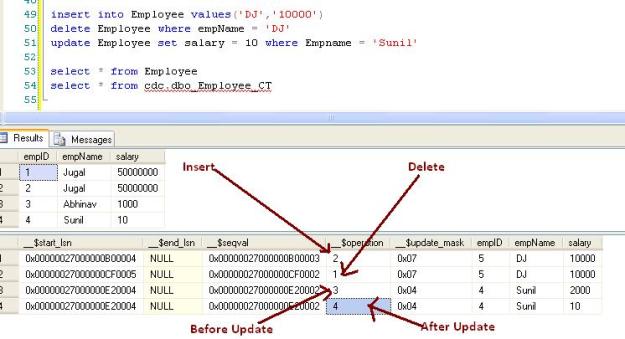
Below 5 additional columns are available into cdc.dbo.Employee_CT table.
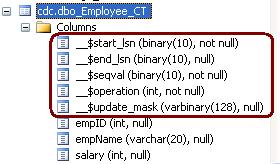
__$operation and __$update_mask are very important columns. __$operation table contains the value against the DML operations.
1 = Delete Statement
2 = Insert Statement
3 = Value before Update Statement
4 = Value after Update Statement
__$update_mask A bit mask with a bit corresponding to each captured column identified for the capture instance. This value has all defined bits set to 1 when __$operation = 1 or 2. When __$operation = 3 or 4, only those bits corresponding to columns that changed are set to 1.
Example
Execute the below query on the SQLDBPool database.
insert into Employee values('DJ','10000')
delete Employee where empName = 'DJ'
update Employee set salary = 10 where Empname = 'Sunil'
select * from Employee
select * from cdc.dbo_Employee_CT
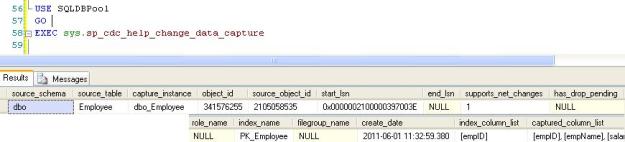
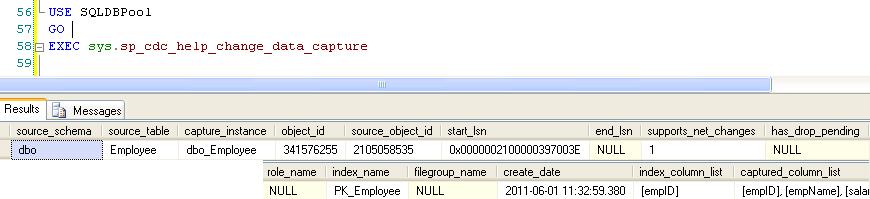
You can get more information on the CDC configuration by executing sys.sp_cdc_help_change_data_capture stored procedure.
You can disable the CDC either on the table level or the database level. Use below code to disable the CDC on table or database level.
Table Level
exec sys.sp_cdc_disable_table
@source_schema = 'dbo',
@source_name = 'Employee',
@capture_instance = 'dbo_Employee'
Database Level
use SQLDBPool;
go
sys.sp_cdc_disable_db
CleanUp Job
As we checked in the above example that CDC is capturing all the changes at the table level which create the disk space issue. To resolve disk space issue we have clean up job which run every 3 days interval by default. We can schedule it to run as per our requirement.
18.520469
73.856621


 aiDeeva.com