Category Archives: SQL Server 2011 (Denali)

SQL Server Central Management Servers System Tables

ProblemI have SQL Server Central Management Servers setup in my environment. How can I get a list of the registered servers and their associated properties? Are there any queries I can issue? Check out this tip to learn more.

Solutions
http://www.mssqltips.com/tip.asp?tip=2397

DMV to identify database features restricted to specific edition of SQL Server 2008

If you have configured the user database any of below feature of SQL Server 2008 Enterprise Edition

— Data Compression
— Partitioning
— Transparent Data Encryption
— Change Data Capture

Above list of features will internally change the way the database engine stores information within the database files. If a database configured to use any of the above features which are specifically designed to be used in Enterprise Edition of SQL Server 2008, it cannot be moved to other editions of SQL Server 2008.

You can check the above feature by querying the sys.dm_db_persisted_sku_features DMV against database.

SELECT feature_name FROM sys.dm_db_persisted_sku_features ;
GO

How to enable Dedicated Administrator Connection Feature in SQL Server 2008?

DAC feature added from the SQL Server 2005 version. Using DAC feature a Database Administrator can connect to a SQL Server Instance when the database engine is not responding to regular connections and troubleshoot the issue.

Advantage of using DAC is DBA can connect to a SQL Server Instance and execute T-SQL commands to troubleshoot and fix issues rather than rebooting the SQL Server which could lead to database corruption or other problems.

By default DAC is disable, it is a best practice to enable the DAC.
We can enable the DAC using below T-SQL command.

Use master
GO
sp_configure 'show advanced options' , 1
GO
sp_configure 'remote admin connections', 1
GO
RECONFIGURE
GO

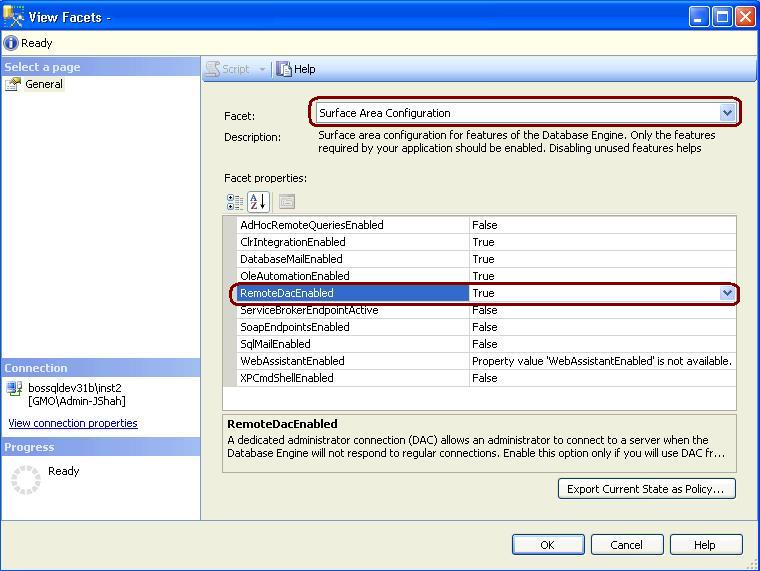
In SQL Server 2008 to enable the DAC, right click on SQL Server and Select facets and from facets drop down Select Surface Area Configuration.
How to Turn Off SSMS Auto Recovery Feature

Problem
By default the Auto Recovery feature is enabled for SSMS and because of this when opening SSMS it may hang or become unresponsive for some time if the previous session was closed unexpectedly. There is not a way to turn this feature off from within SSMS, but we will look at how this can be done by modifying some registry entries.

Solution
http://www.mssqltips.com/tip.asp?tip=2352