Login failed for user XYZ The user is not associated with a trusted SQL Server connection.

Problem:Login failed for user XYZ The user is not associated with a trusted SQL Server connection.

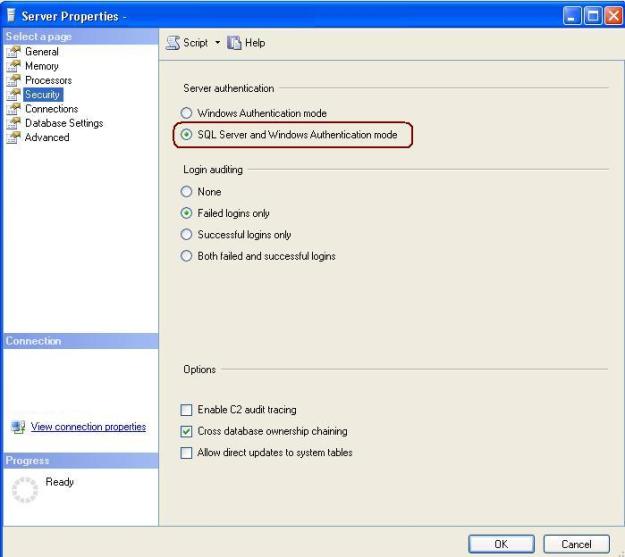
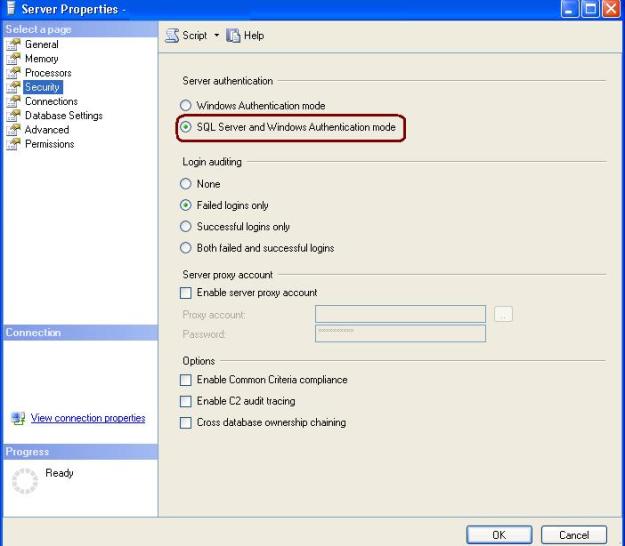
Resolution: Login is failed due the the authentication mode is Windows Authentication and it is not allowing SQL Server authentication for SQL Login.

Change the Authentication Mode of the SQL server from Windows Authentication Mode (Windows Authentication) to Mixed Mode (Windows Authentication and SQL Server Authentication)

Right Click on Server and Select the Server Properties from pop up.

Authentication

Unable to install Windows Installer MSP file

Problem: Unable to install Windows Installer MSP file 

Description: I got the above error while installing Service Pack3 on SQL Server 2005 box. 

Product                                    : Database Services (INST2)
Product Version (Previous)     : 3257
Product Version (Final)           :
Status                                      : Failure
Log File                                    : C:\Program Files\Microsoft SQL Server\90\Setup Bootstrap\LOG\Hotfix\SQL9_Hotfix_KB955706_sqlrun_sql.msp.log
Error Number                                     : 11032
Error Description                                : Unable to install Windows Installer MSP file

 Resolution:  

Step 1:  Check the setup log file from C:\Program Files\Microsoft SQL Server\90\Setup Bootstrap\LOG\Hotfix\SQL9_Hotfix_KB955706_sqlrun_sql.msp.log 

Step 2: Search for “return value 3” and scan next +/- 10 lines for error details 

Step 3: During scan I found the below error details “Fail create file C:\Program Files\Microsoft SQL Server\MSSQL.1\MSSQL\FTData  folder” I have created the required folder at desired location and has resolve the issue. 

There are other causes as well for the failure to resolved it you can follow the below steps

–          Copy the service pack from network location to installation location or on SQL Server box

–          Check for the registry parameters 

Check below KB documents to resolve error

http://support.microsoft.com/kb/926622.
 

Msg 7391, Level 16, State 2, Line 23 – Error while running Linked Server

Error Description 

OLE DB provider “SQLNCLI” for linked server “MYView” returned message “The transaction manager has disabled its support for remote/network transactions.”.

 Msg 7391, Level 16, State 2, Line 23

 The operation could not be performed because OLE DB provider “SQLNCLI” for linked server “MYView” was unable to begin a distributed transaction.

 Resolution:

1. Check whether DTC is blocked by firewall, if it is blocked by firewall release it.

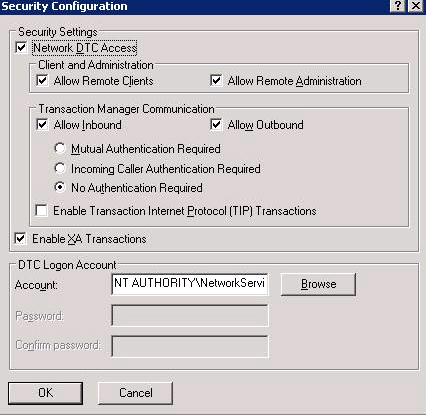
2. Check or configure DTC to allow network connection as below.

 msdtc

Go to Control Panel ->Administrative Tools -> Component Services -> Expand the Computer Node -> Right click on My Computer) -> Click on Properties -> MS DTC Tab -> Security Configuration


Script – Generate DBCC ShrinkFile for each datbase files

You can use below query to generate DBCC Shrikfile command for data and log file. Next step you have to copy the output from the result windows & execute it.

Query

select 'use ' + db_name(dbid) + char(13) + 'dbcc shrinkfile (' + quotename(sf.name,'''') + ' ,truncateonly)' from sysaltfiles sf
inner join sys.databases sd on sf.dbid = sd.database_id
where state_desc = 'online'