Author Archives: Jugal Shah

Unknown's avatar

About Jugal Shah

Jugal Shah has 19 plus years of experience in leading and managing the data and analytics practices. He has done the significant work in databases, analytics and generative AI projects. You can check his profile on http://sqldbpool.com/certificationawards/ URL.

How to move job to different SQL Instance?

You can move the job using one of the below technique.

Using SSIS

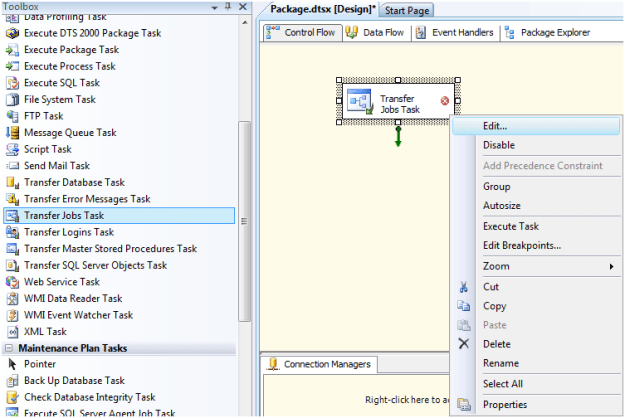
You can use the transfer Jobs Task in SSIS to move the job to different SQL Instance. Right Click on Transfer Jobs task and click on Edit…

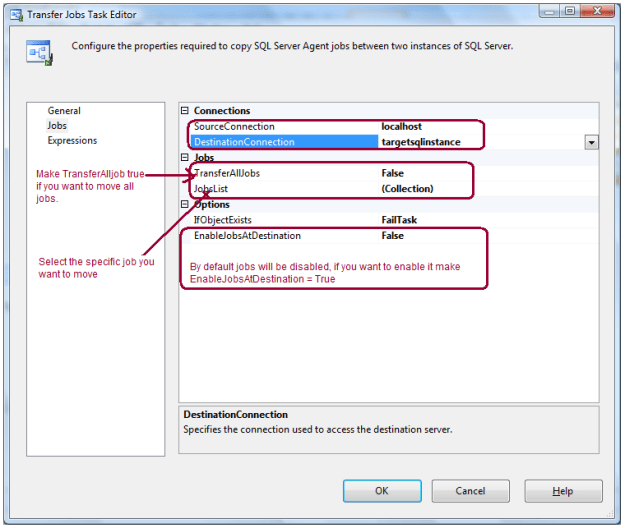
Specify the Source Connection and Destination Connection in Jobs page. Here you have options, you can either transfer all jobs or select the specific job from the job list drop down.

By Scripting Out Job

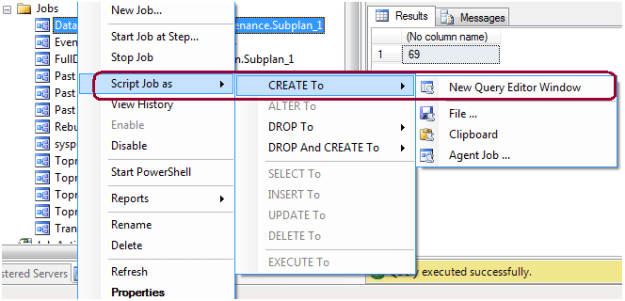
You can also move the job by scripting it out.

You can also restore the MSDB database on target SQL Box if it is the same SQL version and there is no other jobs exist there.

Using a PowerShell Script to delete old files for SQL Server

Problem

Many clients are using custom stored procedures or third party tools to backup databases in production environments instead of using database maintenance plans. One of the things that you need to do is to maintain the number of backup files that exist on disk, so you don’t run out of disk space.  There are several techniques for deleting old files, but in this tip I show how this can be done using PowerShell.

Solution

http://www.mssqltips.com/sqlservertip/2726/using-a-powershell-script-to-delete-old-files-for-sql-server/

Different ways to make a table read only in a SQL Server database

Problem

In some cases there may be a need to make a SQL Server table read only. There are several different options for doing this and in this tip we cover various ways that you can make a table read only in a SQL Server database.

Solution

http://www.mssqltips.com/sqlservertip/2711/different-ways-to-make-a-table-read-only-in-a-sql-server-database/#comments

FIPS cryptographic algorithms validation error reporting service

Problem: Recently we have installed the SQL Server 2008 Reporting Service on the Windows Server 2008. Reporting Service installed and configured successfully but while browsing the http://servername:80/reports it is getting failed with the error HTTP 500. Below error recoded into the Reporting Service Error log.

Unable to validate data. at System.Web.Configuration.MachineKeySection.GetDeco dedData(Byte[] buf, Byte[] modifier, Int32 start, Int32 length, Int32& dataLength) at System.Web.UI.ObjectStateFormatter.Deserialize(Str ing inputString)

Solution:

It looks reason for the above error is two different encryptions (FIPS and AES) and decryption algorithm is trying to do the validation and because of that reporting service is unable to load the reporting service URL. I have resolved the issue by following the below steps.

Reporting Service will fail to load if any of the below condition will be true.

The HKEY_LOCAL_MACHINE\SYSTEM\CurrentControlSet\Control\Lsa\fipsalgorithmpolicy registry value is set to 1.

ASP.NET 2.0 uses the RijndaelManaged implementation of the AES algorithm when it processes view state data

You can follow one of the below fix. Either disable the FipsAlgorithmPolocy or add the mentioned machine key into the web.config file. Browse the path HKEY_LOCAL_MACHINE\SYSTEM\CurrentControlSet\Control\Lsa\fipsalgorithmpolicy and changed value 1 to 0.

Open the reporting service web.config file and add the below <machinekey> into <system.web> section.

<machineKey validationKey=”AutoGenerate,IsolateApps” decryptionKey=”AutoGenerate,IsolateApps” validation=”3DES” decryption=”3DES”/>

Next step is to restart the reporting service and IIS. You can restart the IIS using IISRESET command and reporting service using NET START/STOP command.

NET STOP “SQL Server Reporting Services (MSSQLSERVER)”

NET START “SQL Server Reporting Services (MSSQLSERVER)”