Author Archives: Jugal Shah

Unknown's avatar

About Jugal Shah

Jugal Shah has 19 plus years of experience in leading and managing the data and analytics practices. He has done the significant work in databases, analytics and generative AI projects. You can check his profile on http://sqldbpool.com/certificationawards/ URL.

Customizing the Status Bar for each SQL Server Instance registered in CMS

Problem:
Steps to distinguish production and non-production SQL Servers registered in CMS while executing the query. Below article will guide you how to use customize colors in CMS.

Solution
To identify the production and non-production SQL Instances registered in CMS within the same group; you can use the Custom Color feature. In this article I will guide how to use to the custom color feature of CMS.

Step 1: Connect to Central Management Server (CMS) from SSMS.
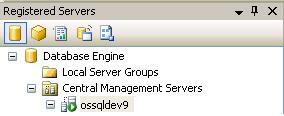
Step 2: Right click on the registered CMS server and select properties.
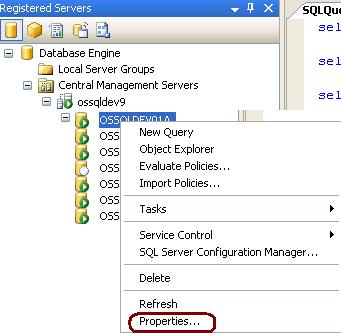
Step 3:Go to Connection Properties tab, checked the Use Custom color box and select the desired color. Click on Save to proceed.

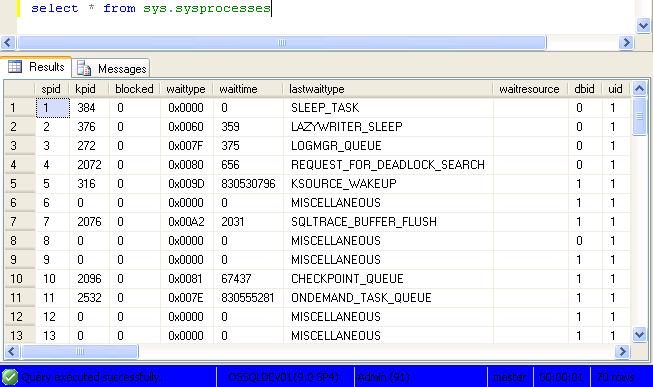
Step 4: Right click on the SQL Instance and Open a new query window. You can see the blue color in the status bar. This way we can identify the production and non-production box. By specifying the custom colors.

Ouput Image of SSMS
Useful queries while troubleshooting Database Mirroring

Useful queries while troubleshooting Database Mirroring

Query to check the associated ports with DB Mirroring

SELECT type_desc, port FROM sys.tcp_endpoints;
GO

Query to check the state of the DB Mirroring

SELECT state_desc FROM sys.database_mirroring_endpoints
GO

Query to check the service account connect permission on the DB Mirror endpoints

SELECT 'Metadata Check';
SELECT EndPnt.name, SvrPerm.STATE,
   CONVERT(nvarchar(38), suser_name(SvrPerm.grantor_principal_id))
    AS GRANTOR,
   SvrPerm.TYPE AS PERMISSION,
   CONVERT(nvarchar(46),suser_name(SvrPerm.grantee_principal_id))
    AS GRANTEE
   FROM sys.server_permissions SvrPerm, sys.endpoints EndPnt
   WHERE SvrPerm.major_id = EndPnt.endpoint_id
   ORDER BY Permission, grantor, grantee;
GO

Query to check the DB Mirror timeout and resetting the DB Mirror timeout

SELECT mirroring_connection_timeout
FROM
sys.database_mirroring
GO

ALTER DATABASE SQLDBPOOL SET PARTNER TIMEOUT 15
GO

Create a 32-bit DSN on 64-bit machine for SQL Server

Problem
During the install of an application on a 64-bit Windows machine, the application was unable to list the ODBC System DSN because it had been setup as a 64-bit DSN and the application needed a 32-bit system DSN for connectivity to SQL Server. In this tip, we cover how to create a 32-bit DSN on 64-bit machine.

Solution
http://www.mssqltips.com/sqlservertip/2498/create-a-32bit-dsn-on-64bit-machine-for-sql-server/