
SQL Server 2011 AKA Denali
As we all aware about that, Microsoft has released SQL Server 2011 CTP1. CTP stands for Community Technology Preview and it is a beta version of upcoming release.
Minimum Software and Hardware Requirement
- We can install Denali on both the file system formats (FAT32 and NTFS) but the Microsoft recommends NTFS file format.
- Your Operating system must have “no-reboot” package installed prior to installing SQL Server 2011. By default it is included in Windows 7 SP1 and Windows Server 2008 R2. For the other OS you can download No Reboot package from http://support.microsoft.com/kb/982526 link.
- .NET Framework 4.0
- Virtualization is supported using Microsoft’s Hyper-V technology.
- At least 3.4GB free disk space
- At least 2GB RAM
- Windows PowerShell 2.0 is a pre-requisite
SQL Server 2011 AKA Denali Installation Steps

Step 1 : Go to Setup folder and click on Setup.exe
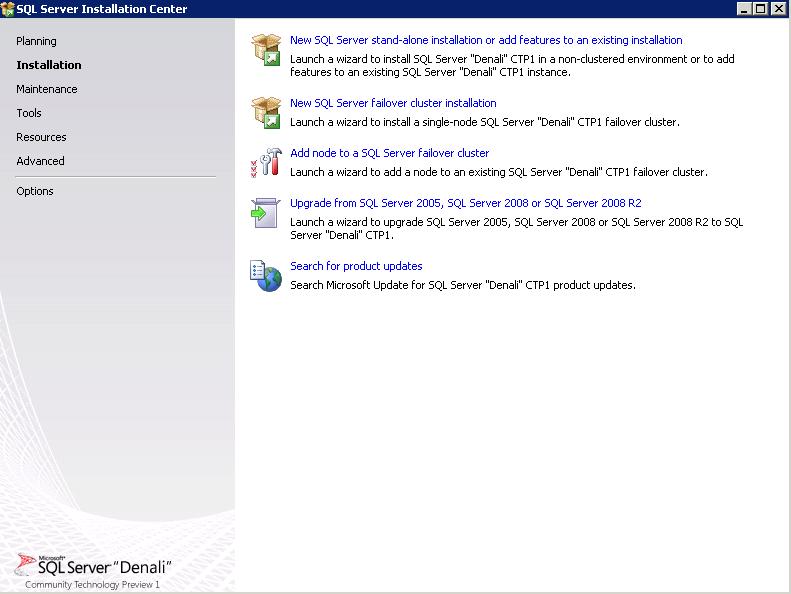
Step 2: Go to Installation Page and Select Stand Alone Installation
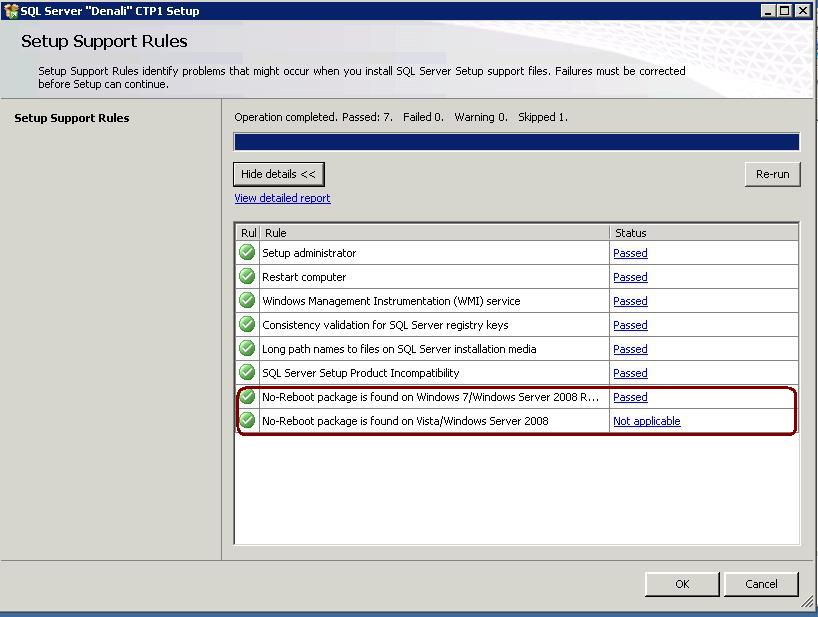
Step 3: Setup will validate the the OS for minimut requirement. You must have noReboot Package installed.
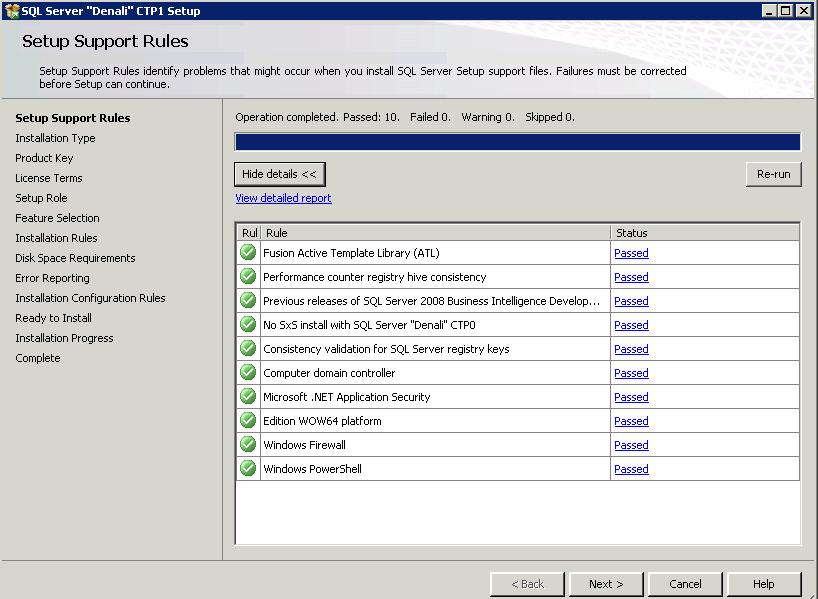
Step 4: Setup will again the check the rules for example Power Shell, Firewall, .Net Framework Security etc
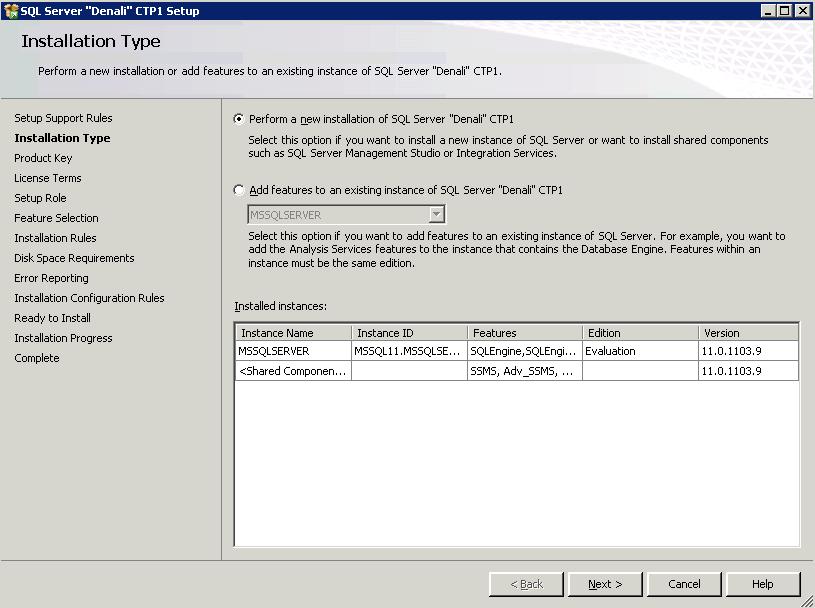
Step 5: Give you an option of new installation or add features to existing instance.
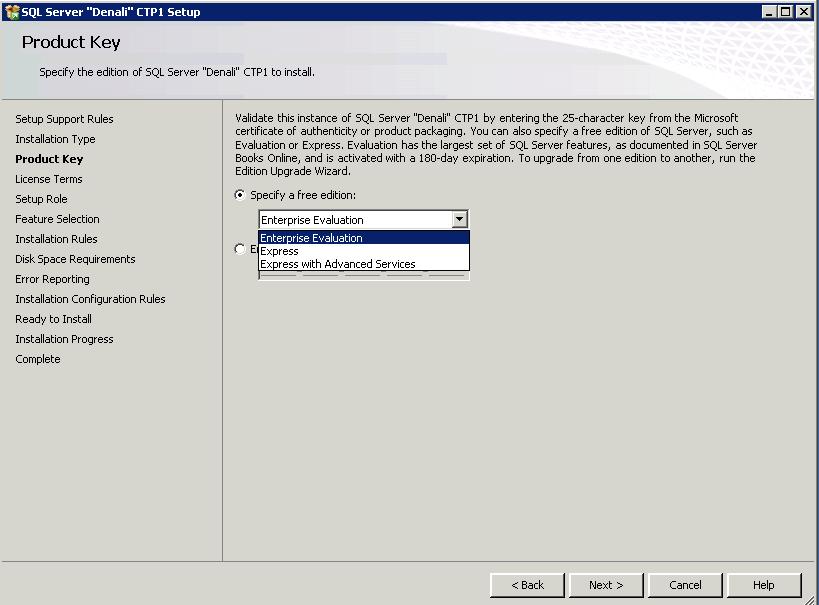
Step 6: Give you an option to Select edition

Step 7: Accept Agreement Screen
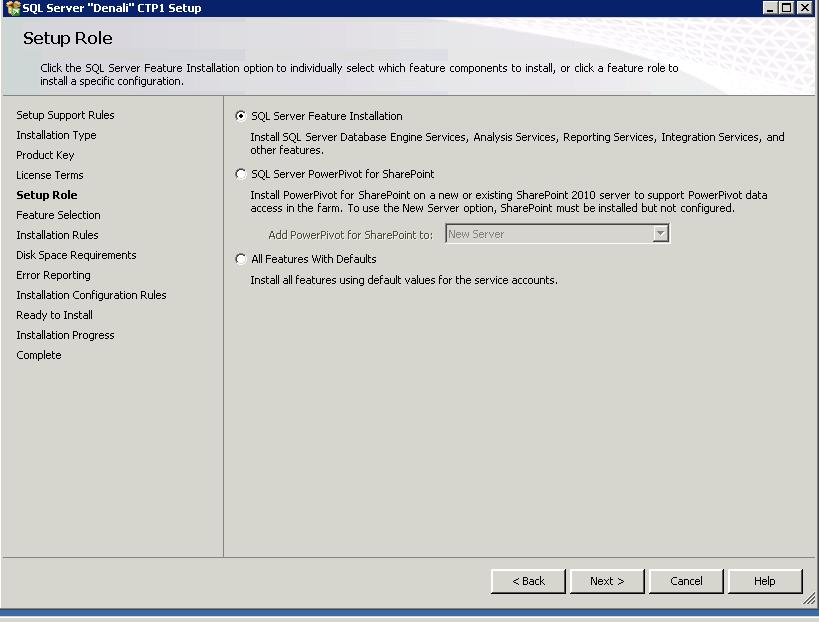
Step 8: Give you an option to select required feature
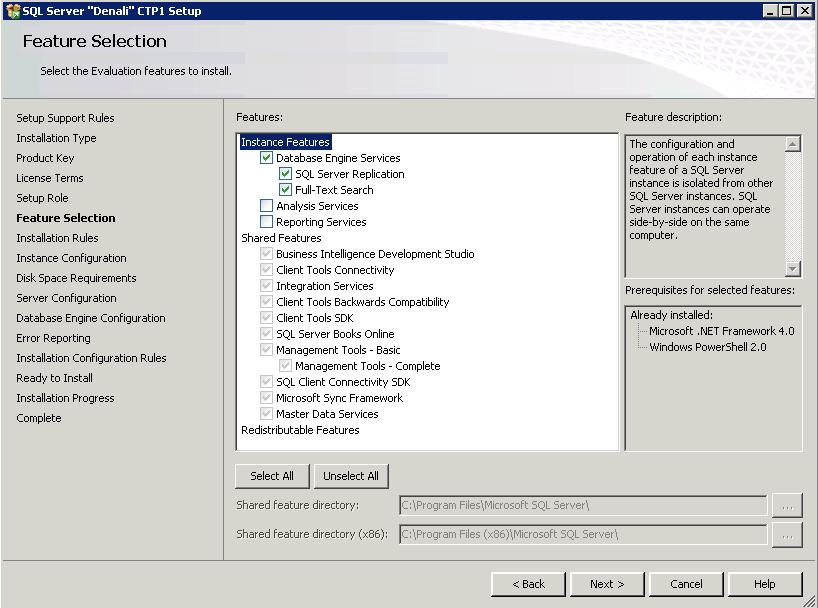
Step 9: Give you an option to select the instance level features
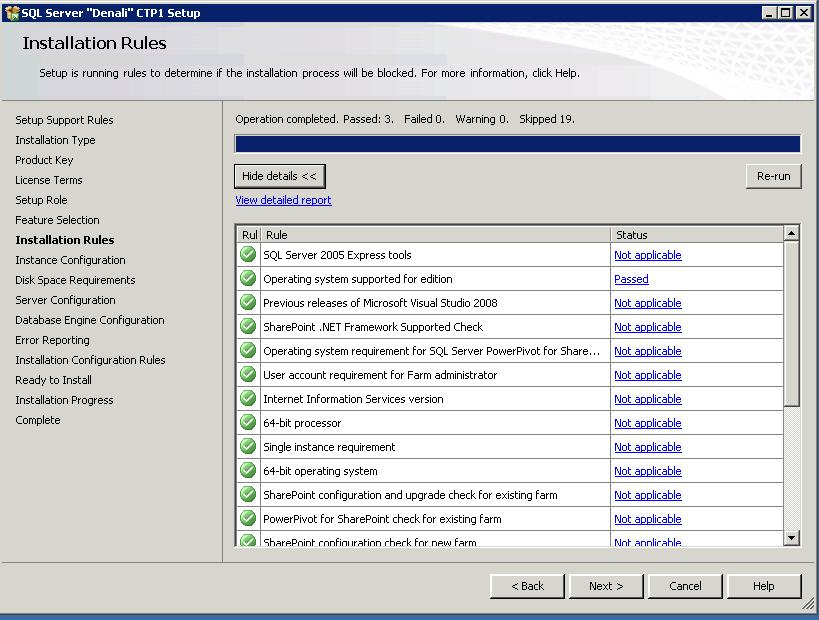
Step 10: Again validate the server for the selected features
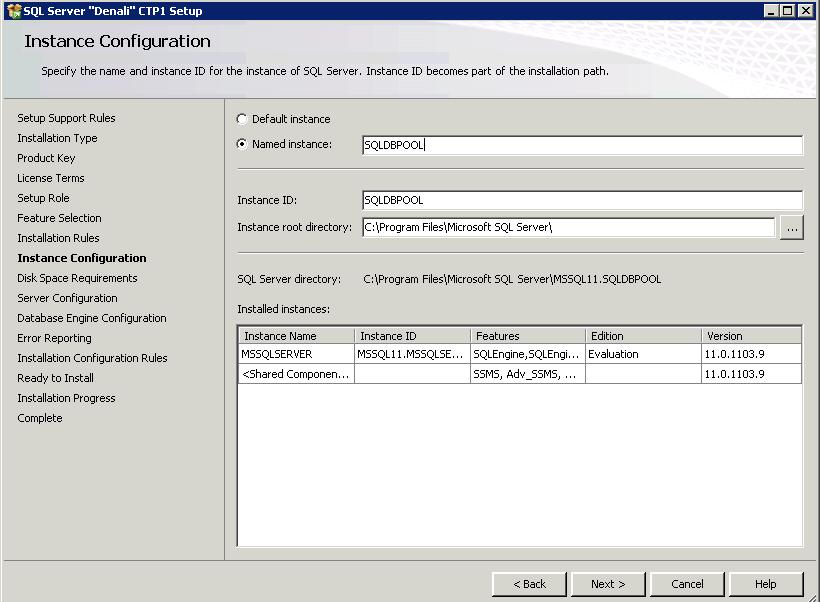
Step 11: Gives you an option to select the named instance/default instance
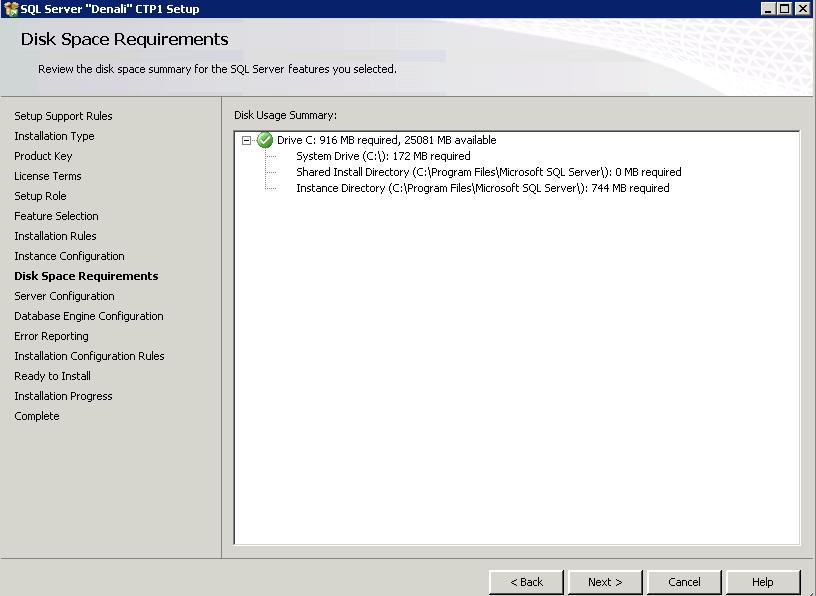
Step 12: Will show your the disk space required for the selected features
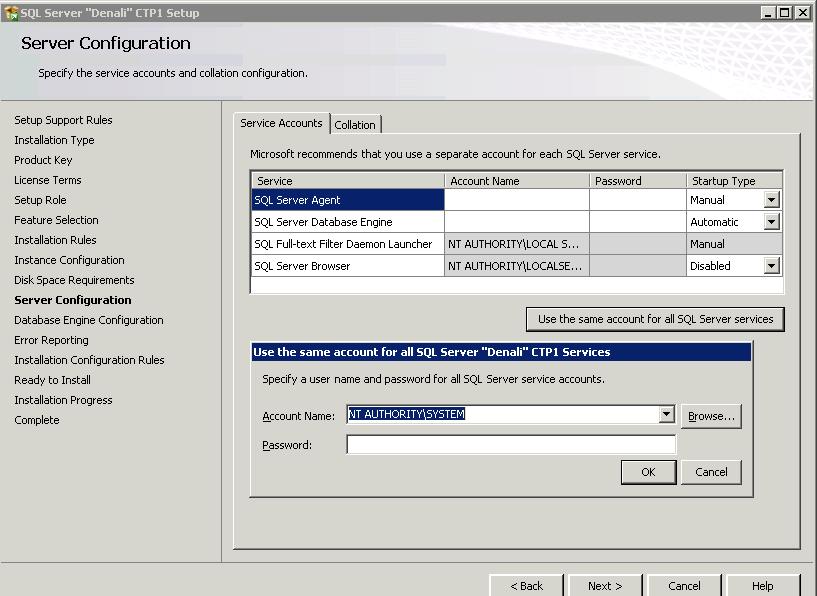
Step 13: Specify the service accounts
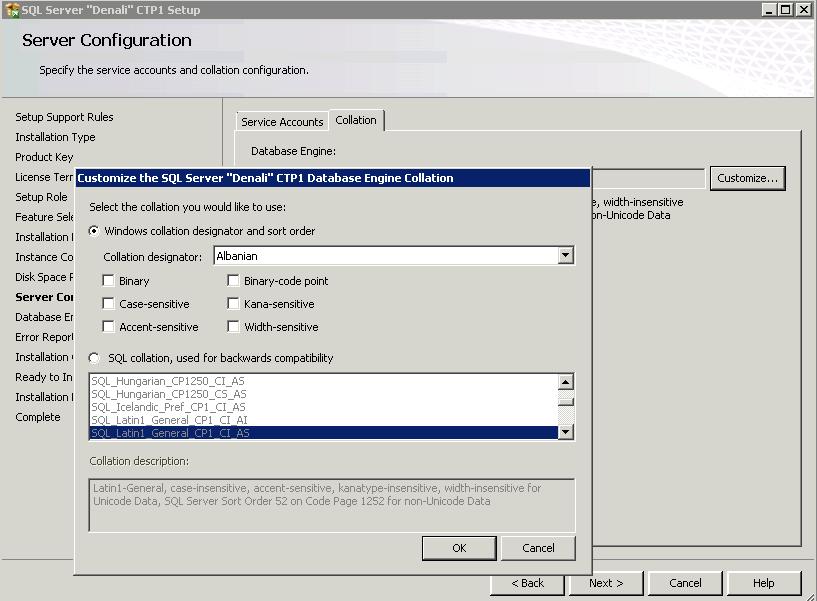
Step 14: Specify the collation
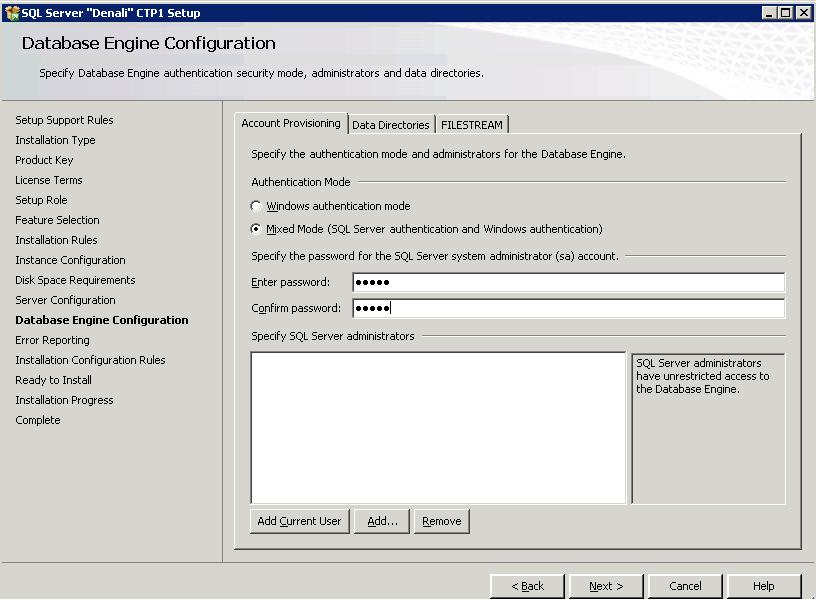
Step 15: Specify the Authentication Mode, Data Directories and File Stream
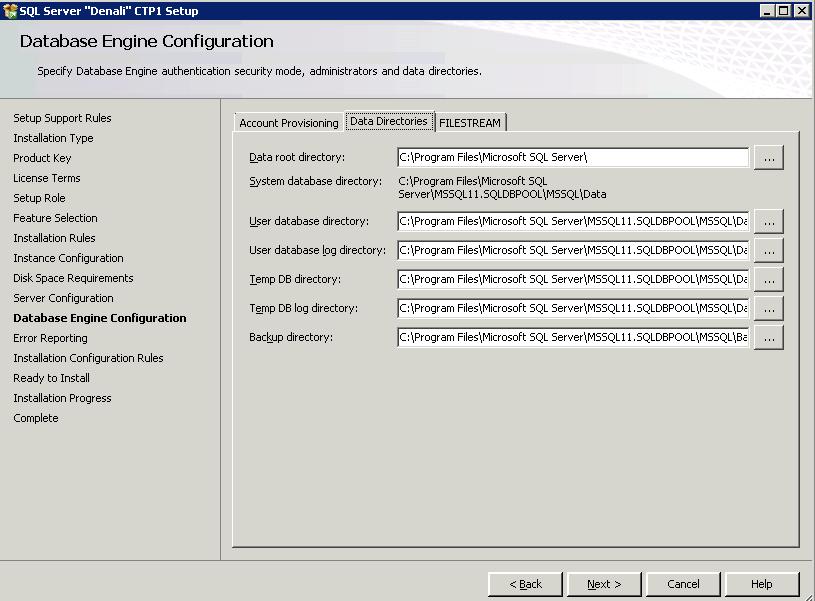
Step 16: Data Directories Configuration
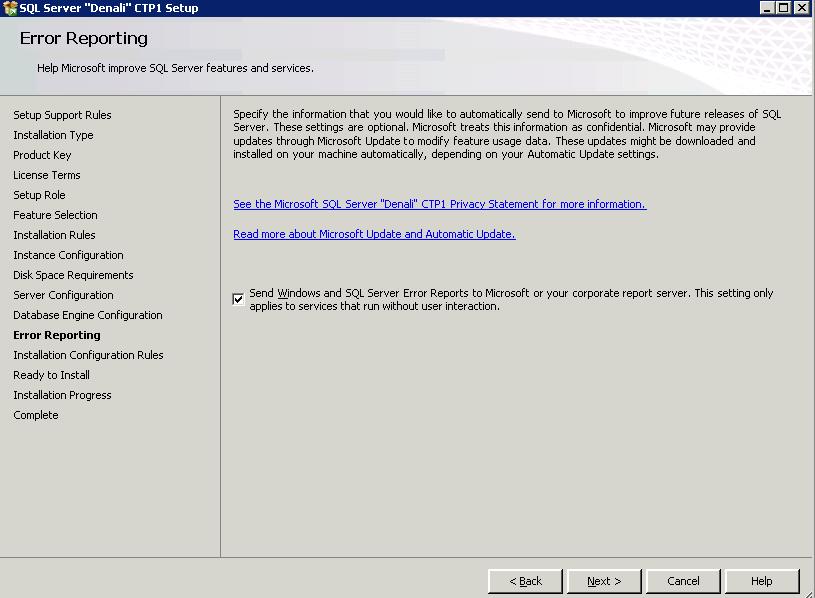
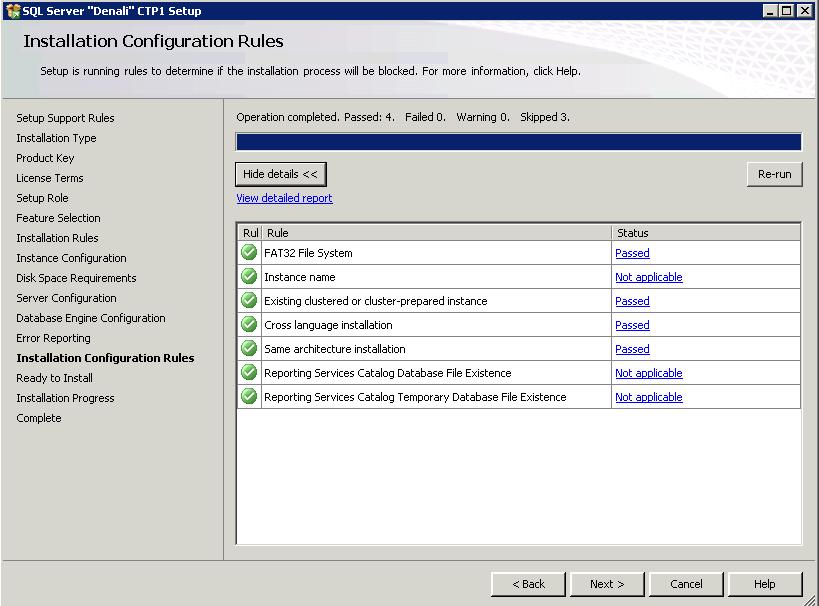
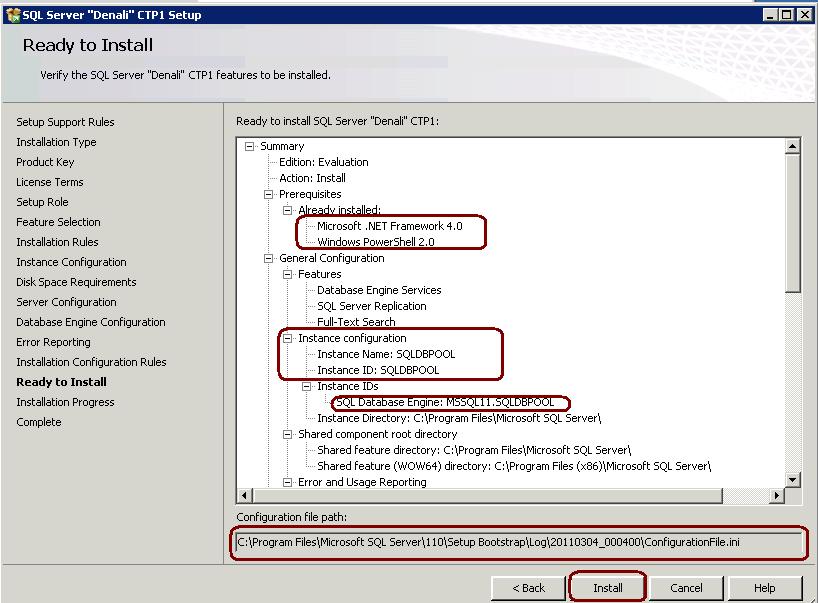
Step 17: Click on Install and Installation will proceed.

 aiDeeva.com