Category Archives: Database

Script to Enable/Disable Database for Replication

You can enable the database for replication using below script.

use master
exec sp_replicationdboption @dbname = 'sqldbpool',
@optname = 'publish',
@value = 'true'
go

If you have restore the database on test environment and you are getting the error that “Database is part of Replication”, you can clear/disable it by executing below query.

use master
exec sp_replicationdboption @dbname = 'sqldbpool',
@optname = 'publish',
@value = 'false'
go

Estimating the size of the Database backup file

Problem: Often we would like to check how much size backup file will take on the disk? You can follow below simple steps to estimate the backup file size?

Solution:
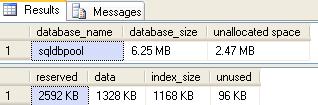
Execute the SP_SPACEUSED procedure to get the database size statistics.
USE [sqldbpool]
GO
EXEC sp_spaceused @updateusage = ‘true’

Now you have to subtract the ununsed pages from reserved pages and divided by 1024 to get the output in MB.

In our scenario we have 2592 (KB) – 96 (KB) = 2496/1024 = 2.4374(MB) will be the backup size.

How to Move Resource Database?

Resource Database: Resource database is available from the SQL Server 2005 and higher level versions. Resource database is read only and hidden database. Resource database contains all the system objects that shipped with SQL Server. SQL Server system objects, such as sys.objects, are physically persisted in the Resource database, but they logically appear in the sys schema of every database.

Resource database will be very useful in doing upgrades or in un-installing up-grades. In the previous versions of SQL Server up-grade needs creating/dropping of the system objects. From the SQL Server 2005 version upgrade is just procedure to copying resource database file to local server.

Name of Resource database data and log file.
mssqlsystemresource.mdf
mssqlsystemresource.ldf

Resource database data and log file location is same as the Master database location. In case if you are moving Master database you have to move the Resource database as well to the same location.

You can check the Resource database version and last up-grade time using the SERVERPROPERTY function.

SELECT SERVERPROPERTY(‘RESOURCEVERSION’);
GO
SELECT SERVERPROPERTY(‘RESOURCELASTUPDATEDATETIME’);
GO 

To move the resource database, you have to start the SQL Server service using either -m (single user mode) or -f (minimal configuration) and using -T3608 trace flag which will skip the recovery of all the databases other than the master database.

You can do it either from the Configuration manager or from the command prompt using below command.
Default Instance
NET START MSSQLSERVER /f /T3608
Named Instance
NET START MSSQL$instancename /f /T3608

Execute the below ALTER command once you have started the SQL Service by specifying the new location, location should be same as Master database location.

ALTER DATABASE mssqlsystemresource MODIFY FILE (NAME=data, FILENAME= '\mssqlsystemresource.mdf')
ALTER DATABASE mssqlsystemresource MODIFY FILE (NAME=log, FILENAME= '\mssqlsystemresource.ldf')

How to kill all sessions that have open connection in a SQL Server Database?

As SQL Server DBAs, many times we need to KILL all Open Sessions against the SQL Server Database to proceed with Maintenance Task, Restore and more…

You can use below different techniques to KILL all open sessions against the database.

Technique – I
Here we will query the SysProcesses table to get the session running against the user database and prepare the dynamic SQL statement to KILL all the connection.

DECLARE @DbName nvarchar(50)
SET @DbName = N'Write a DB Name here'

DECLARE @EXECSQL varchar(max)
SET @EXECSQL = ''

SELECT @EXECSQL = @EXECSQL + 'Kill ' + Convert(varchar, SPId) + ';'
FROM MASTER..SysProcesses
WHERE DBId = DB_ID(@DbName) AND SPId  @@SPId

EXEC(@EXECSQL)

Technique – II
Take the database into Single User Mode and execute all the task needs to perform against the databse.

ALTER DATABASE [Database Name] SET SINGLE_USER WITH ROLLBACK IMMEDIATE 

Once you are finish with all the required task make the database accessible to everyone.

ALTER DATABASE [Database Name] SET MULTI_USER

Technique – III
In case of restore the database by replacing existing database, you can take the database OFFLINE and restore it. Restore will bring the database online.

ALTER DATABASE [Database Name] SET OFFLINE WITH ROLLBACK IMMEDIATE 
ALTER DATABASE [Database Name] SET ONLINE

Technique – IV
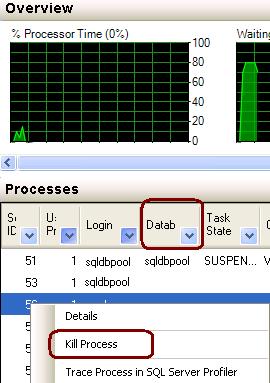
Go to Activity Monitor, Select the desired database and right click on the database to KILL the process.

How to Turn Off SSMS Auto Recovery Feature

Problem
By default the Auto Recovery feature is enabled for SSMS and because of this when opening SSMS it may hang or become unresponsive for some time if the previous session was closed unexpectedly. There is not a way to turn this feature off from within SSMS, but we will look at how this can be done by modifying some registry entries.

Solution
http://www.mssqltips.com/tip.asp?tip=2352