Category Archives: Notes

All Articles

FAQ: How to connect to SQL Server 2008 or 2005 using SQL Server Management Studio?

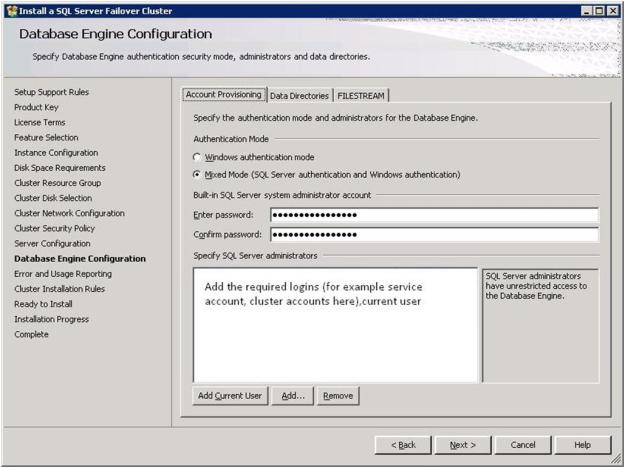
Many times I am getting a question from the SQL Server newbie, how to connect SQL Server after the installation. You can follow below tip to connect SQL Server. Before we start connect to SQL Server, let’s first go to SQL Server installation. During the installation of SQL Server you will come across the below step where you have to configure the SQL authentication mode.


Windows Authentication: Windows Authentication mode enables Windows Authentication and disables SQL Server Authentication. Using Windows Authentication windows and domain users can connect the SQL Server.

Mixed Mode Authentication: Mixed mode enables both Windows Authentication and SQL Server Authentication. SQL Authentication means SQL Login, Password etc will be managed by SQL Server its self by storing the login info into SQL Server Master database.


While installation if you have selected the mixed mode authentication, you have to specify the password of SA account which SQL Login with full control.


Once the SQL Server is installed click on the SQL Server Management Studio, It will show you the below screen. I have explain all the items in image to connect SQL Server.
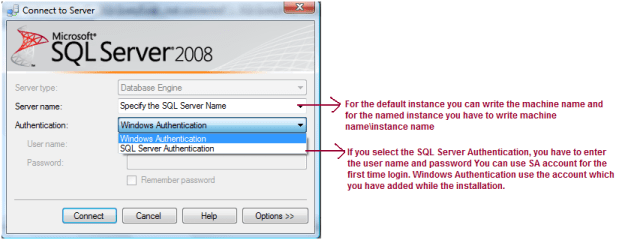


Now you are clear about the authentication
T-SQL script to Identify the SQL Server version and edition

Execute below T-SQL Script to get the SQL Server version details.

SELECT SERVERPROPERTY ('productversion') as ProductVersion,
SERVERPROPERTY ('productlevel') as Productlevel,
SERVERPROPERTY ('edition') as Edition

Output:
-Product version (for example, 10.0.1600.22)
-Product level (for example, SP3)
-Edition (for example, Development)

SQL Server 2012 version number examples
11.0.2316 SQL Server 2012 CU1
11.0.2100.6 SQL Server 2012 RTM

Fix: MSP Error: 29528

Problem: MSP Error: 29528 The setup has encountered an unexpected error while Setting reporting service exclusion path

Solution:
You will get the above error while applying the Service Pack to SQL Server 2005 where you have installed the Reporting Service Component as well.

You wil get the error information from summary.txt file. Below information you find from the log.

Status : Failure
Log File : D:\Program Files\Microsoft SQL Server\90\Setup Bootstrap\LOG\Hotfix\RS9_Hotfix_KB2463332_sqlrun_rs.msp.log
Error Number : 29528
Error Description : MSP Error: 29528 The setup has encountered an unexpected error while Setting reporting service and share point exclusion path. The error is: Fatal error during installation.

As you aware that, SQL Server 2005 Reporting Service is dependent on the IIS, SSRS configuration manager is using IIS for virtual directory. (Fyi, SSRS 2008 is not dependent on the IIS)

In case of the above error you have to check the status of IIS, IIS Admin Service shouldn’t be disabled and stopped.

You can check the IIS status using below command.
— To check the status of the IIS services
c:\>iisreset /status

–To start the IIS from Command Prompt follow below steps


--To start the IIS from Command Prompt follow below steps
--start world wide web services 
c:\>net start w3svc
--start the ftp service 
c:\>net start msftpsvc
--start the smtp service 
c:\>net start smtpsvc
--start the plesk control panel service 
c:\>net start PleskControlPanel
--start the HTTP SSL service 
c:\>net Start HTTPFilter 
--restart IIS services 
c:\>iisreset /restart

How to move job to different SQL Instance?

You can move the job using one of the below technique.

Using SSIS

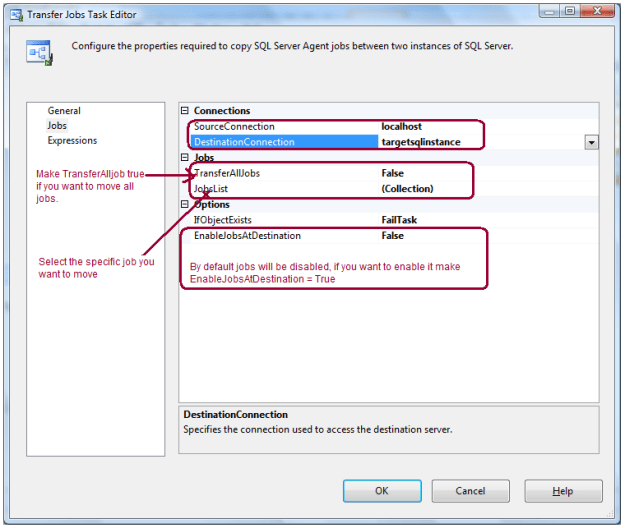
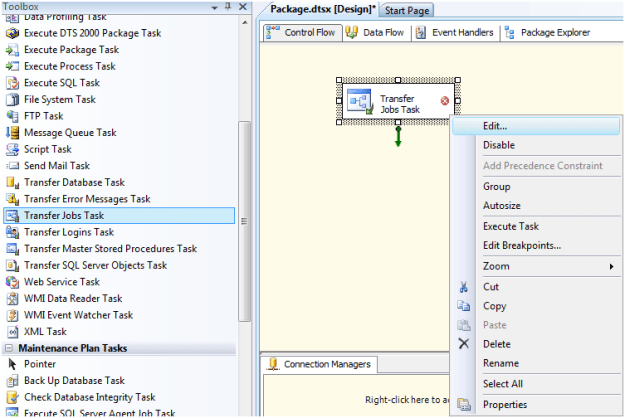
You can use the transfer Jobs Task in SSIS to move the job to different SQL Instance. Right Click on Transfer Jobs task and click on Edit…

Specify the Source Connection and Destination Connection in Jobs page. Here you have options, you can either transfer all jobs or select the specific job from the job list drop down.

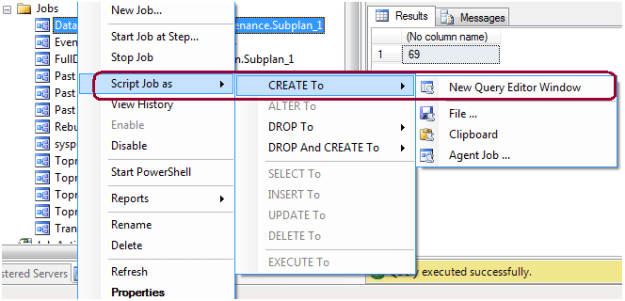
By Scripting Out Job

You can also move the job by scripting it out.

You can also restore the MSDB database on target SQL Box if it is the same SQL version and there is no other jobs exist there.