Category Archives: Notes

All Articles

How to enable database mail feature in SQL Server 2005/2008?

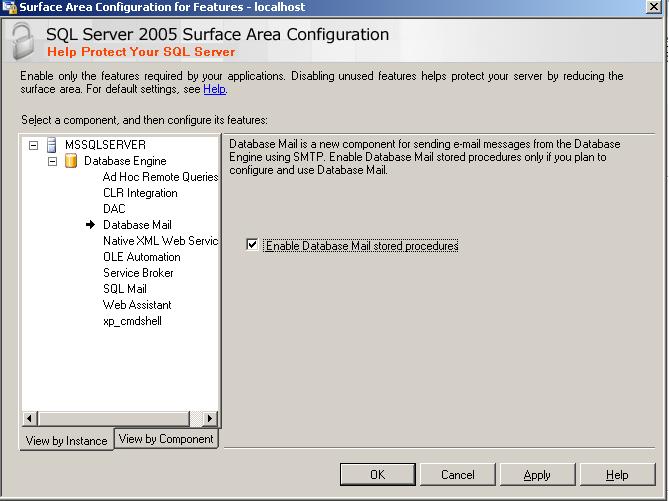
You can enable database mail feature using Surface area configuration tool or using SP_Configure procedure.

use master
go
sp_configure 'show advanced options',1
go
reconfigure with override
go
sp_configure 'Database Mail XPs',1
--go
--sp_configure 'SQL Mail XPs',0
go
reconfigure
go

Using Surface Area Configuration
1. Select Surface area configuration for features

2. Go to database page and click on check box.

Different types of SQL Server Database Access mode

Different types of SQL Server Database Access mode, you can allow access to different users by setting database into below three modes.

Syntax
ALTER DATABASE DBNAME SET ACCESS MODE WITH ROLLBACK

OPTIONS
DB Access Modes
SINGLE_USER – Single user connection to the database
RESTRICTED_USER – Any number of users with db_owner or db creator or logins with sys admin rights can connect to the database
MULTI_USER – Any number of users with rights to the database can connect to the database

As you are changing the database access, you first need to take the exclusive connection database by dropping / rollback the existing connections.

You can specify below options to rollback the existing connections.

WITH ROLLBACK Options – Determines how the exclusive access to the database will take place
ROLLBACK AFTER integer [SECONDS] – Rollback the SPIDs after a particular number of seconds
ROLLBACK IMMEDIATE – Rollback the SPIDs immediately
NO_WAIT – If all of the SPIDs do not commit or rollback immediately the request to put the database in an exclusive state will fail

Examples

ALTER DATABASE DBName
SET RESTRICTED_USER WITH ROLLBACK AFTER 60 SECONDS

ALTER DATABASE DBName
SET RESTRICTED_USER WITH ROLLBACK IMMEDIATE

ALTER DATABASE DBName
SET SINGLE_USER WITH ROLLBACK IMMEDIATE

ALTER DATABASE DBName SET MULTI_USER

Run a Stored Procedure when SQL Server starts

Steps to Run a Stored Procedure when SQL Server starts

As you all know, when SQL Server starts, it will first scan the registry to get the startup parameter values. By scaning registry it will find the master database files first and then make the master database online.

So if you want a procedure to execute when SQL Server starts automatically, you have to create that procedure in Master database only.

Step 1: Create a procedure in master database

Step 2: We have to use sp_procoption to set the stored procedure to execute when SQL Server service starts. Please see the example below.

EXEC sp_procoption 'procedure name', 'startup', 'true'

Step 3: Restart the SQL Service, to check the procedure output.

How turn off startup procedure?
You can turn-off the procedrue execution using below query.
EXEC sp_procoption 'procedure name', 'startup', 'false'