Category Archives: SQL Server 2008 R2

Steps to restore Database using Database Snapshot

Problem: Take a scenario where vendor wants you to up-grade the vendor databae using the SQL scripts. In case if something goes wrong you can either recover database by restoring all backup or by creating database snapshot.

Solution:
Database snapshots feature is available from the SQL Server 2005. Snapshot will be used to create a read-only copy of a database at a given point in time. Any transactions which are uncommitted at the time you create a snapshot will not be included in the database snapshot. You can create multiple snapshots of a source database, but those snapshots must reside on the same instance as the source database.

You must have SQL Server enterprise edition to create the snapshot. A database snapshot only contains the data pages that have changed in the source database since the snapshot was created. It contains the original copies of those pages in order to give the effect of a read-only view. The file that is created to hold the changed data pages when the snapshot is created is known as a sparse file.

A source database that contains a snapshot cannot be dropped, detached, or restored until all of the snapshots have been dropped.

Check below queries to restore the database using snapshot
Before you start restoring using database snapshot
— Make sure the source database does not contain read-only or compressed filegroups.
–Make sure all the files are online that were online when the snapshot was created.
–Delete all snapshots of the source database, except the one you are reverting to.

create database db_pool
use db_pool

create table tb1
(
	id int,
	name varchar(10)
)

insert into tb1 values(10,'Jugal')
go 50;

--select the database and execute the below query to get logical name
SELECT name FROM sys.database_files WHERE type <> 1

--execute below command to create the database snapshot
CREATE DATABASE db_pool_Snapshot
 ON
(Name = db_pool,
 FileName = 'C:\db_pool_Data.ss')
 AS SNAPSHOT OF db_pool
 
--select the original database and drop the rows
use db_pool
delete from tb1

--use the snapshot and query tb1, we can see the data evenif it is deleted 
 use db_pool_Snapshot
 select * from tb1
 
 --now restore database using below script from snapshot
USE master
GO
RESTORE DATABASE db_pool FROM DATABASE_SNAPSHOT = 'db_pool_Snapshot'
 
 --query the database to check changes
 use db_pool
 select * from tb1
Steps to restore the resource database

Few days back, I had discussion with my team member regarding the resource database and we all are curious to see the resource database.

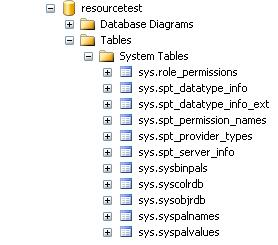
As you all know resource database is hidden database and we can’t see it SQL Server. We follow below steps to restore the resource database and it worked. We can see the resource database.

Resource database file location
By default, these files are located in :\Program Files\Microsoft SQL Server\MSSQL.1\MSSQL\Data\. Each instance of SQL Server has one and only one associated mssqlsystemresource.mdf file, and instances do not share this file. In a cluster, the Resource database exists in the \Data folder on a shared disk.

Follow below steps if you want to see the resource database.
Step 1: Copy the resource database MDF/LDF file to different location and rename it. We have name both data and log file to resourcetest.

Step 2: Execute the below command to attach the resource database file and you can see the resource database.

USE [master]
GO
CREATE DATABASE [resourcetest] ON 
( FILENAME = N'J:\resourcetest.mdf' ),
( FILENAME = N'J:\resourcetest.ldf' )
 FOR ATTACH
GO

Resource Database Image

SQL Dependency Reporting

In SQL Server 2008 new Dynamic Management Functions and a System View introduced to keep track of Object Dependencies.

DMFs in SQL Server 2008 to keep track of object dependencies
sys.dm_sql_referenced_entities
sys.dm_sql_referencing_entities

System View in SQL Server 2008 to keep track of object dependencies
sys.sql_expression_dependencies

sys.sql_expression_dependencies: You can use the sys.sql_expression_dependencies catalog view to report dependency information for a given database. Cross-database entities are returned only when a valid four-part or three-part name is specified.

sys.dm_sql_referenced_entities: Return one row for each user-defined entity referenced by name in the definition of the specified referencing entity. The result set is limited to the entities that are referenced by the specified referencing entity.

sys.dm_sql_referencing_entities: You can use the sys.dm_sql_referencing_entities dynamic management function to return one row for each user-defined entity in the current database that references another user-defined entity by name.

Execute the below queries and check the output.

--create a sample database
create database db_pool
use db_pool
--create a sample table
create table tb1
(
	id int,
	name varchar(10)
)

insert into tb1 values(10,'Jugal')
go 50;

--create a procedure referencing tb1 table
CREATE procedure sp1
as 
	begin
		select * from DB_POOL.DBO.tb1
	end
	
exec sp1

SELECT @@SERVERNAME LocalServer,
               referenced_server_name,
               referenced_database_name,
               referenced_schema_name,
               referenced_entity_name
FROM sys.dm_sql_referenced_entities ('dbo.sp1','OBJECT')


SELECT *
FROM sys.dm_sql_referencing_entities ('dbo.TB1','OBJECT')


SELECT @@SERVERNAME LocalServer,
               referenced_server_name,
               referenced_database_name,
               referenced_schema_name,
               referenced_entity_name
FROM sys.dm_sql_referencing_entities ('dbo.sp1','OBJECT')

SELECT OBJECT_NAME(referencing_id) AS referencing_entity_name,
                referenced_database_name AS database_name,
                referenced_schema_name,
                referenced_entity_name
FROM sys.sql_expression_dependencies
WHERE referenced_entity_name = 'tb1'

select * 
FROM sys.sql_expression_dependencies

SELECT @@SERVERNAME LocalServer,
               OBJECT_NAME (referencing_id) referencing_object_name,
               referenced_server_name,
               referenced_database_name,
               referenced_schema_name,
               referenced_entity_name
FROM sys.sql_expression_dependencies 
where referenced_entity_name = 'tb1'


create procedure sp2
as
begin
   exec sp1
end

SELECT @@SERVERNAME LocalServer,
               OBJECT_NAME (referencing_id) referencing_object_name,
               referenced_server_name,
               referenced_database_name,
               referenced_schema_name,
               referenced_entity_name
FROM sys.sql_expression_dependencies 
where referenced_entity_name = 'sp1'

SQL Server 2008 R2 Unable to Start After Applying CU1

Problem: Recently I got an issue on SQL Server 2008 R2 instance where cumulative update Package 1 applied. SQL Services are unable to start after the CU1.

When I checked the error log, I found the below error messages in the log file.

Error: 33009, Severity: 16, State: 2.
The database owner SID recorded in the master database differs from the database owner SID recorded in database ‘msdb’. You should correct this situation by resetting the owner of database ‘msdb’ using the ALTER AUTHORIZATION statement.

Error: 912, Severity: 21, State: 2.
Script level upgrade for database ‘master’ failed because upgrade step ‘sqlagent100_msdb_upgrade.sql’ encountered error 33009, state 2, severity 16. This is a serious error condition which might interfere with regular operation and the database will be taken offline. If the error happened during upgrade of the ‘master’ database, it will prevent the entire SQL Server instance from starting. Examine the previous errorlog entries for errors, take the appropriate corrective actions and re-start the database so that the script upgrade steps run to completion.

Error: 3417, Severity: 21, State: 3.
Cannot recover the master database. SQL Server is unable to run. Restore master from a full backup, repair it, or rebuild it.

Solution: As mentioned by Microsoft that CU1 has bug which is resolved in CU2 onwards version release. If you have already installed the CU1 perform the below steps to resolve the issue and if you haven’t applied CU1, install CU2.

Step 1: Add the ;-T902 parameter to startup parameter list and start the SQL Server Service.

Step 2: If the SQL Agent Service running, stop the agent service.

Step 3: Connect to SQL Server through SSMS and change MSDB database owner and configure Agent XPs parameter.

ALTER AUTHORIZATION ON DATABASE::MSDB TO SA

Agent XPs value should be 1 for CU1, you can enable it by executing below query.

    EXEC sp_configure 'show advanced', 1;
    RECONFIGURE;
    EXEC sp_configure 'allow updates', 0;
    RECONFIGURE;
    EXEC sp_configure 'Agent XPs', 1;
    RECONFIGURE;
    GO

Step 4: Remove the ;-T902 from the startup parameter list. Restart the SQL Server and Agent Service.

Step 5: Remove the ;-T902 from the startup parameter list. Restart the SQL Server and Agent Service.

Step 6:In SQL Server Management Studio, reconnect to the instance of SQL Server 2008 R2. In Object Explorer, expand Management, right-click Data Collection, and then click Enable Data Collection.

Standardize SQL Server Installations with Configuration Files

ProblemIf you have a requirement to install multiple SQL Server instances with the same settings, you most likely want to do it without following the numerous manual installation steps. The below tip will guide you through how to install a SQL Server instance with less effort.

Solution
http://www.mssqltips.com/sqlservertip/2511/standardize-sql-server-installations-with-configuration-files/