ProblemIf you have a requirement to install multiple SQL Server instances with the same settings, you most likely want to do it without following the numerous manual installation steps. The below tip will guide you through how to install a SQL Server instance with less effort.
Category Archives: SQL Server 2011 (Denali)
Script to get the CPU and Memory Information
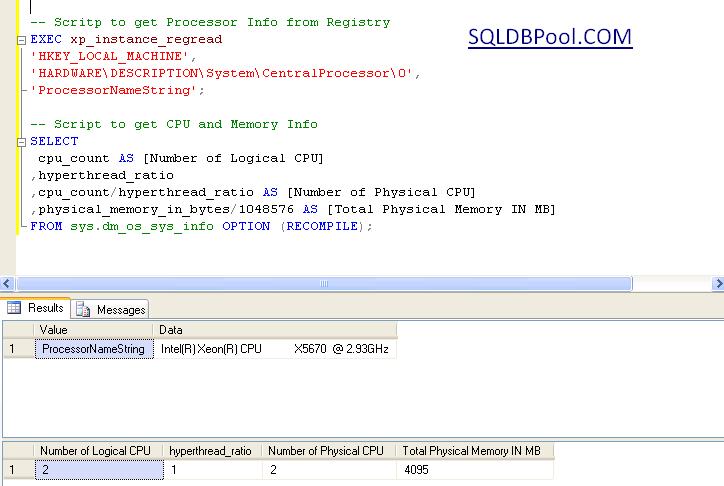
You can execute the below script to get the processor and memory information.
-- Scritp to get Processor Info from Registry EXEC xp_instance_regread 'HKEY_LOCAL_MACHINE', 'HARDWARE\DESCRIPTION\System\CentralProcessor\0', 'ProcessorNameString'; -- Script to get CPU and Memory Info SELECT cpu_count AS [Number of Logical CPU] ,hyperthread_ratio ,cpu_count/hyperthread_ratio AS [Number of Physical CPU] ,physical_memory_in_bytes/1048576 AS [Total Physical Memory IN MB] FROM sys.dm_os_sys_info OPTION (RECOMPILE);
Customizing the Status Bar for each SQL Server Instance registered in CMS
Problem:
Steps to distinguish production and non-production SQL Servers registered in CMS while executing the query. Below article will guide you how to use customize colors in CMS.
Solution
To identify the production and non-production SQL Instances registered in CMS within the same group; you can use the Custom Color feature. In this article I will guide how to use to the custom color feature of CMS.
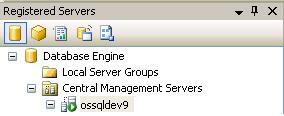
Step 1: Connect to Central Management Server (CMS) from SSMS.
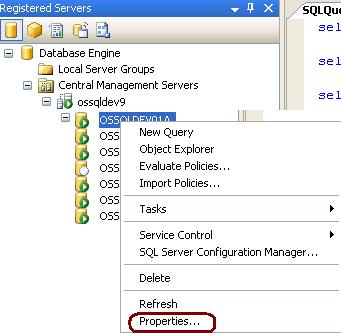
Step 2: Right click on the registered CMS server and select properties.

Step 3:Go to Connection Properties tab, checked the Use Custom color box and select the desired color. Click on Save to proceed.

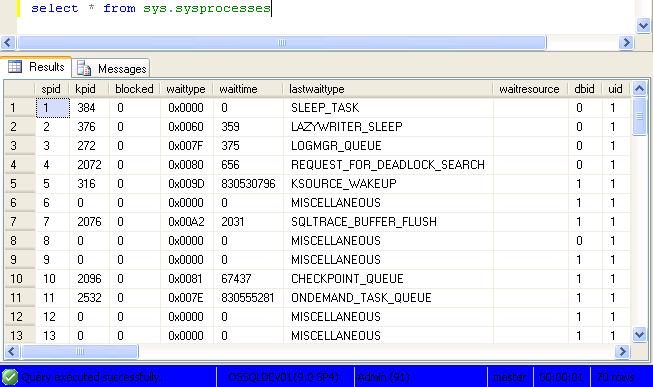
Step 4: Right click on the SQL Instance and Open a new query window. You can see the blue color in the status bar. This way we can identify the production and non-production box. By specifying the custom colors.
Useful queries while troubleshooting Database Mirroring
Query to check the associated ports with DB Mirroring
SELECT type_desc, port FROM sys.tcp_endpoints; GO
Query to check the state of the DB Mirroring
SELECT state_desc FROM sys.database_mirroring_endpoints GO
Query to check the service account connect permission on the DB Mirror endpoints
SELECT 'Metadata Check';
SELECT EndPnt.name, SvrPerm.STATE,
CONVERT(nvarchar(38), suser_name(SvrPerm.grantor_principal_id))
AS GRANTOR,
SvrPerm.TYPE AS PERMISSION,
CONVERT(nvarchar(46),suser_name(SvrPerm.grantee_principal_id))
AS GRANTEE
FROM sys.server_permissions SvrPerm, sys.endpoints EndPnt
WHERE SvrPerm.major_id = EndPnt.endpoint_id
ORDER BY Permission, grantor, grantee;
GO
Query to check the DB Mirror timeout and resetting the DB Mirror timeout
SELECT mirroring_connection_timeout FROM sys.database_mirroring GO ALTER DATABASE SQLDBPOOL SET PARTNER TIMEOUT 15 GO
How to configure SQL to listen on Multiple Ports?
Problem
Recently I came across a situation where an existing production SQL Server default instance was configured to use static TCP/IP port 48030 and the default 1433 port was disabled. A number of database applications are hosted on the same default SQL instance and these applications are connecting to SQL Server through port 48030. As per a new business requirement we need to host a new application database on the same SQL instance, but the application is unable to connect to the SQL instance because it us hard corded to use the default port 1433. In this tip we walk through how to configure a SQL instance to listen on multiple TCP/IP ports.
Solution
For solution please check http://www.mssqltips.com/sqlservertip/2493/configuring-sql-server-to-use-multiple-ports/ URL.