Use the below script to verify the litespeed backup file
exec master.dbo.xp_restore_verifyonly

@filename = N'\\backups\full\mydbbackup.full.BAK',

@filenumber = 1,

@logging = 0
Script to Verify the litespeed backup file
4 Replies
Use the below script to verify the litespeed backup file
exec master.dbo.xp_restore_verifyonly
@filename = N'\\backups\full\mydbbackup.full.BAK',
@filenumber = 1,
@logging = 0
Use below script to list out the important properties of the database
select

	sysDB.database_id,

	sysDB.Name as 'Database Name',

	syslogin.Name as 'DB Owner',

	sysDB.state_desc,

	sysDB.recovery_model_desc,

	sysDB.collation_name,

	sysDB.user_access_desc,

	sysDB.compatibility_level,

	sysDB.is_read_only,

	sysDB.is_auto_close_on,

	sysDB.is_auto_shrink_on,

	sysDB.is_auto_create_stats_on,

	sysDB.is_auto_update_stats_on,

	sysDB.is_fulltext_enabled,

	sysDB.is_trustworthy_on

from sys.databases sysDB

INNER JOIN sys.syslogins syslogin ON sysDB.owner_sid = syslogin.sid
Use below script to change the database compatibility level
ALTER DATABASE DatabaseName

SET SINGLE_USER

GO

EXEC sp_dbcmptlevel DatabaseName, 90;

GO

ALTER DATABASE DatabaseName

SET MULTI_USER

GO
| SQL Server Version | Compatibility Level |
| SQL Server 6.5 | 65 |
| SQL Server 7.0 | 70 |
| SQL Server 2000 | 80 |
| SQL Server 2005 | 90 |
| SQL Server 2008 | 100 |
Problem:Login failed for user XYZ The user is not associated with a trusted SQL Server connection.
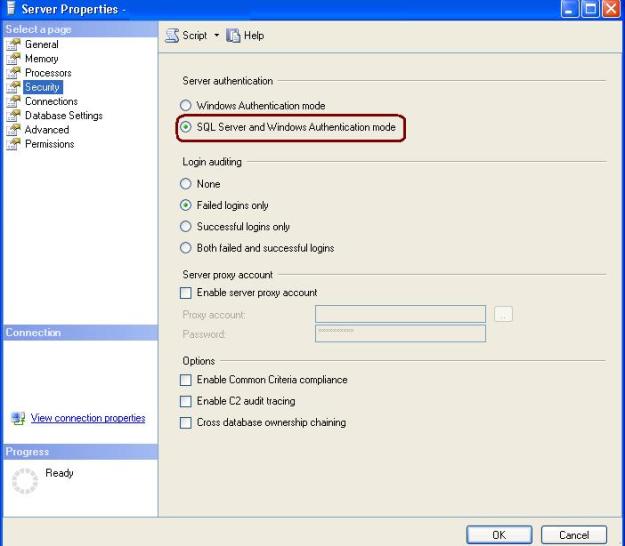
Resolution: Login is failed due the the authentication mode is Windows Authentication and it is not allowing SQL Server authentication for SQL Login.
Change the Authentication Mode of the SQL server from Windows Authentication Mode (Windows Authentication) to Mixed Mode (Windows Authentication and SQL Server Authentication)
Right Click on Server and Select the Server Properties from pop up.
Problem: Unable to install Windows Installer MSP file
Description: I got the above error while installing Service Pack3 on SQL Server 2005 box.
Product : Database Services (INST2)
Product Version (Previous) : 3257
Product Version (Final) :
Status : Failure
Log File : C:\Program Files\Microsoft SQL Server\90\Setup Bootstrap\LOG\Hotfix\SQL9_Hotfix_KB955706_sqlrun_sql.msp.log
Error Number : 11032
Error Description : Unable to install Windows Installer MSP file
Resolution:
Step 1: Check the setup log file from C:\Program Files\Microsoft SQL Server\90\Setup Bootstrap\LOG\Hotfix\SQL9_Hotfix_KB955706_sqlrun_sql.msp.log
Step 2: Search for “return value 3” and scan next +/- 10 lines for error details
Step 3: During scan I found the below error details “Fail create file C:\Program Files\Microsoft SQL Server\MSSQL.1\MSSQL\FTData folder” I have created the required folder at desired location and has resolve the issue.
There are other causes as well for the failure to resolved it you can follow the below steps
– Copy the service pack from network location to installation location or on SQL Server box
– Check for the registry parameters
Check below KB documents to resolve error
http://support.microsoft.com/kb/926622.
 aiDeeva.com