Category Archives: SQL Server 2008

Estimating the size of the Database backup file

Problem: Often we would like to check how much size backup file will take on the disk? You can follow below simple steps to estimate the backup file size?

Solution:
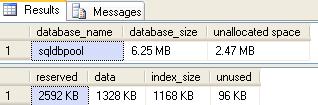
Execute the SP_SPACEUSED procedure to get the database size statistics.
USE [sqldbpool]
GO
EXEC sp_spaceused @updateusage = ‘true’

Now you have to subtract the ununsed pages from reserved pages and divided by 1024 to get the output in MB.

In our scenario we have 2592 (KB) – 96 (KB) = 2496/1024 = 2.4374(MB) will be the backup size.

Dedicated Administrator Connection

DAC: Dedicated Administrator Connection feature is available from the SQL Server 2005. It is available in all the higher editions by default except express edition. DAC will be useful when SQL Server is not responding any connections; in such kind of situation DBA will connect through the DAC and troubleshoot/fix the issue.

You can execute below kind of command for the initial troubleshooting.

-- Locking Info
SELECT * FROM sys.dm_tran_locks
GO
-- Running Sessions
SELECT * FROM sys.dm_exec_sessions
GO
-- Requests Status
SELECT * FROM sys.dm_exec_requests
GO
--Open Sessions
SP_WHO2
--To get the SQL Text
DBCC OPENTRAN (SPID)
--To terminate the curlprit process
KILL SPID

DAC is disabled by default, it is a good practice to enable the DAC. You can enable the DAC using by executing below query.

Use master
GO
--0 = Allow Local Connection,
--1 = Allow Remote Connections*/
sp_configure 'remote admin connections', 1
GO
RECONFIGURE
GO

You can connect using DAC on of the following method.
Command Prompt
SQL Server Management Studio

Using Command Prompt: Use SQLCMD utility to connect to SQL Server as below.
-A argument is to specify the DAC connection.
-S argument is to specify the server name.
-d argument is to specify the database name.
-E argument is for windows connection with integrated security true

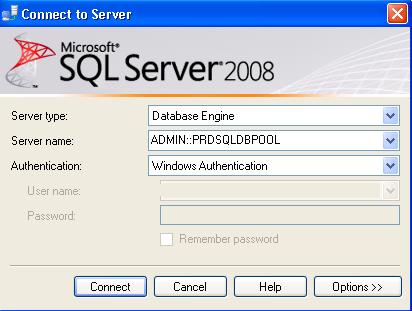
Using Management Studio: Write ADMIN: before the server name in management studio connection window. It will give you the DAC connection.
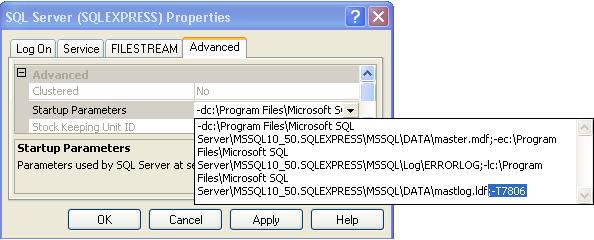
To enable the DAC connection in SQL Server express edition add ;-T7806 trace flag as startup parameter.

Go into configuration manager — right click on SQL Server Service and select properties — go into advanced tab and add the trace flag ;-T7806. Once done restart the SQL Server Services.
Common cause of the performance issues

Below are the most common reasons for the performance issues.


  • SQL Server Configuration Issues

  • Database/table/schema Design and Configuration Issues

  • CPU/IO/Memory Bottleneck

  • Blocking

  • Network Bottleneck

  • Poor Indexing Strategy (Missing Index, Fragmented Index, Un-Used Index)

  • Out-of-date/missing statistics

  • T-SQL Code

  • Application Code

Script to find out Heap Table/Table without clustered Index

Heap Table: Table without a clustered index is called Heap Table. You can find out the Heap Table by querying the sys.indexes or sys.partitions against the index_id column.

select OBJECT_NAME(object_id),* 
from sys.indexes where index_id = 0

Select OBJECT_NAME(object_id),*  
from sys.partitions where index_id = 0

Steps to restore Database using Database Snapshot

Problem: Take a scenario where vendor wants you to up-grade the vendor databae using the SQL scripts. In case if something goes wrong you can either recover database by restoring all backup or by creating database snapshot.

Solution:
Database snapshots feature is available from the SQL Server 2005. Snapshot will be used to create a read-only copy of a database at a given point in time. Any transactions which are uncommitted at the time you create a snapshot will not be included in the database snapshot. You can create multiple snapshots of a source database, but those snapshots must reside on the same instance as the source database.

You must have SQL Server enterprise edition to create the snapshot. A database snapshot only contains the data pages that have changed in the source database since the snapshot was created. It contains the original copies of those pages in order to give the effect of a read-only view. The file that is created to hold the changed data pages when the snapshot is created is known as a sparse file.

A source database that contains a snapshot cannot be dropped, detached, or restored until all of the snapshots have been dropped.

Check below queries to restore the database using snapshot
Before you start restoring using database snapshot
— Make sure the source database does not contain read-only or compressed filegroups.
–Make sure all the files are online that were online when the snapshot was created.
–Delete all snapshots of the source database, except the one you are reverting to.

create database db_pool
use db_pool

create table tb1
(
	id int,
	name varchar(10)
)

insert into tb1 values(10,'Jugal')
go 50;

--select the database and execute the below query to get logical name
SELECT name FROM sys.database_files WHERE type <> 1

--execute below command to create the database snapshot
CREATE DATABASE db_pool_Snapshot
 ON
(Name = db_pool,
 FileName = 'C:\db_pool_Data.ss')
 AS SNAPSHOT OF db_pool
 
--select the original database and drop the rows
use db_pool
delete from tb1

--use the snapshot and query tb1, we can see the data evenif it is deleted 
 use db_pool_Snapshot
 select * from tb1
 
 --now restore database using below script from snapshot
USE master
GO
RESTORE DATABASE db_pool FROM DATABASE_SNAPSHOT = 'db_pool_Snapshot'
 
 --query the database to check changes
 use db_pool
 select * from tb1