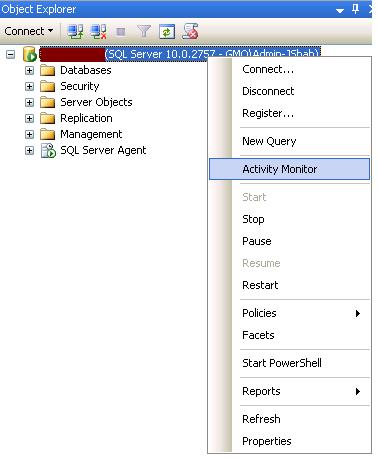
To start Activity Monitor in SQL Server 2008 SSMS, right-click on the SQL Server name you want to monitor.

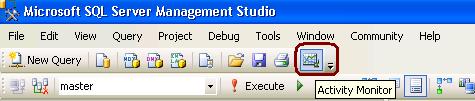
From SQL Server 2008 Management Studio’s toolbar, click Activity Monitor as shown in the snippet below.
Option 1
EXEC master..sp_MSgetversion
Output
Character_Value
——————– ———– ———–
10.0.2789.0 1 3
Option 2
select @@version
Output
Microsoft SQL Server 2008 (SP1) – 10.0.2789.0 (X64)
Jul 12 2010 19:21:29
Copyright (c) 1988-2008 Microsoft Corporation
Enterprise Edition (64-bit) on Windows NT 5.2 (Build 3790: Service Pack 2)
Option 3
SELECT SERVERPROPERTY('productversion')
Output Build Version
10.0.2789.0
Option 5
SELECT SERVERPROPERTY ('productlevel')
Output-Service Pack
SP1
Option 6
SELECT SERVERPROPERTY ('edition')
Output-Edition
Enterprise Edition (64-bit)
Operating system error 112 describes the insufficient disk space on drive.
OS Error 112 occured while Backup
1. Delete the old backuo files on drive if not required
2. Archieve the old files to tape
3. Compress the old backup files to create space
4. Take the backup on other drive
OS Error 112 occured while Restore
1. Shrink the data and log file using DBCC ShrinkFile to reclaim space
2. Move un-necessary files to other drives (.Bakup or etc)
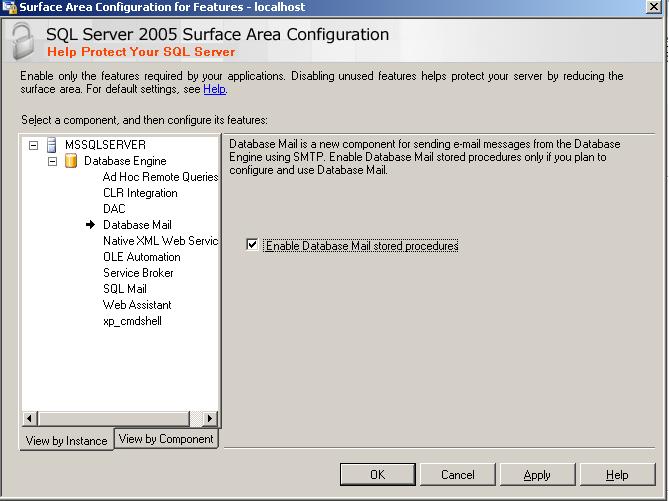
You can enable database mail feature using Surface area configuration tool or using SP_Configure procedure.
use master

go

sp_configure 'show advanced options',1

go

reconfigure with override

go

sp_configure 'Database Mail XPs',1

--go

--sp_configure 'SQL Mail XPs',0

go

reconfigure

go
Using Surface Area Configuration
1. Select Surface area configuration for features

2. Go to database page and click on check box.
Different types of SQL Server Database Access mode, you can allow access to different users by setting database into below three modes.
Syntax
ALTER DATABASE DBNAME SET ACCESS MODE WITH ROLLBACK
OPTIONS
DB Access Modes
SINGLE_USER – Single user connection to the database
RESTRICTED_USER – Any number of users with db_owner or db creator or logins with sys admin rights can connect to the database
MULTI_USER – Any number of users with rights to the database can connect to the database
As you are changing the database access, you first need to take the exclusive connection database by dropping / rollback the existing connections.
You can specify below options to rollback the existing connections.
WITH ROLLBACK Options – Determines how the exclusive access to the database will take place
ROLLBACK AFTER integer [SECONDS] – Rollback the SPIDs after a particular number of seconds
ROLLBACK IMMEDIATE – Rollback the SPIDs immediately
NO_WAIT – If all of the SPIDs do not commit or rollback immediately the request to put the database in an exclusive state will fail
Examples
ALTER DATABASE DBName

SET RESTRICTED_USER WITH ROLLBACK AFTER 60 SECONDS
ALTER DATABASE DBName
SET RESTRICTED_USER WITH ROLLBACK IMMEDIATE
ALTER DATABASE DBName
SET SINGLE_USER WITH ROLLBACK IMMEDIATE
ALTER DATABASE DBName SET MULTI_USER
 aiDeeva.com