Category Archives: SQL Server

DBCC DROPCLEANBUFFERS and CHECKPOINT

DBCC DROPCLEANBUFFERS: is very useful command while doing the performance tuning of the queries. We can use DBCC DROPCLEANBUFFERS to test queries with a cold buffer cache without shutting down and restarting the server.

Before we get into more detail, Let’s take a look sys.dm_os_buffer_descriptors DMV.

sys.dm_os_buffer_descriptors
Returns information about all the data pages which are currently in the SQL Server buffer pool, Output of the DMV will help us to determine the distribution of database pages in the buffer pool.

As you might know, when a data page is read from disk, it will first copy to buffer pool and cached for reuse. Each cached data page has one buffer descriptor.

Sys.dm_os_buffer_descriptors returns cached pages for all user and system databases.

You can use below query to check the buffer descriptor for the current database.

use SQLMonitor
select sysObj.name,* 
from sys.dm_os_buffer_descriptors bufferDescriptors
INNER JOIN sys.allocation_units AllocUnits ON bufferDescriptors.allocation_unit_id = AllocUnits.allocation_unit_id
INNER JOIN sys.partitions Partitions ON AllocUnits.container_id = Partitions.hobt_id
INNER JOIN sys.objects sysObj ON Partitions.object_id = sysObj.object_id
WHERE bufferDescriptors.database_id = DB_ID()
AND sysObj.is_ms_shipped = 0
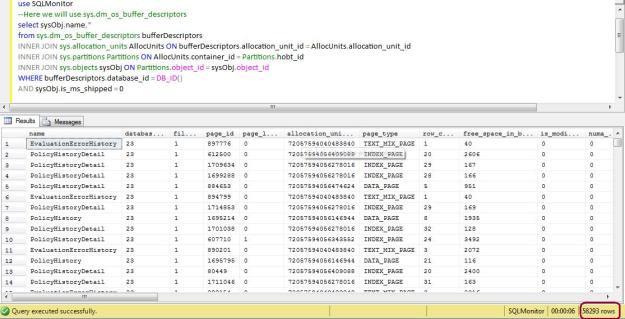
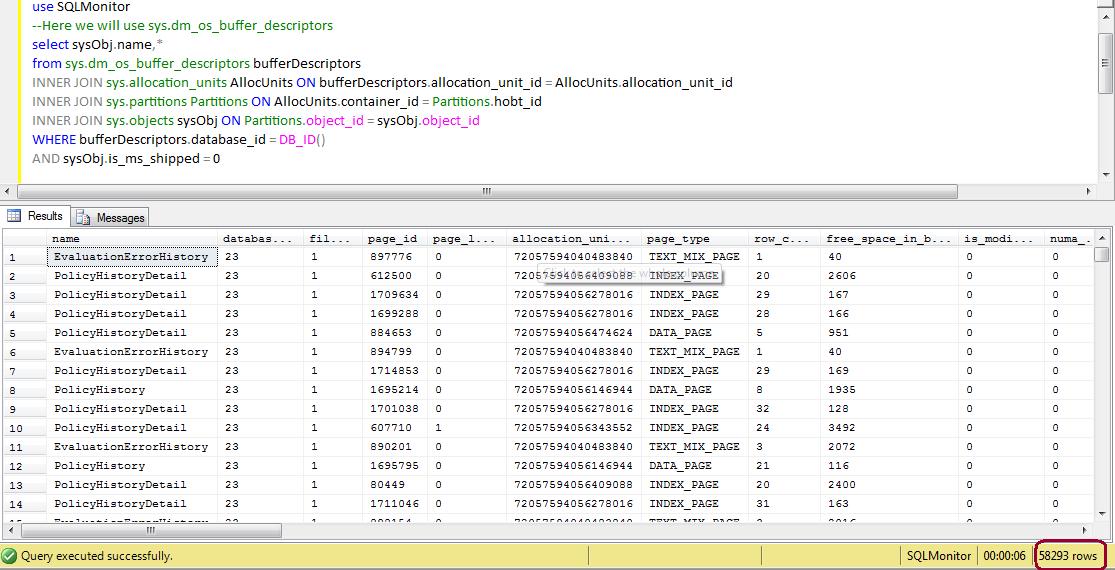
From the above image, you can see that query has return 58293 rows, which means that number of pages. Now let’s execute the DBCC DROPCLEANBUFFERS:, it should clear all the pages.

Execute below command, and again execute the sys.dm_os_buffer_descriptors bufferDescriptors query.

DBCC DROPCLEANBUFFERS

use SQLMonitor
select sysObj.name,* 
from sys.dm_os_buffer_descriptors bufferDescriptors
INNER JOIN sys.allocation_units AllocUnits ON bufferDescriptors.allocation_unit_id = AllocUnits.allocation_unit_id
INNER JOIN sys.partitions Partitions ON AllocUnits.container_id = Partitions.hobt_id
INNER JOIN sys.objects sysObj ON Partitions.object_id = sysObj.object_id
WHERE bufferDescriptors.database_id = DB_ID()
AND sysObj.is_ms_shipped = 0

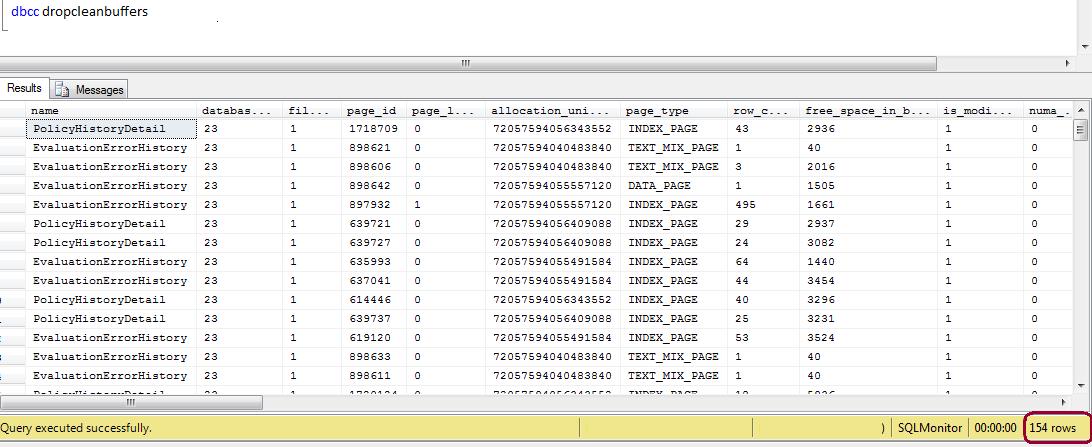
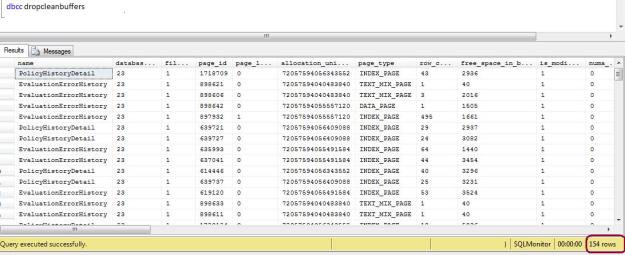
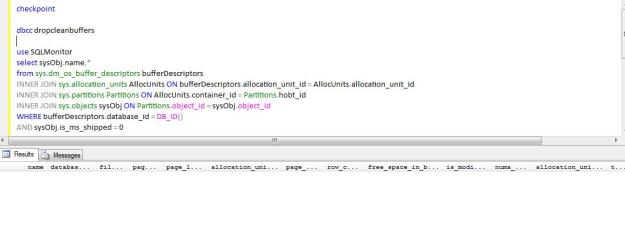
See the results of sys.dm_os_buffer_descriptors, still it has return 154 rows which means all the pages from buffer pool is not cleared.
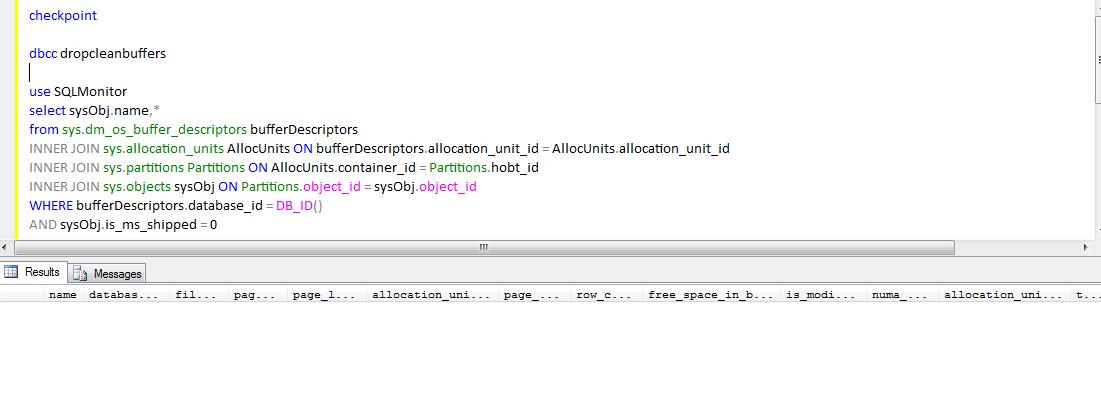
The ideal method to clean the buffer pool is, you have to execute the CHECKPOINT command before executing the DBCC DROPCLEANBUFFERS command.

CHECKPOINT Writes all dirty pages for the current database to disk. Dirty pages are data pages that have been entered into the buffer cache and modified, but not yet written to disk. Checkpoints save time during a later recovery by creating a point at which all dirty pages are guaranteed to have been written to disk.

CheckPoint will help us to produce the cold buffer cache.

--Execute the checkpoint command
CHECKPOINT
--Execute DBCC
DBCC DROPCLEANBUFFERS
--Execute below query to check the buffer descriptors
use SQLMonitor
select sysObj.name,* 
from sys.dm_os_buffer_descriptors bufferDescriptors
INNER JOIN sys.allocation_units AllocUnits ON bufferDescriptors.allocation_unit_id = AllocUnits.allocation_unit_id
INNER JOIN sys.partitions Partitions ON AllocUnits.container_id = Partitions.hobt_id
INNER JOIN sys.objects sysObj ON Partitions.object_id = sysObj.object_id
WHERE bufferDescriptors.database_id = DB_ID()
AND sysObj.is_ms_shipped = 0
I hope above explanation has clear all your doubts regarding how to DROPCLEANBUFFERS, Keep Reading…

How to grant the execute permission to User on all the procedure of the database?

SQL Server 2005 onward, we can create the roles in database. You can follow below simple script to grant the EXECUTE permission to user.


-- creating the database role 
CREATE ROLE Database_Executor
-- granting the execute permission to database role
GRANT EXECUTE TO Database_Executor

-- Here I am granting the SQLDBPool login execute permission
USE [DBName]
GO
CREATE USER [SQLDBPool] FOR LOGIN [sqldbpool]
GO
USE [DBName]
GO
EXEC sp_addrolemember N'Database_Executor', N'sqldbpool'
GO

Database is 100 percent restored but restore command still running and DB is in restoring mode

100 percent restored. [SQLSTATE 01000]

Processed 52345768 pages for database ‘SQLDBPool’, file ‘SQLDBPool_Data’ on file 1. [SQLSTATE 01000]

Processed 3045777 pages for database ‘SQLDBPool’, file ‘SQLDBPool_Log’ on file 1. [SQLSTATE 01000]

Many times you came across a situation where the Database restore is completed but you can see the restore command is running for a long time and your database status is restoring. We always want to know why database restore is taking so long time.

Let’s first check out what restore is doing internally. Restore session performs below three tasks while you execute the restore command.

  • Data Copy Phase
  • Redo phase
  • Undo phase

The data copy phase involves copying all the data, log, and index pages from the backup of a database to the database files. After the completion of this phase SQL Server reports restore completes 100 percent.

In the Redo phase, all the committed transactions present in the transaction log when the database was backed up are rolled forward. It means all the committed transaction changes applied to the database. Still the database has un-committed transaction so database will be in unusable state.

In the Undo phase, all the uncommitted transactions in the transaction log while the database was backed up are rolled back. If the database is being restored with NORECOVERY, the Undo phase is skipped.

From the above explanation you can understand why the restore command is taking longer time after 100 percent completes.

FAQ: How to connect to SQL Server 2008 or 2005 using SQL Server Management Studio?

Many times I am getting a question from the SQL Server newbie, how to connect SQL Server after the installation. You can follow below tip to connect SQL Server. Before we start connect to SQL Server, let’s first go to SQL Server installation. During the installation of SQL Server you will come across the below step where you have to configure the SQL authentication mode.


Windows Authentication: Windows Authentication mode enables Windows Authentication and disables SQL Server Authentication. Using Windows Authentication windows and domain users can connect the SQL Server.

Mixed Mode Authentication: Mixed mode enables both Windows Authentication and SQL Server Authentication. SQL Authentication means SQL Login, Password etc will be managed by SQL Server its self by storing the login info into SQL Server Master database.


While installation if you have selected the mixed mode authentication, you have to specify the password of SA account which SQL Login with full control.


Once the SQL Server is installed click on the SQL Server Management Studio, It will show you the below screen. I have explain all the items in image to connect SQL Server.


Now you are clear about the authentication