Best Practices SQL Server Transaction Log

Background
In SQL Server Database Recovery model will decide how the transaction log will be logged in transaction log file. Transaction log file extension is .LDF

Full – Transaction log is fully logged (Can take log backup)
Bulk Logged – Bulk transaction is minimally logged (Can take log backup)
Simple – Transaction log will be truncated on checkpoint

In transaction log file transactions are sequentially logged, every record in transaction log file is uniquely identified by log sequence number (LSN). LSN data type is Numeric (25,0)

You can follow below best practices for the transaction log file

1. Don’t create multiple log files : As transactions will be logged into log file sequential manner it would not help for data stripping across multiple files
2. Keep the transaction log file on the separate drive
3. Identify the RPO and RTO for the database and according to that choose the recovery model and correct log backup strategy
4. RAID 1 + 0 is high recommended for transaction log
5. AUTO SHRINK should be always off on the database
6. Pre-allocate the space to transaction log file, it will improve the performance. Don’t depend on the auto growth option.
7. Always set the values of Initial size, max size and growth property of the transaction log file
8. Always set auto growth value, don’t set in percentage
9. Transaction Log file internal fragmentation can also lead the performance and database recovery issue. Database should not have an excessive number of Virtual Log Files (VLFs) inside the Transaction Log. Having a large number of small VLFs can slow down the recovery process that a database goes through on startup or after restoring a backup. Make sure transaction log initial size and log growth defined well to avoid internal fragmentation
10. External fragmentation can be removed by using disk defragmentation utility
11. In case of Transaction log full, please use below query to check the cause of the log full and take the decision accordingly.

SELECT name ,
recovery_model_desc ,
log_reuse_wait_desc
FROM sys.databases
WHERE name = @DatabaseName
Task Scheduler Error – specified logon session does not exist

Recently I got a task to move windows server 2003 to windows server 2008. Task is designed to execute .CMD file which internally calling .BAT file. Task was designed to run using service account with store password on windows server 2003.

First of all I was unable to import the task to windows server 2008 due to format issue so I have created new scheduled task and specify the location of .CMD file to execute when I configured the service account and try to store the password I got the below error.

An error has occurred for the task MyProfileTask. Error message: The following error was reported: A specified logon session does not exist. It may have already been terminated.

To resolve the above error follow the below steps.

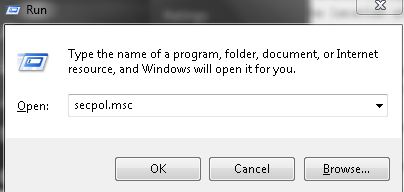
Step 1: Go to run window and type SECPOL.msc and it will open Local Group Policy editor window
Image1

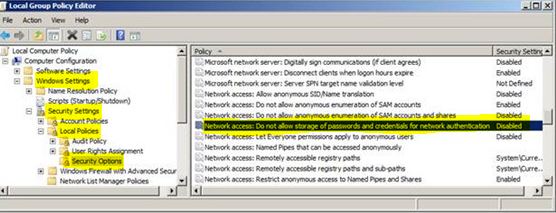
Step 2: Go to Security Settings –> Local Policies –> Security Options and disable the Network Access: Do not allow storage of passwords and credentials for network authentication option.
Image2

Stripping SQL Server Database Backup to Multiple Files

Stripping Database backup to multiple files and on different drives will make the backup speed faster and will reduce the backup duration.

Check the below sample script for the backup and restore. You can perform the same task using SSMS GUI as well.
Backup Script

BACKUP DATABASE [SQLDBPool] TO  
DISK = N'C:\JSpace\Backup\SQLDBPool1.bak',  
DISK = N'C:\JSpace\Backup\SQLDBPool2.bak',  
DISK = N'C:\JSpace\Backup\SQLDBPool3.bak'
WITH NOFORMAT, 
NOINIT,  
NAME = N'SQLDBPool-Full Database Backup', SKIP, NOREWIND, NOUNLOAD,  STATS = 10
GO

Restore Script

RESTORE DATABASE [SQLDBPool] FROM  
DISK = N'C:\JSpace\Backup\SQLDBPool1.bak',  
DISK = N'C:\JSpace\Backup\SQLDBPool2.bak',  
DISK = N'C:\JSpace\Backup\SQLDBPool3.bak'
WITH  FILE = 1,  NOUNLOAD,  STATS = 10,replace
GO

Script to find out the traces running on SQL Server instance

You can execute the below script on SQL Server instance to find out the traces, trace type, trace file path and trace status.

select
      TraceType =
       case trace.is_default
            when 1 THEN 'Default/System Trace'
            when 0 THEN 'User Trace'
       end,
      Trace_Status =
      case trace.status
            when 1 THEN 'Running'
            when 0 THEN 'Stopped'
      end,
       ssion.session_id as SessionID,
       [loginName] = coalesce(ssion.login_name,ssion.login_name,'Reader SPID Not mentioned'),
       [Trace_File_Path] = coalesce(trace.[Path],trace.[Path],'OLEDB Client Trace')
      from sys.traces trace
            left join sys.dm_exec_sessions ssion on trace.reader_spid = ssion.session_id