Click Me to download sample database
Click Me to download sample database
It is always a risk if the user name & password is equal. You can run the below script to find out the list of User/Login name & password which are equal.
select
cast(@@SERVERNAME as varchar(150)) as SQLInstanceName
,name as [LoginName]
,'Password is same as Login Name' [Description]
from sys.syslogins
WHERE PWDCOMPARE (name,password) = 1
It is always good to have the idea about the database properties while doing the migration, performance tuning or configuration.
You can execute the below script to get the database property information.
select
 sysDB.database_id,
 sysDB.Name as 'Database Name',
 syslogin.Name as 'DB Owner',
 sysDB.state_desc,
 sysDB.recovery_model_desc,
 sysDB.collation_name,
 sysDB.user_access_desc,
 sysDB.compatibility_level,
 sysDB.is_read_only,
 sysDB.is_auto_close_on,
 sysDB.is_auto_shrink_on,
 sysDB.is_auto_create_stats_on,
 sysDB.is_auto_update_stats_on,
 sysDB.is_fulltext_enabled,
 sysDB.is_trustworthy_on
from sys.databases sysDB
INNER JOIN sys.syslogins syslogin ON sysDB.owner_sid = syslogin.sid
sys.dm_os_ring_buffers: You can use the undocumented Ring Buffer DMV to troubleshoot the below issues.
Execute the below query to get the distinct ring buffer type.
select distinct ring_buffer_type from sys.dm_os_ring_buffers
Check below script as example to troubleshoot the Security Issue using ring buffer. You can change the ring buffer type in below script to troubleshoot the different issues.
-- Check the Ring Buffer in SQL Server 2008

SET ANSI_NULLS ON
SET QUOTED_IDENTIFIER ON
SET ANSI_WARNINGS ON
SET ANSI_PADDING ON

SELECT CONVERT (varchar(30), GETDATE(), 121) as Run_Time,
dateadd (ms, (ST.[RecordTime] - sys.ms_ticks), GETDATE()) as [Notification_Time],
ST.* , sys.ms_ticks AS [Current Time]
FROM
(SELECT
RBXML.value('(//Record/Error/ErrorCode)[1]', 'varchar(30)') AS [ErrorCode],
RBXML.value('(//Record/Error/CallingAPIName)[1]', 'varchar(255)') AS [CallingAPIName],
RBXML.value('(//Record/Error/APIName)[1]', 'varchar(255)') AS [APIName],
RBXML.value('(//Record/Error/SPID)[1]', 'int') AS [SPID],
RBXML.value('(//Record/@id)[1]', 'bigint') AS [Record Id],
RBXML.value('(//Record/@type)[1]', 'varchar(30)') AS [Type],
RBXML.value('(//Record/@time)[1]', 'bigint') AS [RecordTime]
FROM (SELECT CAST (record as xml) FROM sys.dm_os_ring_buffers
WHERE ring_buffer_type = 'RING_BUFFER_SECURITY_ERROR') AS RB(RBXML)) ST
CROSS JOIN sys.dm_os_sys_info sys
ORDER BY ST.[RecordTime] ASC

-- Script to Check the Ring Buffer in SQL Server 2005

SET ANSI_NULLS ON
SET QUOTED_IDENTIFIER ON
SET ANSI_WARNINGS ON
SET ANSI_PADDING ON

SELECT CONVERT (varchar(30), GETDATE(), 121) as runtime,
DATEADD (ms, -1 * ((sys.cpu_ticks / sys.cpu_ticks_in_ms) - ST.[RecordTime]), GETDATE()) AS NotificationTime,
ST.* , sys.ms_ticks AS [CurrentTime]
FROM
(SELECT
RBXML.value('(//Record/Error/ErrorCode)[1]', 'varchar(30)') AS [ErrorCode],
RBXML.value('(//Record/Error/CallingAPIName)[1]', 'varchar(255)') AS [CallingAPIName],
RBXML.value('(//Record/Error/APIName)[1]', 'varchar(255)') AS [APIName],
RBXML.value('(//Record/Error/SPID)[1]', 'int') AS [SPID],
RBXML.value('(//Record/@id)[1]', 'bigint') AS [Record Id],
RBXML.value('(//Record/@type)[1]', 'varchar(30)') AS [Type],
RBXML.value('(//Record/@time)[1]', 'bigint') AS [RecordTime]
FROM (SELECT CAST (record as xml) FROM sys.dm_os_ring_buffers
WHERE ring_buffer_type = 'RING_BUFFER_SECURITY_ERROR') AS RB(RBXML)) ST
CROSS JOIN sys.dm_os_sys_info sys
ORDER BY ST.[RecordTime] ASC

From the output we can see the hexadecimal error code 0x6FD. You have to convert these error code into decimal value, which will be 0x6FD = 1789
Check the above decimal error codes using the NET HELPMSG command, which will give you more information on the issue.

There are scenarios where your windows account or SQL Server Service windows account is not working as per the expectation. Below are the most common issues observed if there is any issue with Windows Service account.
To check the above properties of domain account, follow the below steps:
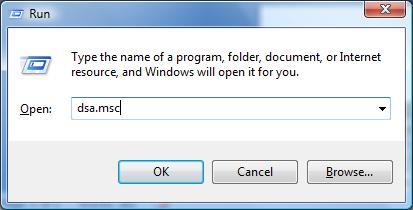
Go to Start | Run and then type “dsa.msc”. That command will open the Active Directory Users and Computers console.
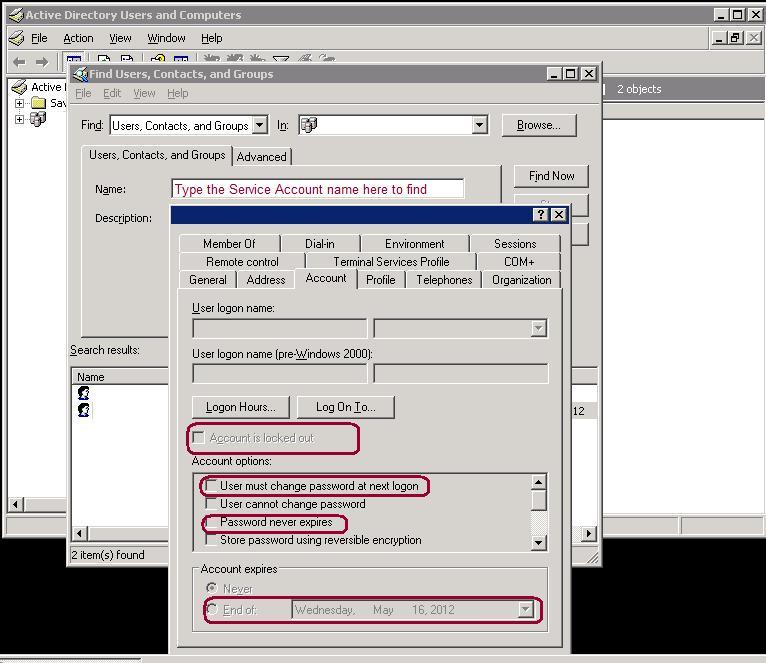
Next right click on the active directory group in the console and click on “Find”. Type the windows account name in the find dialog box and click on the “Find Now” button.
Right click on the windows account name from the search result –> Select Propertie –> Go to Account tab. Here you have to check whether account is locked out or expired or disabled in domain or needs the password changed.
If you find any of the above issue, work with AD or Windows team to fix it.
 aiDeeva.com