Author Archives: Jugal Shah

Unknown's avatar

About Jugal Shah

Jugal Shah has 19 plus years of experience in leading and managing the data and analytics practices. He has done the significant work in databases, analytics and generative AI projects. You can check his profile on http://sqldbpool.com/certificationawards/ URL.

Steps to Save/Store file into Database

You can use the below scripts to store/save the file into SQL Server database table. Please note it is not recommended to store file into database. You can store the file on file system and path in the database.

use sqlDBPool
--documents table will store files into varbinary field
--drop table documents
create table documents
(
	documentID int identity(1,1),
	doctype char(5),
	document varbinary(max)
)


--script to store/save document into table
insert into documents 
 Select 'xls', (SELECT * FROM OPENROWSET(BULK N'C:\JSpace\book1.xls', SINGLE_BLOB) AS document) document
go

select * from documents

@@MICROSOFTVERSION Function

Problem: Take an example you are writing a script which is going to be deployed on the all the versions of SQL Servers and you want to check the SQL Server version details using T-SQL code. Below solution will guide you how to check the SQL Server version in stored procedure/t-sql batch.

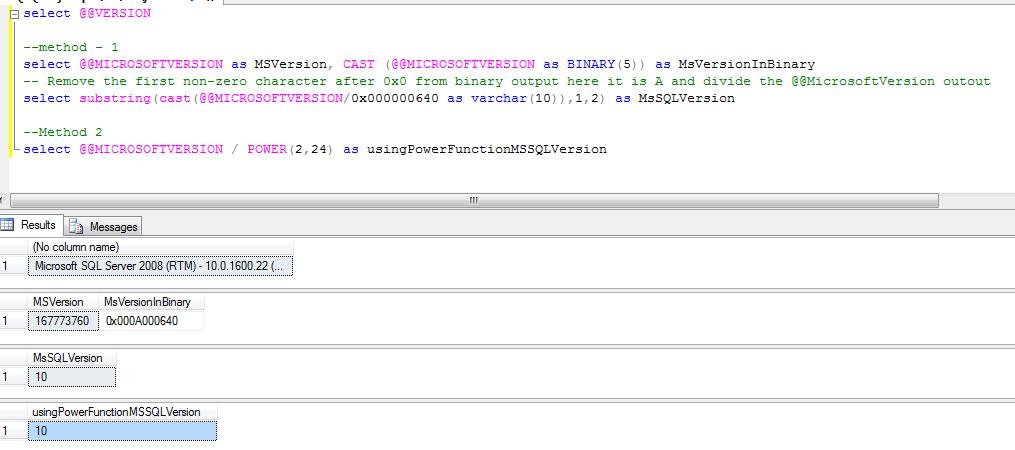
Solution: You can use the @@MICROSOFTVERSION to get the SQL Server version information. If the output of the below script is 9 than its SQL 2005, if 10 than SQL Server 2008 and if 11 than SQL Server 2011

select @@VERSION

--method - 1
select @@MICROSOFTVERSION as MSVersion, CAST (@@MICROSOFTVERSION as BINARY(5)) as MsVersionInBinary
-- Remove the first non-zero character after 0x0 from binary output here it is A and divide the @@MicrosoftVersion outout 
select substring(cast(@@MICROSOFTVERSION/0x000000640 as varchar(10)),1,2) as MsSQLVersion

--Method 2
select @@MICROSOFTVERSION / POWER(2,24) as usingPowerFunctionMSSQLVersion 

How to Capture DeadLock Graph Using SQL Profiler

You can follow below steps to capture the deadlock graph using profiler. First we will setup the profiler and deadlock events and later on we will run the deadlock scenario.

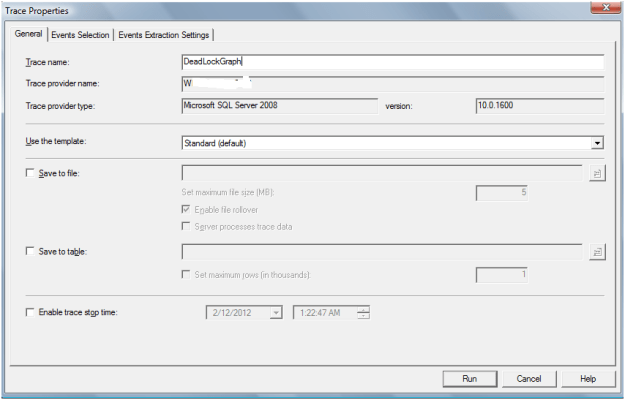
Step 1: Open the SQL Profiler. You can start the SQL Profiler from the SSMS.


Step 2: Configure the trace, in General tab give the name to trace file.

Step 3: Select the below events from the Event Selection tab and Run the trace.

Deadlock Graph

Deadlock Graph event captures deadlock in both XML format and graphically, a graph that shows us exactly the cause of the deadlock.

Lock:Deadlock

This event is fired whenever a deadlock occurs.

Lock:Deadlock Chain

This event is fired once for every process involved in a deadlock.

Step 4: Run the deadlock scenario queries as per http://sqldbpool.com/2012/02/12/steps-to-create-the-deadlock-scenario/ article.

Step 5: You can see the below graph once the deadlock occurred.


Steps to create the deadlock scenario

A deadlock occurs when two or more processes permanently block each other by each process having a lock on a resource which the other process are trying to lock.

Please execute the below queries as per the mentioned comments to produce a deadlock.

--turning on the traceflag to record deadlock info into error log
dbcc traceon(1204,-1)
dbcc tracestatus(1204)

--creating test database
create database sqlDBPool
--Connecting to SQLDBPool database
use sqldbpool
--table creation
create table tb1 (col1 int)
create table tb2 (col1 int)
--inserting dummy records
insert into tb1 values(1),(2),(3)
insert into tb2 values(1),(2),(3)

--Open first connection to update table explicit transaction
begin transaction
  update tb1 set col1 = 5
  
--Open second connection to update table explicit transaction
use sqlDBPool
begin transaction
  update tb2 set col1 = 6
  update tb1 set col1 = 6

--Open first connection to update table explicit transaction
  update tb2 set col1 = 5

You can see the one of the transaction will fail with the below error message.

Msg 1205, Level 13, State 45, Line 3
Transaction (Process ID 55) was deadlocked on lock resources with another process and has been chosen as the deadlock victim. Rerun the transaction.

As we have turned on the deadlock trace flag, you can see the below information in the SQL Server error log.

Starting up database 'sqlDBPool'.
Deadlock encountered .... Printing deadlock information
Wait-for graph
NULL
Node:1  
RID: 9:1:153:0                 CleanCnt:2 Mode:X Flags: 0x3
 Grant List 1:
   Owner:0x05684480 Mode: X        Flg:0x40 Ref:0 Life:02000000 SPID:52 ECID:0 XactLockInfo: 0x065F82A8
   SPID: 52 ECID: 0 Statement Type: UPDATE Line #: 1
   Input Buf: Language Event: update tb2 set col1 = 5
Requested by: 
  ResType:LockOwner Stype:'OR'Xdes:0x05A8CC10 Mode: U SPID:55 BatchID:0 ECID:0 TaskProxy:(0x05A70354) Value:0x6767b20 Cost:(0/432)
NULL
Node:2  
RID: 9:1:155:0                 CleanCnt:2 Mode:X Flags: 0x3
 Grant List 2:
   Owner:0x067679A0 Mode: X        Flg:0x40 Ref:0 Life:02000000 SPID:55 ECID:0 XactLockInfo: 0x05A8CC38
   SPID: 55 ECID: 0 Statement Type: UPDATE Line #: 3
   Input Buf: Language Event: begin transaction    update tb2 set col1 = 6    update tb1 set col1 = 6
Requested by: 
  ResType:LockOwner Stype:'OR'Xdes:0x065F8280 Mode: U SPID:52 BatchID:0 ECID:0 TaskProxy:(0x0941A354) Value:0x6a943a0 Cost:(0/432)
NULL
Victim Resource Owner:
 ResType:LockOwner Stype:'OR'Xdes:0x05A8CC10 Mode: U SPID:55 BatchID:0 ECID:0 TaskProxy:(0x05A70354) Value:0x6767b20 Cost:(0/432)