DBCC DROPCLEANBUFFERS: is very useful command while doing the performance tuning of the queries. We can use DBCC DROPCLEANBUFFERS to test queries with a cold buffer cache without shutting down and restarting the server.
Before we get into more detail, Let’s take a look sys.dm_os_buffer_descriptors DMV.
sys.dm_os_buffer_descriptors
Returns information about all the data pages which are currently in the SQL Server buffer pool, Output of the DMV will help us to determine the distribution of database pages in the buffer pool.
As you might know, when a data page is read from disk, it will first copy to buffer pool and cached for reuse. Each cached data page has one buffer descriptor.
Sys.dm_os_buffer_descriptors returns cached pages for all user and system databases.
You can use below query to check the buffer descriptor for the current database.
use SQLMonitor
select sysObj.name,*
from sys.dm_os_buffer_descriptors bufferDescriptors
INNER JOIN sys.allocation_units AllocUnits ON bufferDescriptors.allocation_unit_id = AllocUnits.allocation_unit_id
INNER JOIN sys.partitions Partitions ON AllocUnits.container_id = Partitions.hobt_id
INNER JOIN sys.objects sysObj ON Partitions.object_id = sysObj.object_id
WHERE bufferDescriptors.database_id = DB_ID()
AND sysObj.is_ms_shipped = 0
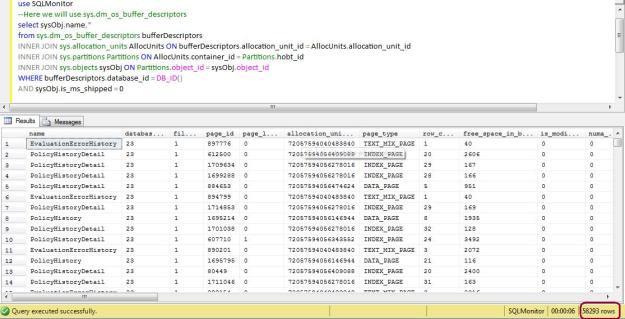
From the above image, you can see that query has return 58293 rows, which means that number of pages. Now let’s execute the DBCC DROPCLEANBUFFERS:, it should clear all the pages.
Execute below command, and again execute the sys.dm_os_buffer_descriptors bufferDescriptors query.
DBCC DROPCLEANBUFFERS

use SQLMonitor
select sysObj.name,*
from sys.dm_os_buffer_descriptors bufferDescriptors
INNER JOIN sys.allocation_units AllocUnits ON bufferDescriptors.allocation_unit_id = AllocUnits.allocation_unit_id
INNER JOIN sys.partitions Partitions ON AllocUnits.container_id = Partitions.hobt_id
INNER JOIN sys.objects sysObj ON Partitions.object_id = sysObj.object_id
WHERE bufferDescriptors.database_id = DB_ID()
AND sysObj.is_ms_shipped = 0
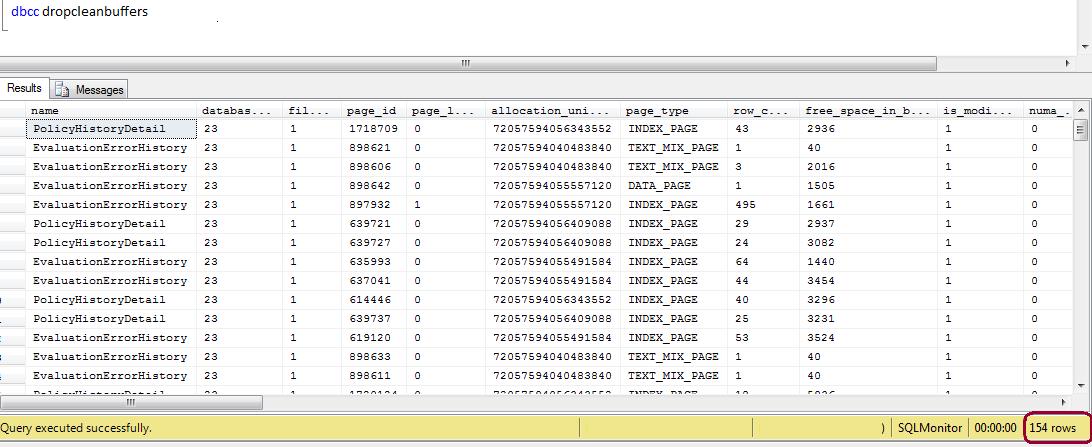
See the results of sys.dm_os_buffer_descriptors, still it has return 154 rows which means all the pages from buffer pool is not cleared.
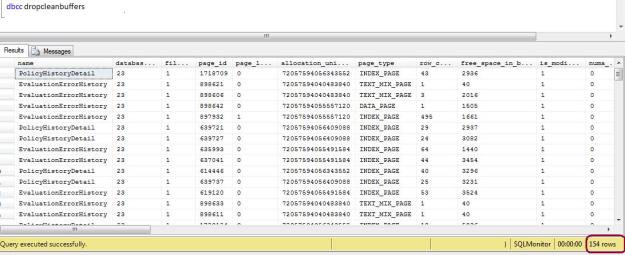
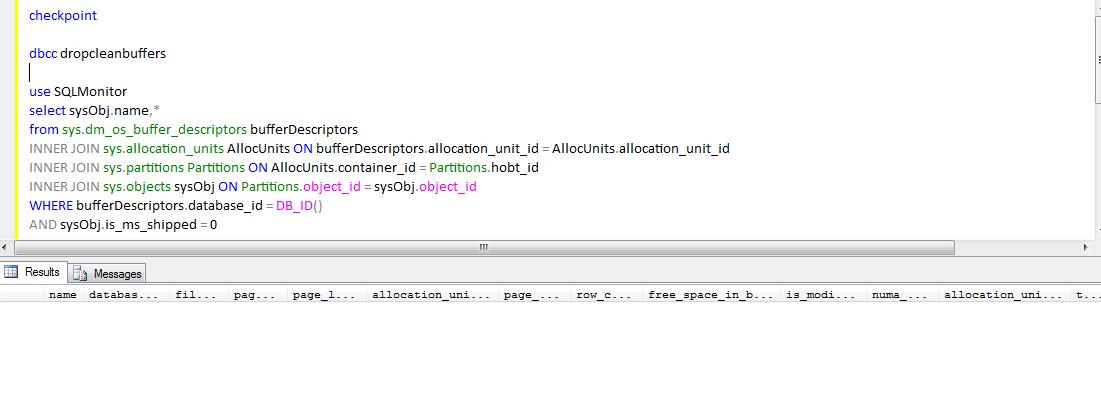
The ideal method to clean the buffer pool is, you have to execute the CHECKPOINT command before executing the DBCC DROPCLEANBUFFERS command.
CHECKPOINT Writes all dirty pages for the current database to disk. Dirty pages are data pages that have been entered into the buffer cache and modified, but not yet written to disk. Checkpoints save time during a later recovery by creating a point at which all dirty pages are guaranteed to have been written to disk.
CheckPoint will help us to produce the cold buffer cache.
--Execute the checkpoint command
CHECKPOINT
--Execute DBCC
DBCC DROPCLEANBUFFERS
--Execute below query to check the buffer descriptors
use SQLMonitor
select sysObj.name,*
from sys.dm_os_buffer_descriptors bufferDescriptors
INNER JOIN sys.allocation_units AllocUnits ON bufferDescriptors.allocation_unit_id = AllocUnits.allocation_unit_id
INNER JOIN sys.partitions Partitions ON AllocUnits.container_id = Partitions.hobt_id
INNER JOIN sys.objects sysObj ON Partitions.object_id = sysObj.object_id
WHERE bufferDescriptors.database_id = DB_ID()
AND sysObj.is_ms_shipped = 0
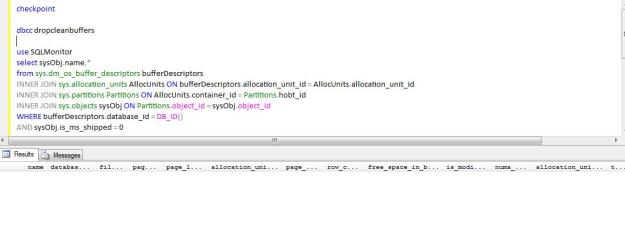
I hope above explanation has clear all your doubts regarding how to DROPCLEANBUFFERS, Keep Reading…
 aiDeeva.com