Category Archives: SQL Scripts

How to insert value into IDENTITY column?

If you will try to insert the value into Identity column you will get the one of the below error.

Error 1:
Msg 544, Level 16, State 1, Line 1
Cannot insert explicit value for identity column in table ‘Employee’ when IDENTITY_INSERT is set to OFF.

Error 2:
Error 8101 An explicit value for the identity column in table can only be specified when a column list is used and IDENTITY_INSERT is ON

Solution:
Write SET IDENTITY_INSERT table name ON before the insert script and SET IDENTITY_INSERT table name Off after insert script.

Example,

use db1

create table Employee
(
	myID int identity(100,1),
	name varchar(20)
)

insert into Employee(name) values('Jugal')

--if i will try to insert the value into Identity column it will fail
insert into Employee(myID,name) values (101,'DJ')

--you can add the data into identiy column by turning on the IDENTITY_INSERT ON

SET IDENTITY_INSERT Employee ON
	insert into Employee(myID,name) values (101,'DJ')
SET IDENTITY_INSERT Employee OFF

Different ways to check the SQL Server Instance Port number

Problem: If there are multiple SQL instances running on the same computer, it is difficult to identify the instance port number. You can use the below solution to find the instance specific port numbers.

Solution: You can check the list of port number used by the SQL Server instances using one of the below way.

Soln 1# Using SQL Server Configuration Manager

  • Go to SQL Server Configuration Manager
  • Select Protocols for SQL2005/2008 under SQL server Network Configuration
  • Right click on TCP/IP and select Properties
  • Select the IP Addresses-tab
  • In the section IP ALL, you can see the ports

Soln 2#From Registry Values
SQL Server 2005
Type the regedit command in Run window and check the below registry values.HKEY_LOCAL_MACHINE\SOFTWARE\Microsoft\Microsoft SQL Server\MSSQL.#

HKEY_LOCAL_MACHINE\SOFTWARE\Microsoft\Microsoft SQL Server\ MSSQL.#\ MSSQLServer\ SuperSocketNetLib\TCP\IPAll

SQL Server 2008
Default instance
HKEY_LOCAL_MACHINE\SOFTWARE\Microsoft\Microsoft SQL Server\MSSQL10.MSSQLSERVER\MSSQLServer\SuperSocketNetLib\TCP\IPAll

Named instance
HKEY_LOCAL_MACHINE\SOFTWARE\Microsoft\Microsoft SQL Server\MSSQL10.(InstanceName)\MSSQLServer\SuperSocketNetLib\TCP\IPAll

Soln 3# Error Log
Query the error log as below to get the port number.

EXEC xp_readerrorlog 0,1,”Server is listening on”,Null

Soln 4# Command Prompts
Execute the below command from the command prompt.

Netstat -abn

Dedicated Administrator Connection

DAC: Dedicated Administrator Connection feature is available from the SQL Server 2005. It is available in all the higher editions by default except express edition. DAC will be useful when SQL Server is not responding any connections; in such kind of situation DBA will connect through the DAC and troubleshoot/fix the issue.

You can execute below kind of command for the initial troubleshooting.

-- Locking Info
SELECT * FROM sys.dm_tran_locks
GO
-- Running Sessions
SELECT * FROM sys.dm_exec_sessions
GO
-- Requests Status
SELECT * FROM sys.dm_exec_requests
GO
--Open Sessions
SP_WHO2
--To get the SQL Text
DBCC OPENTRAN (SPID)
--To terminate the curlprit process
KILL SPID

DAC is disabled by default, it is a good practice to enable the DAC. You can enable the DAC using by executing below query.

Use master
GO
--0 = Allow Local Connection,
--1 = Allow Remote Connections*/
sp_configure 'remote admin connections', 1
GO
RECONFIGURE
GO

You can connect using DAC on of the following method.
Command Prompt
SQL Server Management Studio

Using Command Prompt: Use SQLCMD utility to connect to SQL Server as below.
-A argument is to specify the DAC connection.
-S argument is to specify the server name.
-d argument is to specify the database name.
-E argument is for windows connection with integrated security true

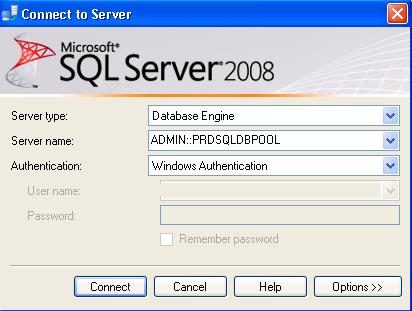
Using Management Studio: Write ADMIN: before the server name in management studio connection window. It will give you the DAC connection.

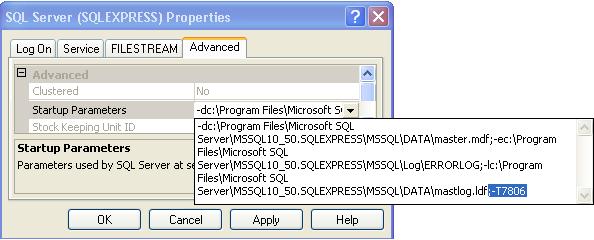
To enable the DAC connection in SQL Server express edition add ;-T7806 trace flag as startup parameter.

Go into configuration manager — right click on SQL Server Service and select properties — go into advanced tab and add the trace flag ;-T7806. Once done restart the SQL Server Services.

Script to find out Heap Table/Table without clustered Index

Heap Table: Table without a clustered index is called Heap Table. You can find out the Heap Table by querying the sys.indexes or sys.partitions against the index_id column.

select OBJECT_NAME(object_id),* 
from sys.indexes where index_id = 0

Select OBJECT_NAME(object_id),*  
from sys.partitions where index_id = 0