Category Archives: SQL Server 2008 R2

Steps to add Log Shipping monitor into an existing SQL Server

Problem
I have a requirement to add the Log Shipping Monitor for an existing installation. I have heard you can only complete this by rebuilding the Log Shipping infrastructure. Is that true? Are there any other options? In this tip I will explain how we can add the Log Shipping monitor to a SQL Server 2005, 2008, 2008 R2 or 2012 environment without rebuilding the Log Shipping installation.

Solution
http://www.mssqltips.com/sqlservertip/2799/steps-to-add-log-shipping-monitor-into-an-existing-sql-server/

sys.sql_logins

sys.sql_logins: Returns one row for each SQL Server authentication login. It will return all the below columns.

  • name
  • principal_id
  • sid
  • type
  • type_desc
  • is_disabled
  • create_date
  • modify_date
  • default_database_name
  • default_language_name
  • credential_id
  • is_policy_checked
  • is_expiration_checked
  • password_hash

You can query sys.sql_logins to get all the below information.

SQL Logins which are disabled:

SELECT name  
FROM [sys].[sql_logins] 
WHERE [is_disabled] = 1; 

SQL Server Logins which adhere the password policy:

SELECT name  
FROM [sys].[sql_logins] 
WHERE [is_policy_checked] = 1;

SQL Server Logins which do not adhere to the password policy

SELECT name  
FROM [sys].[sql_logins] 
WHERE [is_policy_checked] = 0;

SQL Logins which do not adhere to password expiration

SELECT name  
FROM [sys].[sql_logins] 
WHERE [is_policy_checked] = 0 
   OR  ([is_policy_checked] = 1 AND [is_expiration_checked] = 0);

Prevent Truncation of Dynamically Generated Results in SQL Server Management Studio

Problem
While working with the Results to Text option in SSMS, you may come across a situation where the output from dynamically generated data is truncated. In this article I will guide you on how to fix this issue and print all the text for the Results to Text option.

Solution
http://www.mssqltips.com/sqlservertip/2795/prevent-truncation-of-dynamically-generated-results-in-sql-server-management-studio/

Steps to Check the Host Name for a Clustered SQL Server Instance

Problem
While troubleshooting a SQL Server cluster failover issue, it is essential to know the time needed for the cluster failover and the node name where SQL Server was running before the failover occurred. In this tip, I will show you the different options to find the failover time and node name where SQL Server was running before the failover over.

Solution
http://www.mssqltips.com/sqlservertip/2744/steps-to-check-the-host-name-for-a-clustered-sql-server-instance/

Error: Database diagram support objects cannot be installed

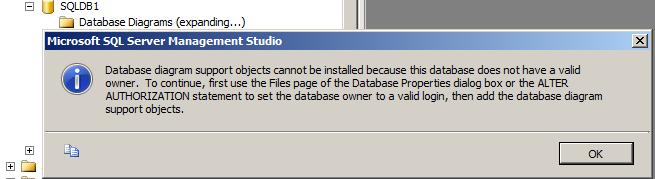
There will be situation while creating the database diagram, you got the below error message.

Database diagram support objects cannot be installed because this database does not have a valid owner. To continue, first use the Files page of the Database Properties dialog box or the ALTER AUTHORIZATION statement to set the database owner to a valid login, then add the database diagram support objects.

Above error is self explanatory where it is stating that the “set the database owner to valid login” To fix the issue please follow below one of the solution.

Solution 1:
Execute the below script by mentioning the database name.

ALTER AUTHORIZATION ON DATABASE::MentionDatabaseName TO sa
GO

OR, you can change the owner by executing the below query.

EXEC sp_changedbowner 'sa'

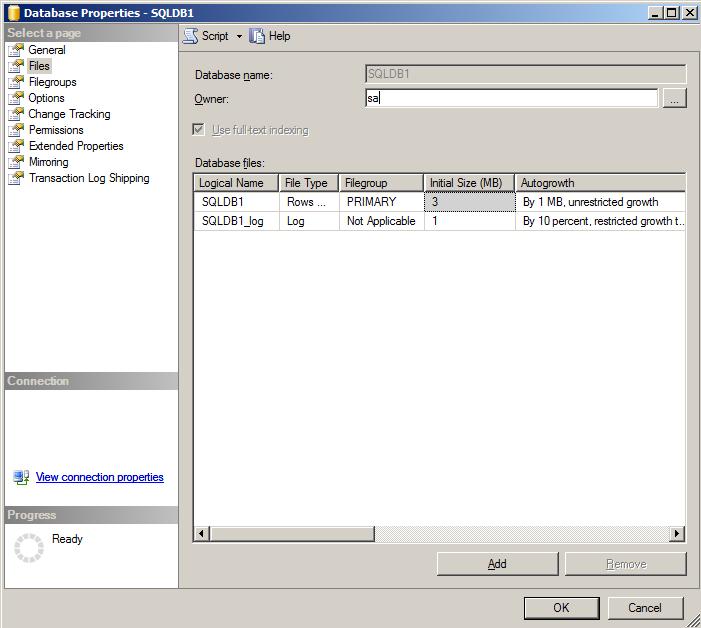
Solution 2:
Right Click on the database -> Database Properties -> click on files page -> change the owner to SA